
If Smart Switch says there's not enough space, compare the selected transfer size with the receiving device's free storage and check the sending phone too. Samsung's US transfer troubleshooting page says low space on either device can cause a failure. A storage warning doesn't always mean that the new phone alone is full.
The fix depends on which device is short on space: the new phone, the old phone, or your computer. Let me show you how to tell which one it is, and how to get the transfer through.
Smart Switch not enough space: Compare the transfer size
The selected content may exceed the receiving phone's free space, or either device may be too full to complete the transfer. Samsung recommends checking both devices and reducing the selected content. If the selected total fits and the warning remains, continue with the application and connection checks instead of assuming the displayed storage figure is wrong.
I'd compare what Smart Switch actually selects with what you expected to move. Check the category sizes on its selection screen. Don't estimate a transfer from the number of apps or the advertised capacity of the phone; neither tells you how much selected content will fit right now.
There is also a limit to what an app selection means. Samsung's Smart Switch FAQ says supported data varies by device and that game data isn't transferred just because the game app is reinstalled. Check important apps' own backup instructions before wiping or trading in the old phone.
Identify which device needs more space
First identify the operation: a phone-to-phone transfer, a computer backup, a restore or an external-storage backup. Then check the destination named by that operation. For phone-to-phone problems, Samsung also tells you to check the sending device, so don't stop after finding free space on the new one.
| How you're transferring | Device to check | Where to look |
|---|---|---|
| Old phone to new phone, wireless or cable | The new phone, sometimes the old one too | Settings > Device care > Storage on both |
| Phone backup to a PC or Mac | The computer's drive | The drive that holds the Smart Switch backup folder |
| Restore from a PC or Mac to a phone | The phone | Settings > Device care > Storage |
| iPhone to Galaxy | The Galaxy and available space on the sending device | Settings > Device care > Storage |
| External storage like a USB drive or SD card | The card or drive | My Files on the phone |
Compare free storage on both Galaxy phones
Open Settings > Device care > Storage on each Galaxy, the path documented in Samsung's US storage guide. Compare available space on the receiving phone with the estimate on Smart Switch's selection screen, then check the sending phone too.
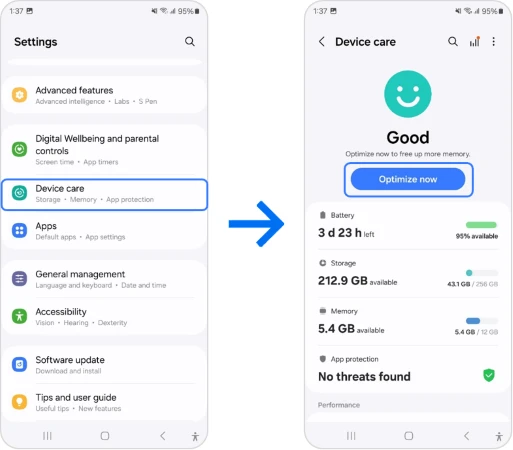
The troubleshooting page doesn't give one extra-space allowance that guarantees every transfer will finish. Reduce the selection so it fits comfortably, then check the estimate again. If Smart Switch shows a specific space requirement on your devices, use that message rather than a fixed number from a generic guide.
Reduce the transfer to the new phone
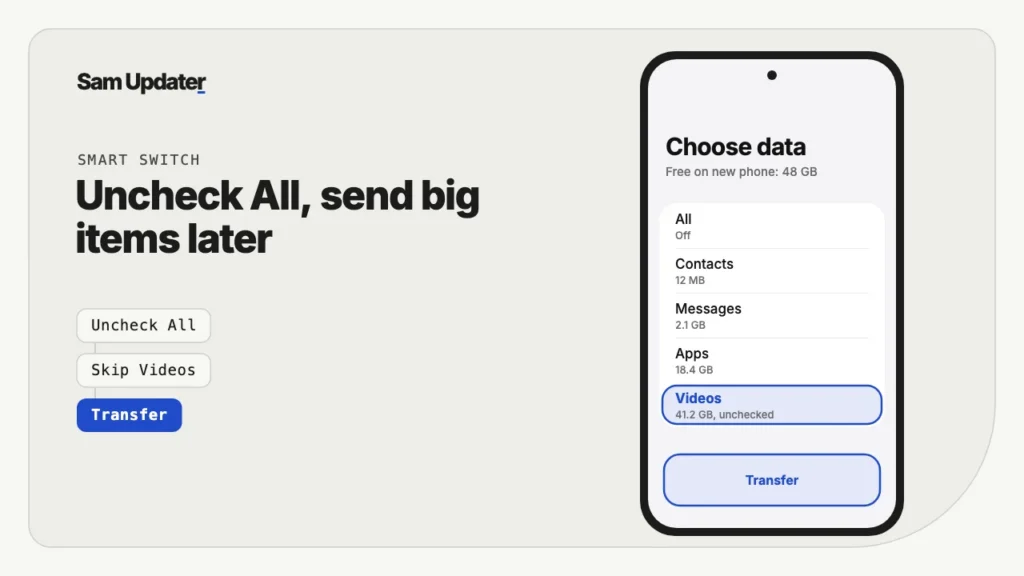
Deselect the biggest items and send them separately. Samsung recommends clearing the All option and picking content one type at a time, which also shows you the size of each category. That's how you find the one that doesn't fit.
- On the selection screen, uncheck All.
- Tap each category to see its size: Apps, Messages, Images, Videos and so on.
- Leave Videos and large apps unchecked for the first pass.
- Tap Transfer and let it finish.
- Run Smart Switch again for the videos only, or copy them over a USB cable to a computer and back.
You can leave apps you no longer use out of the transfer. For anything important, check how its account and local data are restored before deselecting it. Samsung's FAQ distinguishes bringing an app back from transferring everything it stored, so a reinstall should not be your only backup plan.
A phone with a smaller advertised capacity may still hold everything you selected, while a larger one may already be nearly full. Compare the selected amount with free space instead. For files you choose to store on a computer or elsewhere, open the copied files and verify them before removing the originals.
What if the old phone is the one that's full?
Samsung includes low free space on the sending device among its transfer-failure checks. Review that phone before retrying, but don't start deleting the only copy of the data you're trying to move. Make a verified copy of anything important first.
- Review downloaded files and remove only items you no longer need.
- Check for large files already saved and verified on another device.
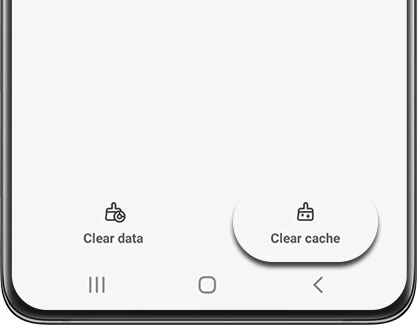
- If clearing an app's cache, use Settings > Apps > select the app > Storage > Clear cache.
Samsung's cache instructions distinguish Clear cache from Clear data. Avoid Clear data while preparing a transfer: it resets the app and removes its stored settings and data.
Check space for a computer backup
Check the drive containing the backup folder, not just any drive that has free space. Samsung's UK computer-backup guide lists the default folders under Documents on Windows and Mac, and says the space needed depends on the data being transferred. If you changed that location, check the drive actually being used.
The same guide documents More > Preferences > Backup items for choosing what to copy. Select what you need, keep the existing backup until you've verified the new one, and don't assume the backup must equal the phone's total used storage. Some content and app data may not be included.
What if there's space and it still fails?
Update Smart Switch on both sides, then try a USB cable instead of Wi-Fi. Samsung's guide says to reinstall the app if it fails even with enough space, and to use a cable if wireless keeps failing.
- Update Smart Switch from the Galaxy Store or Play Store on both phones.
- Restart both phones.
- Use a data-capable cable and, if needed, a compatible adapter for the two devices.
- Start the transfer again with fewer items selected.
If the computer doesn't detect the phone over USB at all, we covered the cable and driver checks in our guide to Samsung USB file transfer not working. And if you're moving phones because of an update, our Samsung temporary cloud backup guide shows another free way to bring your data back.
Frequently asked questions
Does Smart Switch count SD card space?
Smart Switch supports a separate backup-and-restore route using compatible external storage. Samsung's transfer guide explains choosing SD card or USB storage and reducing the selection if it won't fit. An external backup is a different operation from a direct transfer into the new phone.
How much free space does Smart Switch need?
Compare the selected total with the destination's available storage and follow any requirement shown by the app. Samsung also asks you to check both phones. There isn't a single extra-space figure in its troubleshooting guide that guarantees success for every selection.
Can I transfer only photos with Smart Switch?
Yes. Deselect All and choose Images for photos; add Videos only if you want those too. Samsung recommends selecting content individually when troubleshooting a transfer. Start with a small selection you can verify before moving on.
Will Smart Switch delete data from my old phone?
No. It copies your content and leaves the old phone as it was. Keep the old phone untouched until you've checked that photos, messages and app data arrived on the new one.
Was this guide helpful?
Your answer helps us keep it accurate.
Comments (0)
Comments are moderated, and published only if they are relevant to the topic and add value in a constructive way. If you disagree with something, please be polite and respectful.