
If Odin is stuck on SetupConnection, check the full log and the phone's screen before retrying. Start with the USB cable, direct computer connection and Samsung driver, changing one item at a time. Don't treat the last visible log line as a guarantee that unplugging or restarting the phone is harmless.
I'll use a simple test order below so you can tell what changed. Samsung's US USB troubleshooting guide supports the cable, port and driver checks, although that page covers Smart Switch rather than diagnosing Odin errors.
Record the evidence when stuck on SetupConnection
Save the whole Odin log, the program version, your phone's model and a photo of the phone's screen. Note whether this is the first attempt or whether an earlier flash failed. Those details are more useful than a cropped picture showing only SetupConnection, because the earlier lines and the device's condition may change what to do next.
Don't click Start repeatedly while deciding whether the session is still active. If the phone or Odin shows an update in progress, leave the connection in place and seek instructions for that exact state. A quiet log is not enough evidence to say that nothing has been written.
Samsung's official desktop update instructions warn against disconnecting during an update. They don't supply an Odin timeout or a SetupConnection-specific cancellation rule. I would not invent a one-minute cutoff and apply it to every device.
Check the cable and direct USB connection
When the failed session has ended and you can safely set up a new connection, use a cable that supports data and plug directly into the computer. Samsung recommends trying a different cable or USB port for detection problems. A charging symbol by itself doesn't establish that the cable supports data transfer.
- Keep a copy of the failed attempt's log before closing the program.
- Use the documented exit and entry instructions for your phone's Download mode.
- Replace the cable with a known working data cable.
- Connect directly to the computer, leaving a hub or dock out of this test.
- Check whether the computer detects the phone before starting another operation.
Change only the cable first if possible, then test the port separately. If you change the cable, computer and program version together, a successful connection won't tell you which difference mattered. That's why I would keep a short note for each attempt.
Our Galaxy USB troubleshooting guide helps with ordinary Android file-transfer detection. A normal file-transfer connection and a Download mode connection are separate checks; success in one shouldn't be presented as proof that the other is ready.
How do you check the Samsung USB driver on Windows?
Use the driver supplied by Samsung Developers, rather than an unrelated driver-download site. Install it using its own prompts, then reconnect the phone in the required mode. Keep the exact Windows detection error if the device still isn't recognized.
Samsung also documents a Reinstall device driver option in Smart Switch: open the desktop application, select the three-dot menu, choose Reinstall device driver and confirm. That is a documented way to repair its driver installation, not evidence that every Odin error is a driver fault.
- Finish or exit any active device operation before changing drivers.
- Follow the driver installer's prompts, including a restart if requested.
- Reconnect the device and inspect Windows Device Manager for an error.
- Write down the device name and any error code instead of assuming every Galaxy uses the same label.
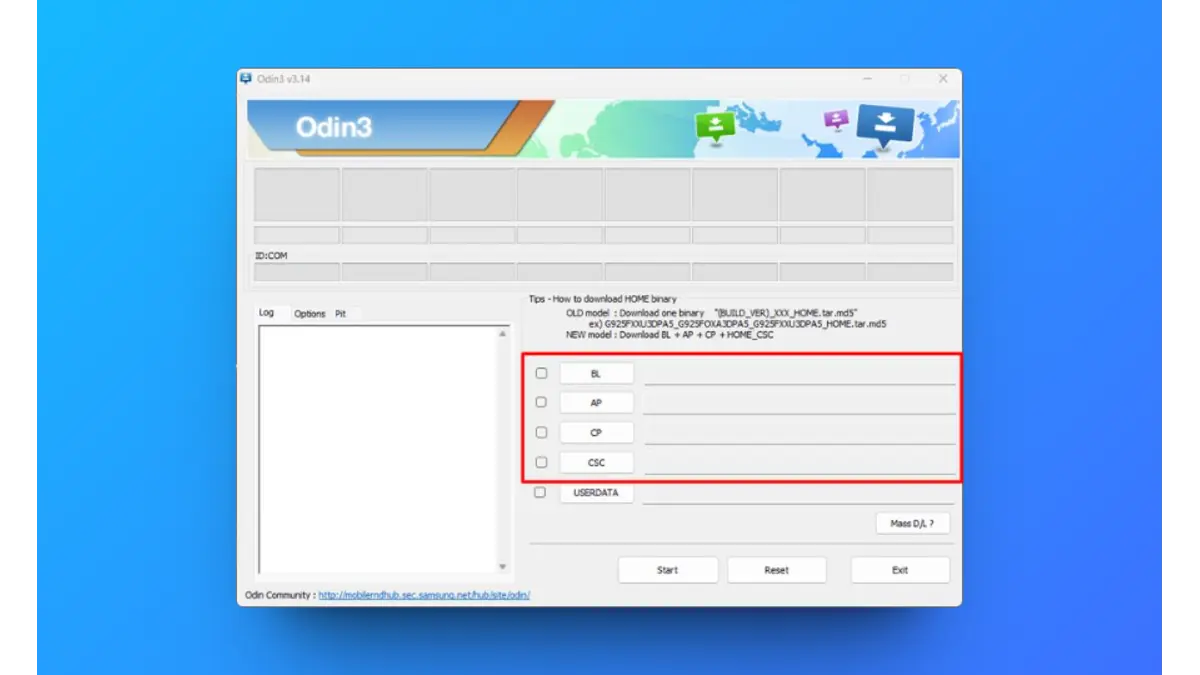
- Close other phone-transfer programs before a controlled Odin retry, so you are testing one program at a time.
You can find installed desktop apps under Windows Settings > Apps if you need to identify an older driver package. Don't remove unrelated USB drivers or change security software simply because Odin is waiting.
Change one thing between connection attempts
Use the same device and files while isolating a physical connection issue. Record each result before moving on. This small checklist separates evidence from guesses and gives a technician something useful if the problem survives the basic checks.
| Change for this attempt | What to record | What it does not prove |
|---|---|---|
| A different data cable | Whether detection and the log change | That the selected firmware is compatible |
| A direct USB port | Whether the same failure occurs without a hub | That every hub causes this error |
| Samsung's driver installation | Any installer or Device Manager error | That the phone itself is undamaged |
| A second suitable Windows computer | Whether the failure follows the phone | A definite diagnosis of a damaged phone port |
Don't keep repeating an unchanged attempt. If the same result follows the phone across those checks, save the evidence and ask for device-specific help. Inspect a loose or damaged connector rather than pushing objects into the port. Samsung's device inspection guidance calls for checking bent or damaged connectors and arranging service for damage.
Should you change firmware or Odin options to fix the connection?
Not as a blind connection test. Keep firmware selection separate from troubleshooting the USB path. Don't choose a different model's files, an older package or partition-changing options simply to see whether SetupConnection moves. A new error after changing those settings can make the original problem harder to understand.
Our Odin download and usage guide covers the tool separately. If the log changes to a different failure, record that exact message. For example, the FAIL! (Auth) article addresses a different error and should not be applied merely because SetupConnection is the last line here.
Frequently asked questions
How long should I wait at SetupConnection?
The Samsung sources linked here don't specify an Odin timeout. Check both the phone and the complete log, and don't use an arbitrary number of seconds as permission to interrupt a possible update.
Does SetupConnection prove my phone is undamaged?
No. A log label doesn't establish the condition of the phone or undo an earlier failed flash. Include previous failures when asking for help rather than reporting only the final line from the latest attempt.
Should I turn on USB debugging?
Don't add that change to a physical connection test unless the procedure for your device specifically requires it. The first checks here concern the cable, port, driver and displayed device state.
What details help someone troubleshoot this?
Share the exact model, Odin version, complete error log and the cable or computer checks you tried. Describe what appears on the phone too. Remove personal identifiers from photos and logs before posting them in the comments.
Was this guide helpful?
Your answer helps us keep it accurate.

Comments (0)
Comments are moderated, and published only if they are relevant to the topic and add value in a constructive way. If you disagree with something, please be polite and respectful.