
If Samsung notification categories are missing, first enable Manage notification categories for each app under Settings > Notifications > Advanced settings. Samsung's US notification guide then directs you to App notifications to adjust individual apps. Some apps still won't offer categories, so the global switch is the first check rather than a guarantee for every app.
There are two places to check: the phone-wide switch that exposes the controls, and the choices inside each app. I'll go through them in that order so you can change one type of alert without accidentally silencing the whole app.
Why did notification categories disappear on my Samsung?
SamMobile's April 24, 2024 report describes category controls being disabled by default with One UI 6.1 and earlier customizations reappearing when the switch was enabled. Samsung's current support guide still documents enabling the switch before customizing categories. Check that setting before assuming the app removed its controls.
If a previously customized alert changed after an update, compare the global setting and the app's current categories. The earlier report gives one explanation for that symptom, but it doesn't prove why a particular app sounds different today.
Turn on notification categories in One UI
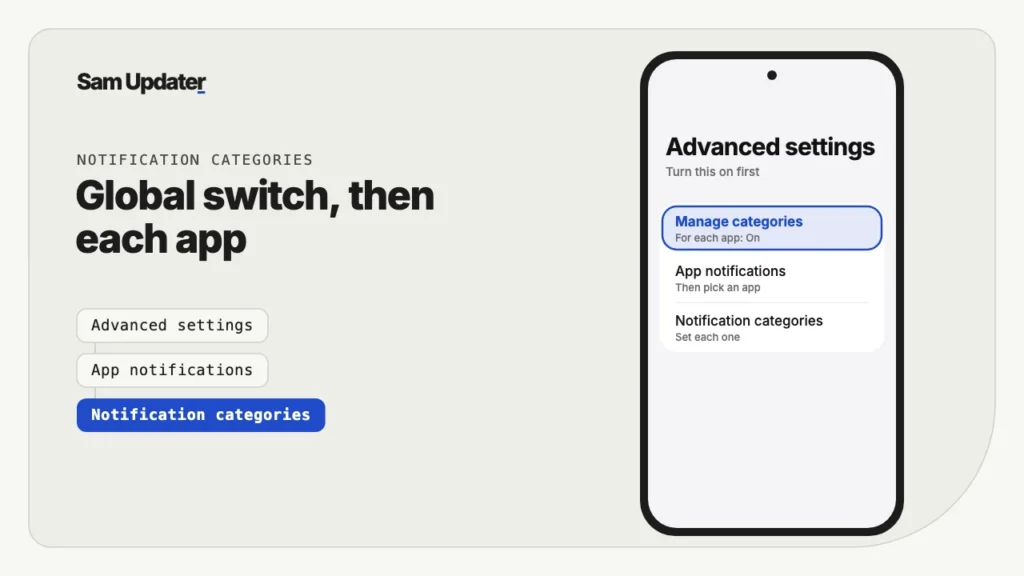
It's a single switch in Advanced settings. Samsung's app notifications support page lists the same steps.
- Open Settings and tap Notifications.
- Scroll down and tap Advanced settings.
- Turn on Manage notification categories for each app.
- Go back to Notifications.
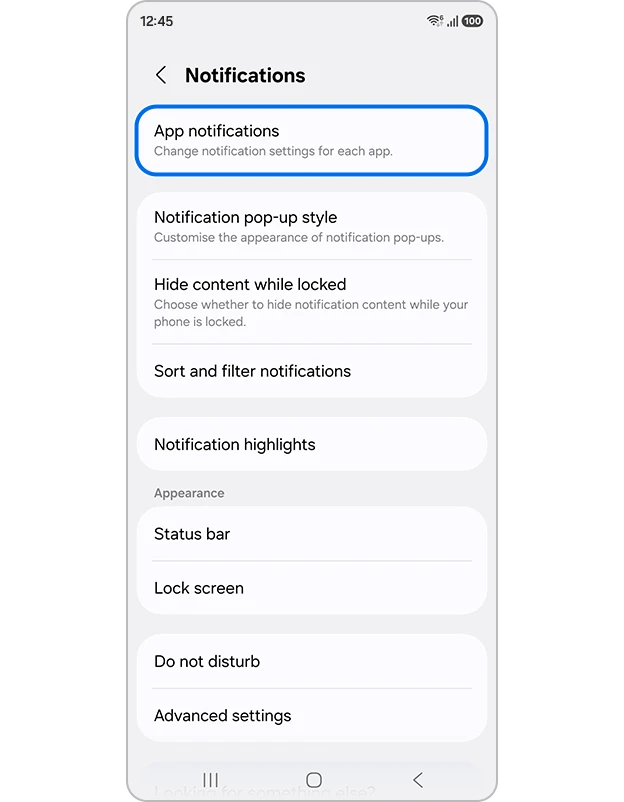
Once the switch is enabled, open the app you actually want to adjust. Keep its main Allow notifications switch on if you want to retain some alerts. The next step is choosing a particular category, not turning the entire app off.
Choose the categories for one app
Open the app in App notifications, then tap Notification categories. Every app decides its own categories, so what you see depends on the app.
- Open Settings > Notifications > App notifications.
- Tap the app, for example WhatsApp or Gmail.
- Scroll down and tap Notification categories.
- Tap a category and choose Alert or Silent, change the sound, or turn it off.
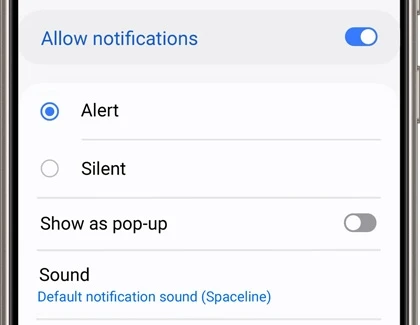
Use the category names actually offered on your phone. The examples below describe choices to look for, not a promise that every messaging, email or shopping app exposes them.
| If the app offers this category | A choice you can consider |
|---|---|
| Group messages | Use a quieter sound while leaving direct-message alerts unchanged |
| Promotions | Silence that category while keeping separate delivery alerts |
| Reminders | Keep an audible alert for items you need to act on |
| Background status | Read its purpose before changing it |
The category names come from each app's developer and change between app versions, so yours might be worded a bit differently.
What if an app has no Notification categories option?
Samsung says some apps won't show a Notification categories section. Use the controls that app does offer, and check its own settings for more options. A missing section doesn't tell you how the app implements notifications internally.
Also check the main Allow notifications switch. Turning off the whole app defeats the goal of keeping selected alerts. If no categories are offered after the global setting is enabled, look inside the app for its own controls rather than assume another Samsung switch is missing.
Separate app settings from system categories
They are different places to configure alerts. Samsung's guide says some apps provide further notification settings inside the app itself. If a category has the expected sound but the alert still behaves differently, compare the app's own choices and test a fresh notification before changing more options.
Why are notifications still not showing after all this?
A missing category and a notification that never arrives are different problems. If the categories are visible and configured, check whether another phone setting is suppressing alerts. Samsung's US battery guide explains that deep sleeping apps don't run in the background; changing a notification sound won't change that restriction.
- Check whether Do not disturb is active before testing an audible alert.
- Review the affected app in Settings > Apps and check its Battery options.
- Review Sleeping apps and Deep sleeping apps under Settings > Battery > Background usage limits.
If you change a battery restriction for testing, change only the affected app and check the result. Our battery-use troubleshooting article can help you review the tradeoff. There's no need to remove background limits from every app just to investigate one missing alert.
If notifications got worse right after One UI 9, we listed other changes and their fixes in our annoying One UI 9 changes guide.
Frequently asked questions
Which One UI version hides notification categories?
The linked SamMobile report documents the default change in One UI 6.1. On your current software, check for Manage notification categories for each app in Advanced settings. Samsung's support instructions document the control, but app-specific options can still vary.
Will turning on categories reset my notification settings?
Enabling the switch is how Samsung exposes category customization. SamMobile reported earlier customizations returning after the One UI 6.1 change, but you should inspect the current categories rather than assume every app kept every old setting through later updates.
Can I set a different sound for WhatsApp groups?
If WhatsApp exposes a group-message category on your phone, open that category and check its Sound option with alerts enabled. If it doesn't, review WhatsApp's own notification controls. Use the options the installed app actually provides rather than a category name from another version.
Why don't I see App notifications in Settings?
Samsung's US instructions use Settings > Notifications > App notifications. If your screen differs, use Settings search to find that name. Tell me your Galaxy model, One UI version and the affected app if you still can't locate it.
Was this guide helpful?
Your answer helps us keep it accurate.
Comments (0)
Comments are moderated, and published only if they are relevant to the topic and add value in a constructive way. If you disagree with something, please be polite and respectful.