
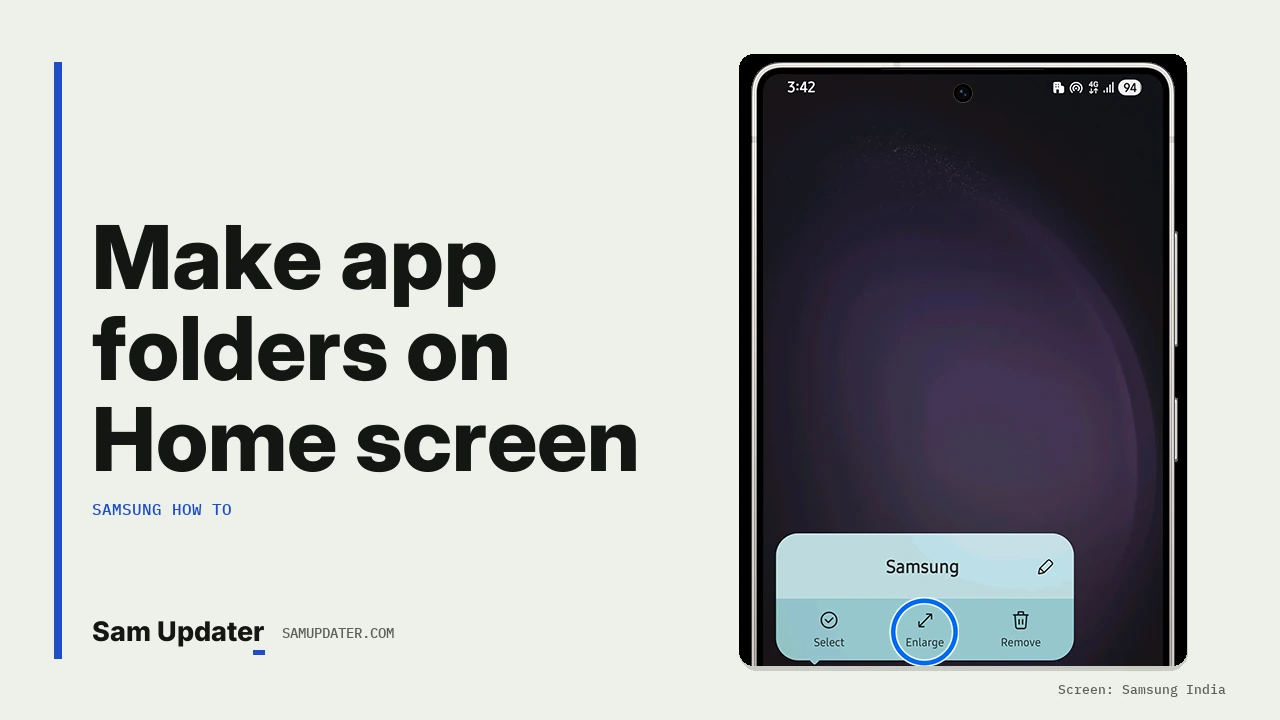
To make app folders on a Samsung Home screen, touch and hold an app, drag it on top of another app and let go. One UI creates the folder right there. If icons keep jumping around, check Home screen settings > Lock Home screen layout first, because a locked layout blocks dragging.
I’ll walk you through naming, coloring and filling a folder, then the bigger Enlarge view that One UI 7 and later added. The steps follow Samsung US’s folder guide, which notes that screens can vary by carrier, software version and model.
Create a folder by dropping one app on another
Any two apps on the Home screen can start a folder. The same gesture works on a Galaxy S26 on One UI 9, a Galaxy A phone or a Galaxy Tab.
- Touch and hold the first app icon until it lifts.
- Drag it over the second app.
- Tap Folder name, type a name and tap Done.
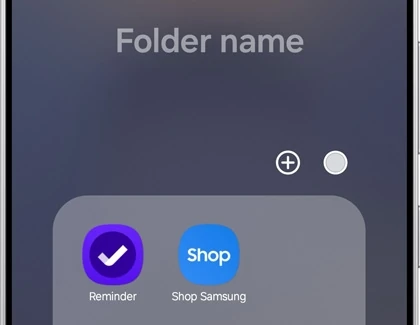
If you skip the name, the folder stays unnamed. You can tap the name area later and add one.
On the Apps screen the gesture is the same. Samsung says you can also touch and hold a folder there and tap Add to Home to place it on the Home screen. A copy stays on the Apps screen, so you end up with two folders that look alike.
Add more apps, pick a color and move the folder
Open the folder and you’ll see a Palette icon and an Add button. The palette sets the folder’s background color, which helps when two folders sit side by side.
- Tap the folder to open it.
- Tap the Palette icon and choose a color.
- Tap Add (+), tick the apps you want and tap Done.
- Tap outside the folder to close it.
You can also drag apps in one at a time from the Home screen. To move a whole folder, touch and hold it, then drag it to a new spot or onto another page.
Folders also fit in the favorites row at the bottom of the screen. Samsung lists that row as holding up to five apps, and a folder counts as one of those slots.
How do you make a Samsung folder bigger?
Touch and hold the folder and tap Enlarge. Samsung India’s guide says this option needs One UI 7 or above and works only on the Home screen. An enlarged folder shows its apps directly, so you can open one without opening the folder first.
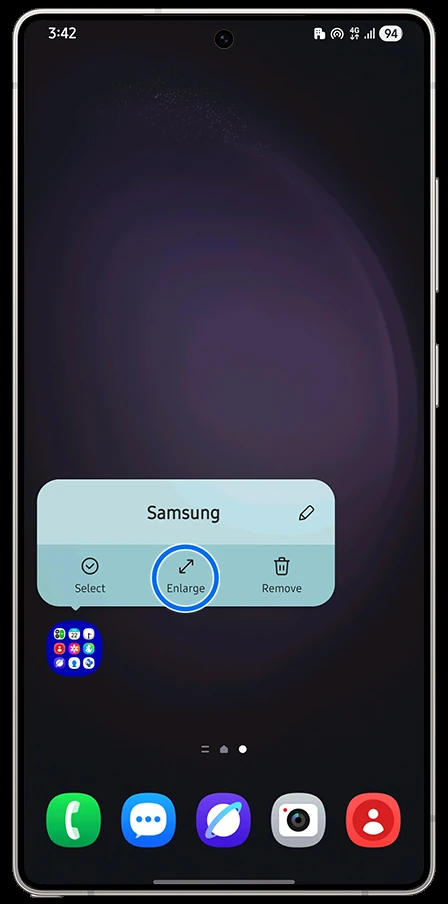
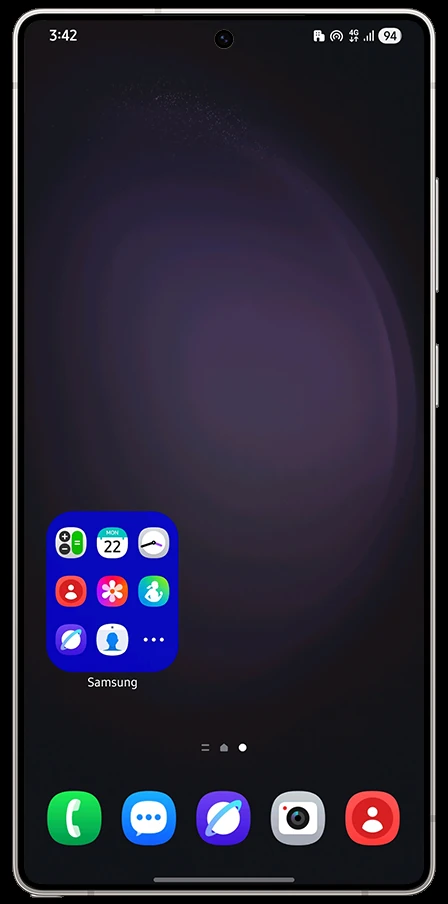
To go back to the normal size, touch and hold the folder again and tap Shrink.
Enlarge needs empty cells around the folder. When there isn’t room, Samsung India’s page shows this message: “Can’t enlarge because there’s not enough space around this folder.” Move the folder to an emptier page or clear a few icons nearby, then try again.
Why can’t I drag apps into a folder?
The usual cause is a locked layout. When Lock Home screen layout is on, icons can’t be moved or removed, so dropping one app on another does nothing. Turn the lock off, build the folder, then switch it back on if you like a fixed screen.
- Touch and hold an empty spot on the Home screen.
- Tap Settings.
- Turn off Lock Home screen layout.
- Go back and drag the app again.
If new installs keep landing on the Home screen and filling it up, our guide to stop new apps from appearing on the Samsung Home screen covers that switch.
Delete a folder without losing the apps
Deleting a folder doesn’t uninstall anything. Samsung says the apps inside go back to the Apps screen.
- Touch and hold the folder.
- Tap Delete folder.
Read the label before you tap. Home and Apps screen copies are separate, so deleting the Home screen folder leaves the Apps screen folder in place. Remove that one separately if you want it gone too.
| What you want | Where to do it |
|---|---|
| Rename or recolor a folder | Open the folder, tap the name or the Palette icon |
| Show apps without opening the folder | Touch and hold the folder, tap Enlarge (One UI 7 and later) |
| Copy a folder from Apps to Home | Apps screen, touch and hold the folder, tap Add to Home |
| Remove the folder but keep the apps | Touch and hold the folder, tap Delete folder |
Sort apps on the Apps screen around your folders
The Apps screen keeps its own folders, separate from the Home screen ones. Our walkthrough on sorting the Samsung Apps screen and changing its scrolling explains the sort options there.
FAQ
Can I put a folder inside another folder?
Samsung’s folder guide only covers adding apps to a folder, with no option for nesting one folder in another. Keep groups flat and use the folder name and color to tell them apart.
Does deleting a folder uninstall the apps?
No. The apps go back to the Apps screen. To remove an app itself, touch and hold the app and choose Uninstall.
Why is there no Enlarge option on my folder?
Check your version under Settings > About phone > Software information. Samsung India lists Enlarge for One UI 7 and above, on Home screen folders only. Apps screen folders won’t show it.
Something on your Home screen still won’t group?
Tell us your Galaxy model, One UI version and what happens when you drop one app on another. Leave out your IMEI and account details.
Was this guide helpful?
Your answer helps us keep it accurate.
Comments (0)
Comments are moderated, and published only if they are relevant to the topic and add value in a constructive way. If you disagree with something, please be polite and respectful.