
Swipe up from the Home screen to open the app drawer on your Samsung Galaxy. Samsung calls it the Apps screen. If you would rather open it with a button, go to Settings > Home screen and turn on Show Apps screen button on Home screen. See Samsung’s guide to opening the Apps screen.
Once you have the drawer open, use More options > Sort to choose how you browse your apps. I would check the Home screen layout first if you swipe up and never see a separate list.
Find the app drawer and its Home screen button
If your apps sit directly on Home, open Settings > Home screen > Home screen layout. Select Home and Apps screens and tap Apply if you want a separate app drawer. The two layout choices are shown in the Galaxy S26 Home screen instructions from Verizon.
- Go back to the Home screen and swipe up from an open space.
- For a shortcut, return to Settings > Home screen and turn on Show Apps screen button on Home screen.
- Go back to Home and tap the new button to open your apps.
Both routes take you to the Apps screen. If you only need to open one app, enter part of its name in the search bar. You can sort the drawer later without moving its shortcut on Home. Samsung also shows the button in its UK Apps screen instructions.
Alphabetical order or Custom order?
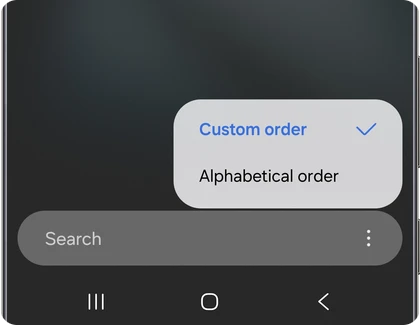
Samsung Canada's app-management guide describes Alphabetical order as one alphabetical Apps screen that you browse vertically. Custom order lets you position apps manually, with horizontal scrolling between pages.
| Choose | When it helps | What changes |
|---|---|---|
| Alphabetical order | You remember an app's name more easily than its position | The Apps list is sorted by name and scrolls vertically |
| Custom order | You want familiar apps in positions you choose | You arrange the icons and move between horizontal pages |
For example, an alphabetical list suits someone who regularly installs unfamiliar apps and finds them by name. A custom page suits someone who remembers a work app in a particular corner. Choose based on how you find apps, rather than treating either layout as a performance upgrade.
Change the Apps screen sorting
- Return to the Home screen and swipe up to open the Apps screen.
- Find the search bar and tap More options, shown as three vertical dots.
- Select Sort.
- Tap Alphabetical order or Custom order.
- Browse the list to check that the result matches the arrangement you wanted.
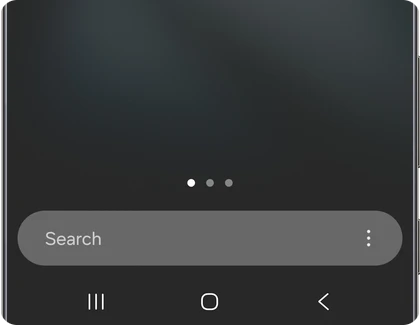
Search may be at the top or bottom depending on the device, software and settings. Samsung Canada's instructions explicitly allow for that difference. Identify the search bar and its menu rather than copying the position from a screenshot.
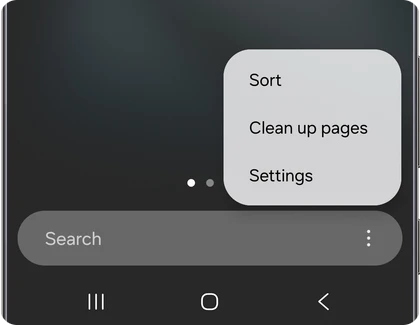
Samsung India's Apps screen explanation ties this vertical behavior to alphabetical sorting and describes horizontal scrolling under Custom order. It discusses the layout introduced with One UI 7; use the controls present on your installed software rather than assuming every older Galaxy has the same scrolling behavior.
Arrange a custom page without confusing it with Home
With Custom order selected, arrange the Apps screen according to the positions you want to remember. Keep the distinction between that screen and Home: the Home screen contains your shortcuts and widgets, while the Apps screen is where you browse installed apps.
Samsung Canada documents adding an app to Home by holding its shortcut and selecting Add to Home. Removing that Home shortcut leaves the app installed and available in the Apps screen. Moving or removing a shortcut is a different decision from uninstalling the app.
If your real goal is to stop newly installed apps appearing on Home, changing the alphabetical list won't solve that. Our guide to the Add new apps to Home screen switch covers that separate setting.
Use Clean up pages for empty spaces
Custom pages can leave gaps between icons. Verizon's Galaxy S26 Home screen instructions document opening the Apps screen's three-dot menu, selecting Clean up pages, then confirming with OK and Apply to rearrange icons and remove empty spaces.
Read the preview or confirmation before applying it if your app positions matter to you. This option is meant to rearrange icons, so it serves a different purpose from choosing an alphabetical list. You can decide that compact pages are useful, or keep your deliberate spacing instead.
The same Verizon page lists Apps screen grid separately. A grid changes how many icons fit on a page; the Sort menu chooses how the apps are ordered. Changing the grid isn't the first thing to try when you want alphabetical scrolling.
FAQ
Will sorting make a hidden app visible again?
Hidden-app selection has its own setting. If you intentionally hid an icon, use our Samsung hidden-app instructions to restore it. Repeatedly switching between the two sorting choices isn't a substitute for checking that selection.
What should I share if my menu looks different?
Tell me your Galaxy model, One UI version and whether you're using One UI Home or another launcher. Include which sorting choices you can see. That makes it easier to compare your actual menu without assuming that an older screenshot matches your phone.
Was this guide helpful?
Your answer helps us keep it accurate.
Comments (0)
Comments are moderated, and published only if they are relevant to the topic and add value in a constructive way. If you disagree with something, please be polite and respectful.