
To change the Samsung lock screen clock, touch and hold the lock screen, confirm your current credentials if asked, then tap the clock in the editor. Choose an available style, review the preview and tap Done. You can add supported widgets in that same editing screen.
You don't need a clock module for this. The built-in editor handles the clock style, font, color and widgets, and I'll show you how to save the result so it sticks. ClockFace only comes into the picture when you want a more detailed design.
Open the built-in lock screen editor
Samsung Canada's current lock screen guide starts editing by touching and holding the lock screen. The phone may ask for authentication before allowing changes.
- Wake the phone so the lock screen is visible.
- Touch and hold an empty part of the lock screen.
- Confirm your existing screen-lock credentials if prompted.
- Wait for the editing view with the selectable clock and other elements.
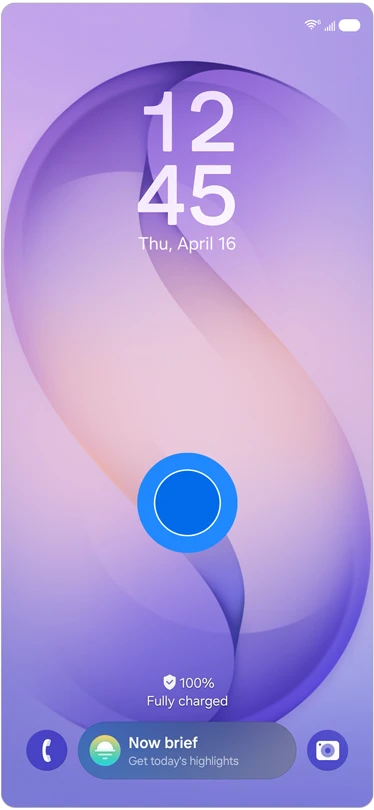
The preview can contain several editable elements. Choose the clock itself when your goal is its appearance. The wallpaper icon and the shortcuts at the bottom lead to different choices, so tapping a neighboring element can put you in the wrong editor.
Select the clock style, font and color
Tap the clock to open the options offered by your installed software. In Samsung's illustrated example, the panel separates Font and color from Style. The same example shows a Done button at the top for retaining the edited screen.
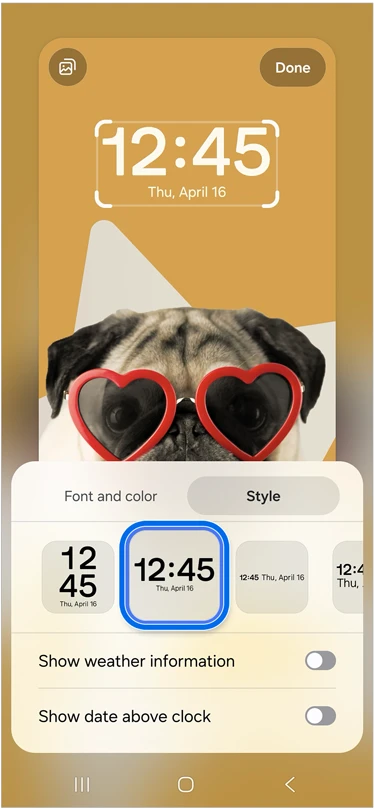
- Tap the clock in the editing view.
- Open Style and select an available clock arrangement.
- Use Font and color if you want to adjust those aspects.
- Compare the clock with the wallpaper behind it.
- Tap Done after reviewing the result.
For example, a busy photograph may leave the time difficult to distinguish even when you like the clock's style. Compare another available color or font against that photograph before changing several parts of the screen together.
Samsung's reference also shows Show weather information and Show date above clock switches. If your editor offers them, decide whether you want those details beside the time. Treat the illustrated controls as an example to compare with your own menu, rather than a promise that every Galaxy offers exactly the same choices.
This changes the lock screen clock's presentation. If the size of text throughout Settings and apps is what bothers you, use our font size and screen zoom guide for those broader display controls.
Add a widget below the clock
Samsung Canada's procedure includes selecting Add widgets and choosing the items you want. The current reference shows a widget selection panel with Weather choices, including current conditions and other weather details.
- Return to the lock screen editor.
- Tap Add widgets.
- Open an available widget category.
- Select an item offered for that category.
- Review the lock screen arrangement and save it with Done.
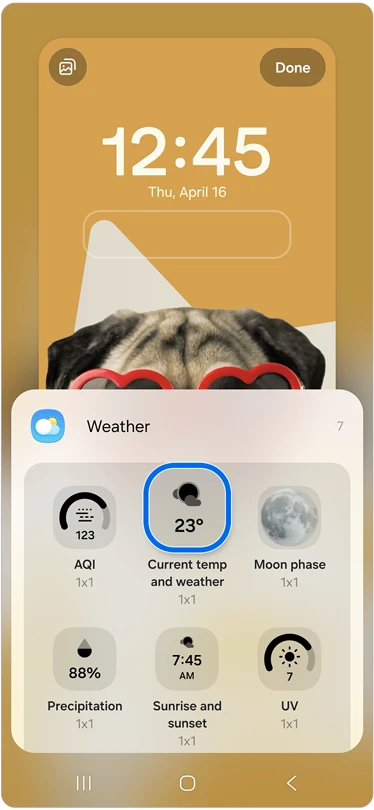
Choose the information you actually want to check before opening an app. A simple temperature view and a more detailed weather item answer different needs. Look at the selection shown on your device instead of assuming that an example widget must be installed or supported everywhere.
Change the bottom shortcuts separately
The same Samsung guide documents selecting the icons at the bottom of the editing screen and choosing the feature for each shortcut. That choice is separate from a widget or a clock style.
If you're changing only the clock, you can leave the shortcuts as they are. If you also want a different shortcut, select that specific bottom icon and review the available list before saving. Change one element at a time so you can see which part of the screen each control affects.
Return to the normal lock screen after tapping Done and inspect the saved layout. Check that the clock remains easy to read, that the selected widget supplies useful information and that any shortcut change matches the icon you intended to replace.
Why won't the lock screen editor open?
Check the Touch and hold to edit switch first. Samsung's US lock screen settings guide lists it under Settings > Lock screen and AOD and says it lets you touch and hold your lock screen to begin editing. If it's off, turn it on and hold the lock screen again.
Keep editing and security timing separate. The time before your display turns off and the delay before credentials are required use other controls. Our screen timeout and auto-lock guide explains that distinction.
Do you need Good Lock ClockFace for a custom clock?
Not for a new style, font or color, because the built-in editor already covers those. Samsung's Good Lock directory describes ClockFace as a module for clock styles decorated with text, images or GIFs, plus AOD clock decoration. It earns its place only when you want that extra design work.
If you do, check that ClockFace is offered for your model before planning a design around it. A simple font swap never needs a full Good Lock setup.
FAQ
Does editing this clock set up Always On Display?
No. Samsung lists Always On Display as its own switch at Settings > Lock screen and AOD > Always On Display, so check that entry for the display shown while the phone is idle. If you use Good Lock, Samsung's directory says LockStar's AOD widgets and stickers sync with the lock screen starting from One UI 7.0.
What should I share if the clock options look different?
Tell me your Galaxy model, One UI version and whether you opened the native lock screen editor or ClockFace. Include the names of the options you see. That makes it easier to compare the correct editor without asking you to share a private wallpaper.
Was this guide helpful?
Your answer helps us keep it accurate.
Comments (0)
Comments are moderated, and published only if they are relevant to the topic and add value in a constructive way. If you disagree with something, please be polite and respectful.