
The difference between Clear cache and Clear data on a Samsung Galaxy is how much the app loses. Clear cache deletes temporary files. Clear data permanently removes the app's personal settings and data and returns it to its original state. To reach both buttons, open Settings > Apps, choose the app and tap Storage.
The two buttons sit side by side, so it's easy to tap the wrong one. I'll show you how to make sure you're on the right app, clear its temporary files and use the bigger reset only when you mean to.
Check which app and storage page you opened
Samsung Canada's current cache and data guide documents the path through Settings, Apps and the selected app's Storage page. Start by identifying the specific app you want to work on.
- Open Settings and tap Apps.
- Select the intended app from the list.
- Check the app name on its information page.
- Tap Storage.
- Review the separate Data and Cache entries before choosing a button.
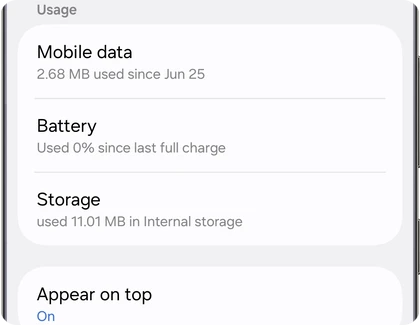
This page concerns the app you selected. An app with a similar name or icon is a different target. Confirm that choice before changing anything, especially when your phone lists both a normal app and related system components.
Use Clear cache for temporary data
Google's current Android storage guidance defines Clear cache as deleting temporary data. It also notes that some apps can open more slowly the next time you use them.
- On the selected app's Storage page, find Clear cache.
- Tap that button.
- Review the Cache figure in the storage breakdown.
- Open the app and compare the specific behavior you were investigating.
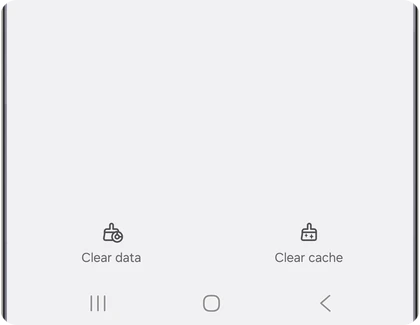
Samsung's example places Clear cache on the right and Clear data on the left. Read the label on your own phone, since layout can vary by model and software. You don't need a computer or a recovery menu to use these app-storage buttons.
Did clearing the cache work?
Check the Cache entry on the same Storage page. Samsung Canada's steps say it should show 0 B once the cache is cleared. That tells you the temporary files are gone, not that your problem is fixed, so go back to the screen or task that misbehaved and try it again.
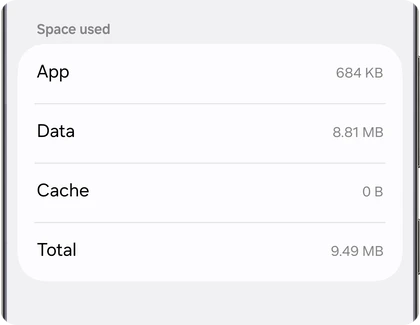
For example, if a particular screen was behaving incorrectly, return to that screen after clearing the cache. Compare that same task instead of judging the result only from the amount of storage released.
Google's note about a slower next opening also matters here. A single slower launch immediately after clearing temporary data isn't a reason to start resetting every other app. Check the behavior you actually wanted to improve.
You can review the Cache field again after normal use. The number on this page is a storage reading at that moment; it isn't a permanent performance score for the app or the phone.
What does Clear data delete on Samsung?
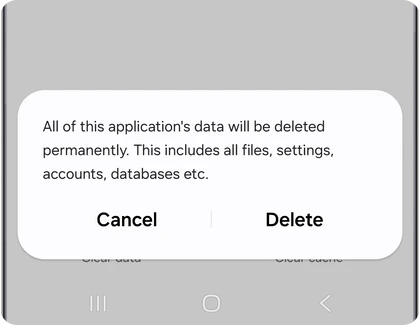
The app's own settings and data. Samsung says Clear data resets the app to its factory default settings and permanently removes all personal settings and data saved within it, so you'll have to sign in and set it up again. Save usernames or account details first, and check whether the app has its own backup or export.
- Return to the intended app's Storage page.
- Select Clear data if you have decided to reset that app.
- Read the confirmation and check the selected app again.
- Choose Delete only when you are ready to proceed, or Cancel to stop.
- Open the app afterward and follow its setup or sign-in process as needed.
Samsung's procedure checks the Data and Cache entries afterward, with 0 B shown in its example. Some system apps may not allow their data to be cleared. Use the controls the app actually offers instead of treating a missing or disabled button as permission to erase another component.
Clear Chrome’s page cache when a website is the problem
If an app opens normally and the problem is with a page in Chrome, you can choose the browser data to remove. Open Chrome, tap More, then tap Delete browsing data. Use More options to select Cached images and files and the time range you want. Review the other boxes before you tap Delete data. If you only want the cached page content gone, leave Cookies and site data, browsing history, and tabs unchecked. Deleting cookies can make you sign in to websites again, as Google's Chrome data options explain.
Keep storage cleanup separate from memory management
App Data and Cache are storage categories. Device care's Memory control is a different tool: Samsung's current Device care instructions put it at Settings > Device care > Memory > Clean now, separate from the storage view.
If you are trying to understand running processes or memory use, our background-app and memory guide explains that comparison. A large cache reading doesn't identify which process is currently using working memory.
Likewise, removing stored data isn't the right control for deciding whether an app may use the camera, microphone or contacts. Our app-permission guide covers those access choices.
If you came here looking for Wipe cache partition, our Samsung Recovery cache guide shows how to check for that menu. Use the Apps screen for the temporary files of one app.
FAQ
Can I clear all app caches at once in Settings?
No. The Clear cache button applies to the app selected on the Storage screen. Samsung's US app cache guide says the only way to clear the cache on every app at once is a factory reset, which erases far more than temporary files. For ordinary troubleshooting, clear the cache of the app with the problem.
Why does Google sometimes call the reset Clear storage?
Google's Android guide uses Clear storage for the action that permanently deletes app data. Samsung's illustrated page labels its reset button Clear data. Compare the described effect and the confirmation on your device, rather than assuming every Android manufacturer uses identical wording.
What should I share if the app still has the same problem?
Tell me your Galaxy model, One UI version, app name and the exact behavior you compared. Include which button you used and whether you saw a confirmation. Keep account credentials and private app content out of your reply so we can focus on the next relevant check.
Was this guide helpful?
Your answer helps us keep it accurate.


Comments (0)
Comments are moderated, and published only if they are relevant to the topic and add value in a constructive way. If you disagree with something, please be polite and respectful.