
If Install unknown apps is grayed out on your Samsung Galaxy, check Auto Blocker first. Samsung's official Auto Blocker community post says the menu is disabled while Auto Blocker is enabled. If that isn't the cause, read the exact message before deciding if the problem is an app permission or a managed-device restriction.
I'll separate those checks below. Turning off one protection won't necessarily change another restriction, and a harmful-app warning needs a different response from a disabled source-permission switch.
Why is Install unknown apps grayed out on Samsung?
Read the message you get when you try to install the APK, then match it below. Each blocker shows its own wording, and that's the quickest way to find the right fix.
| What you see | What's blocking it | Where to fix it |
|---|---|---|
| A pop-up titled Unknown app blocked that mentions Auto Blocker | Auto Blocker | Settings > Security and privacy > Auto Blocker |
| The menu works, but the app you're installing from isn't allowed | That app's own permission | Settings > Apps > Special access > Install unknown apps |
| A padlock, or a message that your organization or admin controls this | A work profile or device policy | Your IT admin, not your settings |
| A message that your parent manages this setting | A supervised-device restriction may apply | Ask the parent or supervisor to review the message |
| A warning from Google Play Protect after the install starts | Play Protect, which scans apps | The Play Protect prompt itself |
Check Auto Blocker before changing permissions
Try to open the APK file. If Auto Blocker is on, you'll get a pop-up saying it prevents the installation of unknown apps, and that you can only install apps from authorized sources like the Play Store or Galaxy Store. The pop-up even tells you where to turn it off.
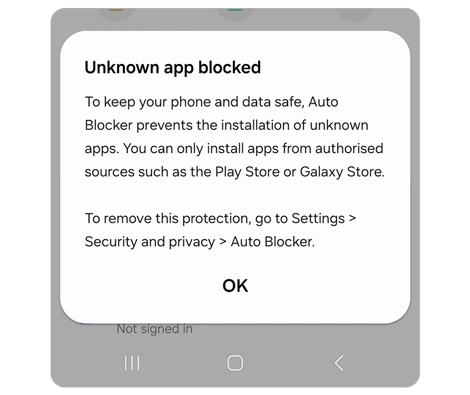
Samsung's UK Auto Blocker page says devices released with One UI 6.1.1 have it on by default, while an upgrade can retain the previous setting. Check the switch on your phone rather than infer its state from the model name. Samsung also notes that menus vary with model and software.
Choose a single installer app you trust
Turn off Auto Blocker for the install, then turn it back on. Samsung's own advice is to temporarily disable it when you're sure the app is safe. Don't leave it off for good just because one app needed it.
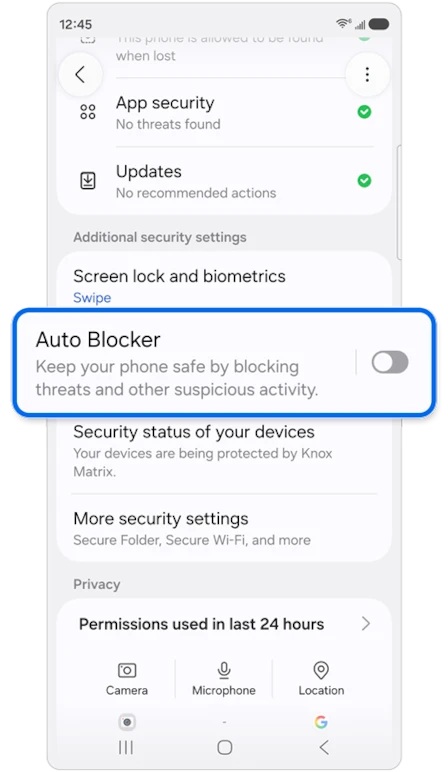
- Open Settings and tap Security and privacy.
- Tap Auto Blocker.
- Turn off the switch and confirm.
- Open the APK again and allow the source when asked.
- Once the app is installed, go back and turn Auto Blocker on again.
There's a catch with updates. Samsung's FAQ notes that an app from outside an authorized store can't update while Auto Blocker is on. So you'll need to repeat this each time that app gets a new version, unless it updates through the Play Store or Galaxy Store.
Only do this for apps you trust and that came from the developer's own site. If you're not sure where an APK came from, don't install it.
While you're in the security menus, check that your phone is on a recent patch too. Our guide shows how to check the security patch level on a Samsung Galaxy.
Review the allowed installation source
Once Auto Blocker is off, check the source named by the installation prompt. Don't enable every app in the list. If the prompt names My Files, granting a browser permission won't answer that specific request. Use the Settings shortcut in the prompt or search Settings for Install unknown apps.
- Open Settings and search for Install unknown apps.
- Open the matching setting.
- Select the source app named in the installation prompt.
- If the permission is available and you have verified the APK's source, allow that source for the install.
- Review the permission again after the installation is complete.
Samsung's US installation troubleshooting page documents searching Settings for Install unknown apps. The illustrated menu below is another layout; use your phone's search if its menus differ.
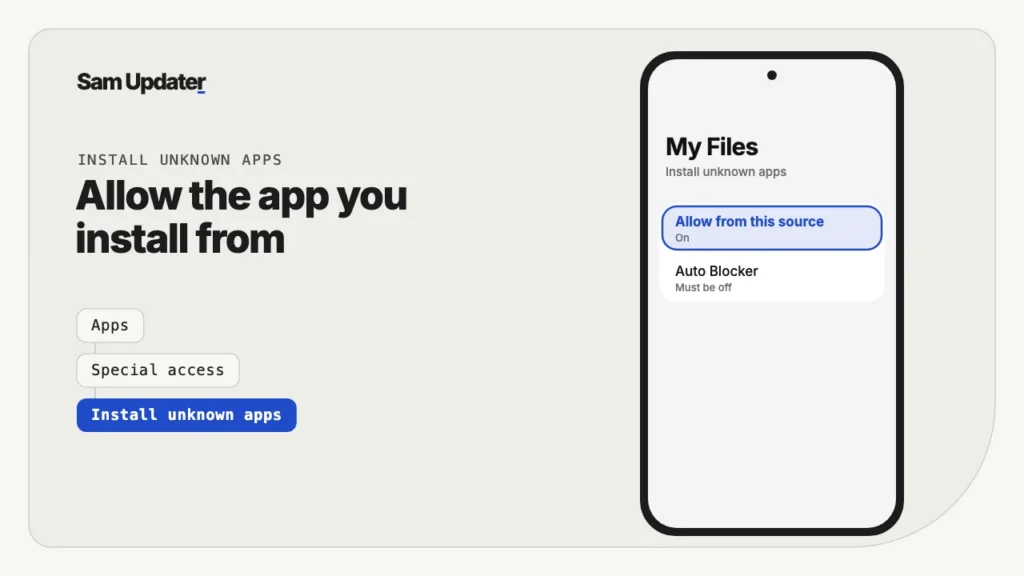
When you open the APK, the phone usually offers a Settings shortcut to this exact screen too. After the install, you can turn the permission off again so that app can't install anything else.
What if the phone says your organization controls it?
An administrator can restrict installation from unknown sources. Android's device-policy documentation describes that control. If the phone names your organization or administrator, send that exact message to IT rather than assume Auto Blocker is responsible.
For a work app, ask whether there is an approved installation route. On a personal phone with unexpected management, ask the seller or support provider to identify it. Don't remove a profile or administrator merely as a troubleshooting experiment; first understand what account and data it manages.
What if a parent or supervisor controls the setting?
If the phone explicitly says a parent manages the setting, ask that person to review the installation request. Don't assume that the ordinary source-permission steps will override supervision. The exact message matters here, so take a screenshot of the restriction and the app you're trying to install.
I would first check whether the developer offers the same app through an approved store. That may meet the need without changing how the supervised device is managed.
Distinguish Play Protect from source permissions
No. Google says Play Protect checks apps for harmful behavior and can warn, block an installation, deactivate or remove a harmful app. That check is separate from whether a source is allowed to install APKs. Leave Play Protect enabled and investigate a warning rather than treating it as another switch to turn off.
Auto Blocker also covers USB commands, which is why it can get in the way when you connect your phone to a computer. We covered that side in our guide to Samsung USB file transfer not working.
Frequently asked questions
Is it safe to turn off Auto Blocker?
Turning it off removes protections while it is disabled. Samsung describes temporarily disabling Auto Blocker when an app has been determined safe, then trying the installation. Verify the developer and download first, and restore Auto Blocker afterward rather than leave it off for future downloads.
Why can't I find Install unknown apps in Settings?
Search Settings for Install unknown apps and open the matching result. Samsung documents that search route, which avoids relying on one menu layout. If the screen is disabled, return to the Auto Blocker or administrator checks instead of repeatedly changing the source app.
Why does my sideloaded app not update?
Because Auto Blocker blocks updates for apps that didn't come from an authorized store, as Samsung's FAQ explains. Either install updates with Auto Blocker briefly off, or use the Play Store or Galaxy Store version of the app if there is one.
Does Maximum restrictions change this?
Maximum restrictions in Auto Blocker, added in One UI 6.1.1, adds more protections on top of the standard ones. Unknown apps stay blocked either way. Turn off Auto Blocker itself if you need to install an APK.
Was this guide helpful?
Your answer helps us keep it accurate.
Comments (0)
Comments are moderated, and published only if they are relevant to the topic and add value in a constructive way. If you disagree with something, please be polite and respectful.