
To stop new app icons from filling your Samsung Home screen, open Settings > Home screen and turn off Add new apps to Home screen. You can still add the apps you want manually from the Apps screen.
Before changing it, I would check Home screen layout in the same menu. A Home screen only layout deliberately puts your apps on Home pages. Choose a layout with a separate Apps screen if you want to keep most installed apps away from those pages.
Turn off automatic shortcuts for new apps
Samsung uses separate controls for adding newly downloaded apps and protecting the arrangement you already have. Its US foldable instructions describe Add new apps to Home screen as the automatic placement control. Lock Home screen layout protects items from being moved or removed.
- Open Settings and tap Home screen.
- Find Add new apps to Home screen.
- Turn that switch off.
- Return to the Home screen. Remove any unwanted shortcuts already there using the steps below.
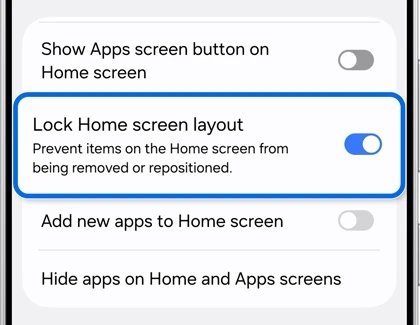
Pay attention to which switch you change. If your problem is an icon appearing after every installation, use Add new apps to Home screen. If your problem is moving an icon accidentally, use the layout lock after arranging your shortcuts.
These are Home screen choices, rather than download settings in Google Play or Galaxy Store. You can decide where an app shortcut appears without changing how you download the app itself.
Check whether you have a separate Apps screen
In a Home screen only layout, your apps live across the Home pages. Samsung's US app organization guide says swiping up in that layout shows suggested apps and a search bar; the rest of your apps appear on the Home screen.
A Home and Apps screens layout gives you a separate place for installed apps. That suits a setup where only a few chosen shortcuts belong beside your clock or other widgets. Check the selected layout before assuming the new-app switch has failed.
- Open Settings > Home screen > Home screen layout.
- Read the selected option.
- If you want a separate app collection, select Home and Apps screens and apply the choice offered by your software.
- Return Home and swipe up to reach the Apps screen.
Changing layout is a broader decision than turning off automatic shortcuts. If you already like a Home screen only setup, you can keep that layout and organize its pages instead. There is no need to switch layouts just because another Galaxy owner uses an app drawer.
Add back only the shortcuts you use
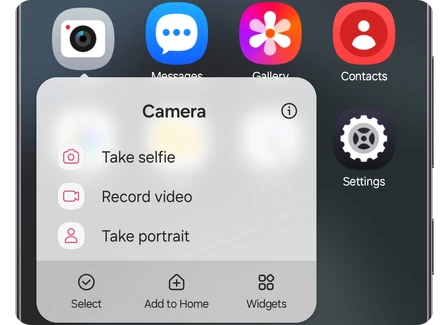
Once you have an Apps screen, choose which installed apps deserve a Home shortcut. Samsung Canada documents Add to Home in the menu that appears when you hold an app icon.
- Swipe up from Home to open the Apps screen.
- Find the app you want to place on Home.
- Touch and hold its icon until the shortcut menu appears.
- Tap Add to Home.
- Return to Home and check where the shortcut was placed.
You can also hold an app and drag it onto the Home screen, as described in Samsung's Home screen organization instructions. Use that method when you want to choose the position as you add the shortcut.
For a frequently used app, a physical-button shortcut is another option. Our Side button customization guide explains that separate assignment. It can make sense for Camera or Flashlight when you want quick access without adding another Home icon.
Remove unwanted icons without uninstalling the apps
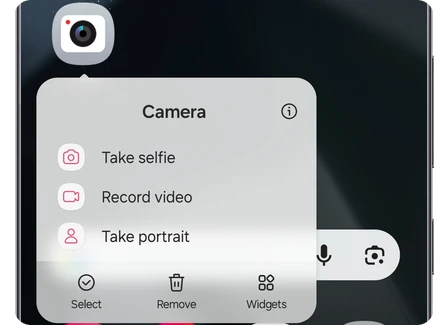
Turning off automatic placement handles new shortcuts. Use Remove for an unwanted shortcut that is already on Home. Samsung Canada distinguishes this action from uninstalling: the app stays available in the Apps screen.
- Return to the Home page containing the unwanted icon.
- Touch and hold the icon.
- Select Remove from its shortcut menu.
- Open the Apps screen if you want to check that the app remains available.
If the layout is locked, turn off Lock Home screen layout before rearranging items. Samsung's Home screen guide says that lock prevents moving apps and widgets. You can turn it back on after finishing your arrangement.
Remove an extra Home page after clearing it
A new shortcut may leave you with another page you no longer want. Check that page for widgets or shortcuts you intend to keep, move those first, and then delete the unwanted page.
Touch and hold an empty area on Home to enter the page editor. Swipe to the page you want to remove and tap the trash icon at its top. Samsung documents a separate house icon for choosing the main Home page, so use that if you want to change the starting page instead of removing one.
FAQ
Why can't I find an installed app in the Apps screen?
Check whether you hid the app. Our guide to hidden Galaxy app icons shows how to restore one. That is a different control from stopping new shortcuts. If your layout still looks unexpected, tell me your Galaxy model, One UI version, and the selected Home screen layout.
Was this guide helpful?
Your answer helps us keep it accurate.
Comments (0)
Comments are moderated, and published only if they are relevant to the topic and add value in a constructive way. If you disagree with something, please be polite and respectful.