
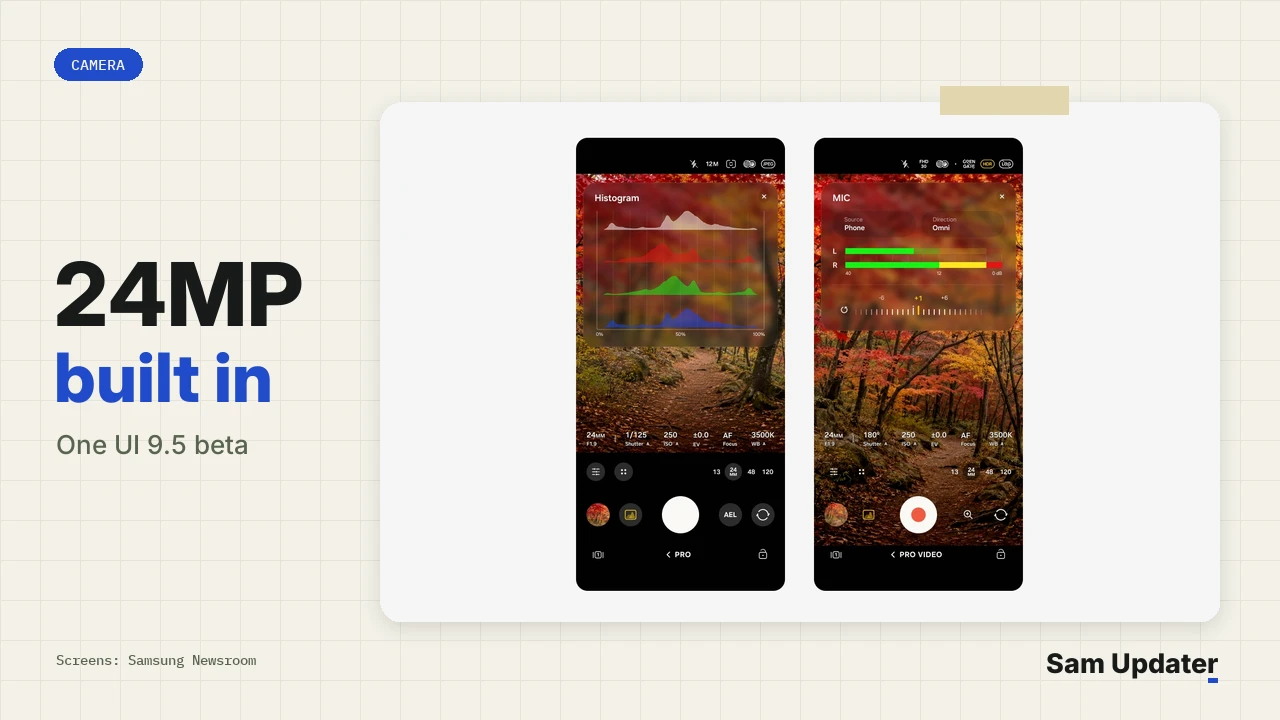
Samsung builds a 24MP camera option directly into the stock Photo mode on Galaxy S26 phones running the One UI 9.5 beta, removing the old Good Lock step. If you joined the November 18 beta, open your Camera resolution picker to check for 24M alongside 12M, 50M, and 200M. Testers started posting screenshots of the native toggle on November 19.
Before this beta, capturing 24MP stills meant downloading Samsung’s add-on app first. Early Galaxy S26 Ultra beta users including Wvisioncreation and Kailash soon after on X showed 24M sitting straight inside the main viewfinder toolbar and quick controls sheet.
How did 24MP work before One UI 9.5?
On One UI 9, owners had to install Camera Assistant from the Galaxy Store or Good Lock and switch on the 24MP Resolution toggle manually. Moving the resolution button into the default Photo controls lets any Galaxy S26 owner pick 24MP right out of the box.
Samsung’s own CamCyclopedia guide on Samsung Members India still explains the old setup step by step. Under its rules, Photo mode kept advanced switches tucked inside Camera Assistant so the default screen stayed simple.
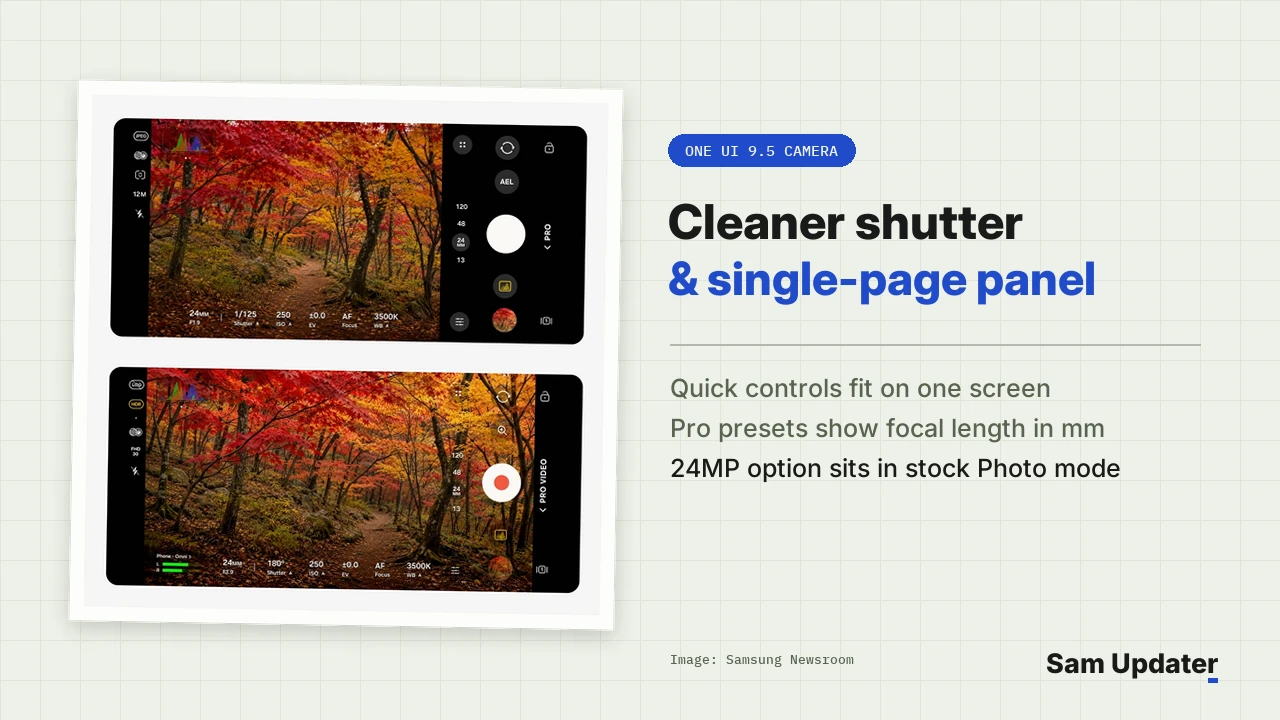
In the beta, those quick controls now fit on a single popup page instead of scrolling sideways. Putting 24M next to 12M, 50M, and 200M makes resolution changes a two-tap action.
One UI 9 vs One UI 9.5 Beta camera layout
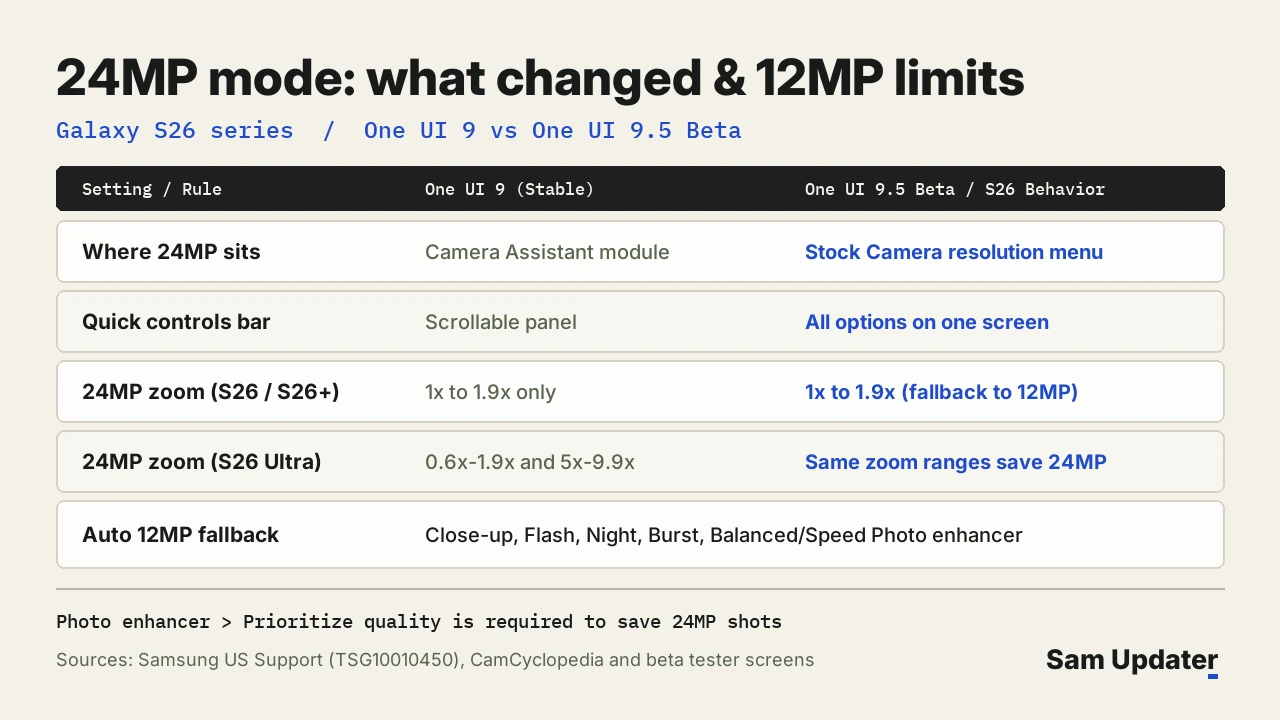
Release notes skipped this move, even though Samsung’s Newsroom beta announcement highlighted cleaner one-screen controls. Comparing the documented One UI 9 setup with beta screens makes the change clear.
| Camera detail | One UI 9 (Stable) | One UI 9.5 Beta (Galaxy S26) |
|---|---|---|
| How to enable 24MP | Install Camera Assistant module | Built into stock Photo menu |
| Viewfinder controls | Scrollable horizontal bar | Single-page Quick controls grid |
| Resolution choices | 12M, 50M, 200M (+ 24M add-on) | 12M, 24M, 50M, and 200M native |
| Pro controls | Standard Pro layout | Custom presets and focal lengths |
Wait before switching permanently to 24MP for every snapshot. Beta tester FrankOneDigital compared 12MP and 24MP shots and noticed visible grain in indoor 24MP frames plus slight processing time, whereas 12MP saved instantly.
Another detail turned up in tester videos. In a follow-up clip on X, Shot suggestions worked at 12MP but vanished when 24M was selected, so 12MP remains the baseline shooting mode rather than losing the default spot.
Zoom ranges and settings that switch 24MP back to 12MP
Even with 24M selected, Galaxy S26 phones quietly save 12MP files in several everyday situations. According to Samsung US Support document TSG10010450, automatic resolution drops depend on zoom magnification, shooting speed, temperature, and Photo enhancer.
- Galaxy S26 and S26+ zoom limit: 24MP works only from 1x to 1.9x magnification.
- Galaxy S26 Ultra zoom limits: 24MP applies at 0.6x to 1.9x and 5x to 9.9x, dropping to 12MP elsewhere.
- Rapid shooting: continuous shots save at 12MP from the third frame within one second, and Burst shots drop to 12MP.
- Special modes and sensors: Night mode, Flash mode, Document scan, close-up focus, and abnormal heat all switch back to 12MP.
- Photo enhancer setting: choosing Balanced or Prioritize speed under Camera > Quick controls (four dots) > Camera settings forces 12MP; only Prioritize quality keeps 24MP output.
Checking Photo enhancer explains why many owners think 24MP failed to stick. Samsung pairs 24MP output strictly with Prioritize quality so shutter speed stays smooth under faster presets.
How to switch between 12MP and 24MP in One UI 9.5 Beta
Follow these four steps inside the updated stock Camera interface on enrolled Galaxy S26 hardware to confirm 24MP captures actually save at full pixel dimensions.
- Launch the Camera app in standard Photo mode.
- Tap the resolution indicator at the top or open the four-dot Quick controls button to show the grid.
- Pick 24M beside 12M, 50M, and 200M, then check Photo enhancer under Camera settings if files still save at 12MP.
- Keep your zoom within the supported 1x or ultra-wide ranges before hitting the shutter.
For the other beta camera additions including focal-length Pro buttons and custom presets, see our full One UI 9.5 beta changelog. We also keep our Galaxy S26 Ultra beta test-build tracker and our One UI 9.5 rollout hub updated as testing progresses.
Camera tweaks beyond the native 24MP toggle
Putting 24MP straight into Photo mode saves a separate Galaxy Store download before taking higher-resolution stills. Once a beta saves non-destructive edits or full-resolution frames, knowing how to roll back edits matters too, which we walk through in our Samsung Gallery revert guide.
Frequently asked questions
Is 24MP the new default resolution in One UI 9.5?
No, 12MP remains the fallback baseline for rapid shots, flash, low light, and Shot suggestions. Samsung placed 24M directly in the stock picker alongside 12M, 50M, and 200M so you can choose it without an extra app.
Why do my 24MP Galaxy S26 photos still save at 12MP?
Open Camera settings and inspect Photo enhancer under Intelligent features. If Balanced or Prioritize speed is active, Samsung automatically saves 12MP files until you select Prioritize quality.
Will older Galaxy phones get built-in 24MP too?
Older flagships remain out of the beta for now, since the November 18 test covers only unlocked Galaxy S26, S26+, and S26 Ultra models. Owners on earlier Galaxy phones can keep using Good Lock’s Camera Assistant add-on in the meantime. Did 24M show up cleanly on your S26 beta? Share your model and feedback in the comments.
Was this guide helpful?
Your answer helps us keep it accurate.


Comments (0)
Comments are moderated, and published only if they are relevant to the topic and add value in a constructive way. If you disagree with something, please be polite and respectful.