
You can hide apps on a Samsung Galaxy without uninstalling them. Open the Apps screen, tap its three-dot menu > Settings > Hide apps on Home and Apps screens, select the apps, and tap Done. The icons disappear from the ordinary app list, while the apps remain installed.
I would use this for a cleaner Home and Apps screen. If you want private apps behind a separate lock, read the distinction below before treating a hidden icon as protected storage.
Select the apps you want to hide
Samsung Canada's current app guide starts from the Apps screen's Search bar menu. The Search bar can be at the top or bottom, depending on the device and software.
- Swipe up from your Home screen to open the Apps screen.
- Find the Search bar and tap its three-dot menu.
- Choose Settings.
- Tap Hide apps on Home and Apps screens.
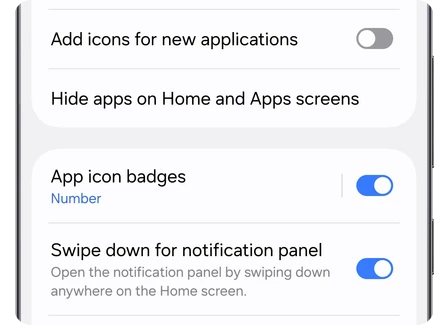
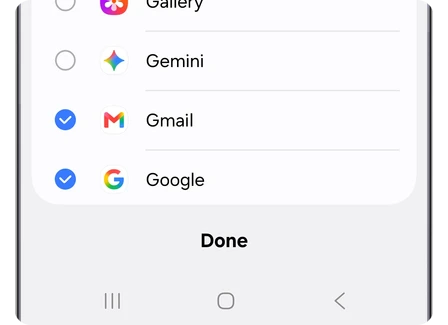
- Select the apps whose icons you want hidden.
- Tap Done at the bottom to apply the selection.
- Return to the Apps screen and check that the selected icons are absent.
If the three-dot menu is not where you expect, Samsung's US app-management page gives another entrance: touch and hold an empty Home screen area, tap Settings, and open the same Hide apps menu.
Restore an icon from Hidden apps
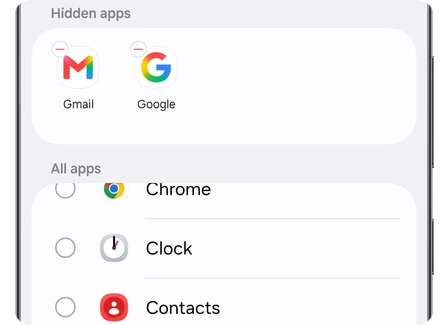
Unhiding uses the same selection screen. The apps already hidden appear at the top under Hidden apps, with a red minus marker. Remove the intended app from that group and save the change.
- Open the Home screen settings again.
- Select Hide apps on Home and Apps screens.
- Under Hidden apps, tap the red minus beside the app you want back.
- Tap Done and return to the Apps screen.
Check which app you removed from the group before leaving. If several icons were hidden, you can restore just the one you need rather than changing the whole selection.
Open a hidden app without changing the selection
Samsung Canada documents a useful detail: a hidden app can still be found by entering its name in the Apps screen Search bar. Its name appears in the result without the ordinary icon. Select that result to reach the app page, then use Open.
This is also a practical check if you think an app was deleted. Compare the hidden selection with the search result before downloading another copy or changing unrelated settings. Hiding an icon and removing the installed app are different actions.
Choose the control that matches your goal
The same phone can offer Remove, Hide, Disable, and Secure Folder, but they do different things. An icon-visibility choice is useful for tidying screens; it does not create a separate app installation.
| Your aim | Control to consider |
|---|---|
| Clear one Home screen shortcut | Remove the shortcut; keep the app in the Apps screen. |
| Hide ordinary app icons | Hide apps on Home and Apps screens. |
| Stop using a supported preloaded app | Review Disable in its app information. |
| Use a private app copy behind a separate lock | Set up Secure Folder on a supported Galaxy. |
Samsung's app-management guidance explains that disabling stops an app from running while keeping it installed. That is a bigger change than hiding its icon. Samsung describes Secure Folder apps as independent copies. If privacy is your goal, our Secure Folder setup guide explains how that protected copy differs from the original outside it.
If the app's widget is also missing
Samsung's widget troubleshooting page includes checking the Hide apps selection when a widget cannot be added. Unhide the relevant app first, then check the widget list again.
That check does not promise every app has a widget. Samsung says widget availability varies, and company-managed work profiles may restrict widgets. Use the app's actual widget entry as the next comparison rather than assuming every missing widget means the app is hidden.
FAQ
Can I remove only a Home screen shortcut?
Yes. Samsung describes removing a shortcut while leaving the app available in the Apps screen. Touch and hold the Home screen shortcut until its menu appears, then select Remove from that menu. Choose that smaller change if the icon only bothers you on one Home screen. If the unwanted item is the Google search bar, our Home screen search-bar guide covers its separate control.
Do I need to hide each app separately?
No. Samsung's US instructions allow selecting more than one app before tapping Done. Choose the full set you want, review it, and apply once. If the menu on your Galaxy looks different, let me know your model and One UI version, along with the app names you are trying to hide.
Was this guide helpful?
Your answer helps us keep it accurate.
Comments (0)
Comments are moderated, and published only if they are relevant to the topic and add value in a constructive way. If you disagree with something, please be polite and respectful.