
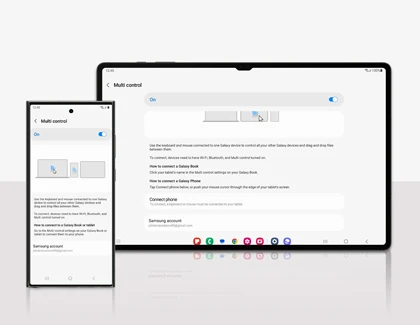
Samsung Multi Control lets your computer's mouse and keyboard operate a nearby Galaxy phone or tablet. Turn on Multi control on the Galaxy, then connect from Samsung Settings on a Galaxy Book or Galaxy Connect on another supported Windows PC.
The PC route matters. A Galaxy Book with Samsung's built-in connection tools has different requirements from a laptop using the separate Galaxy Connect app. I'll help you choose the right one before you spend time trying to pair the devices.
Choose the correct PC setup
Samsung's current connected-experience requirements list both options. The Galaxy Book requirements mention models released in 2021 or later and Samsung Settings v1.5 for Intel or v3.3 for ARM. Galaxy phones and tablets need One UI 5.1.1 or later for Multi Control.
Galaxy Connect on other Windows PCs requires Windows 11 and an Intel or AMD x64 processor. Samsung excludes ARM PCs from that route. This is why an ARM restriction on a Galaxy Connect download page shouldn't be applied to every Galaxy Book using its native Samsung Settings app.
| Your computer | Where to begin | What to verify |
|---|---|---|
| Supported Galaxy Book | Samsung Settings or Galaxy Book Experience | Supported model and current Samsung connection apps |
| Another Windows PC | Galaxy Connect from Microsoft Store | Windows 11, Intel or AMD x64, and compatible wireless hardware |
For both routes, sign in with the same Samsung account, enable Bluetooth and Wi-Fi, and connect the devices to the same Wi-Fi network. Samsung also warns that availability varies by model and region, including a restriction in mainland China.
Check the Bluetooth adapter separately from the processor
An Intel processor and an Intel Bluetooth adapter are separate pieces of hardware. A computer can meet the processor requirement while still failing Galaxy Connect's wireless-hardware check.
The old Intel-only adapter advice is incomplete. In an October 22, 2026 Samsung Members reply, the account labeled Galaxy Connect representative and Moderator lists Intel, MediaTek and Realtek chipset products as supported. The reply also says the app checks requirements such as Extended BLE Advertisement and that compatibility differs between adapters and chipsets.
That gives you a better way to read an unsupported-chipset message: record the adapter's exact name and driver version, alongside the PC processor. The three manufacturer names aren't a guarantee for every adapter they sell. Avoid buying a replacement adapter just because its brand appears in that list.
Enable the Galaxy side of the connection
- Open Settings on the phone or tablet and select Connected devices.
- Open Multi control and turn it on.
- Make sure the Samsung account shown belongs to the same account you will use on the PC.
- Leave Wi-Fi and Bluetooth enabled while you complete the computer setup.
Samsung's US Multi Control guide also documents the Multi control tile in Quick settings. That is a convenient way to enable the connection without reopening the full settings page.
Connect from your Galaxy Book
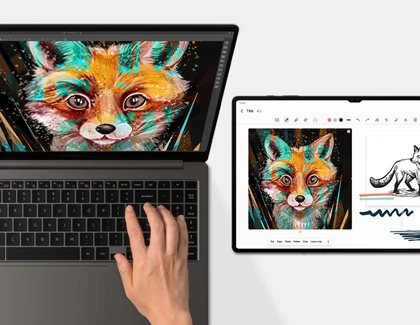
- Open Samsung Settings on the Galaxy Book.
- Select Connected devices and enable Multi control.
- Complete any Samsung account or supporting-app prompts.
- Select the phone or tablet you want to control.
- Arrange the device icons to match the devices on your desk.
Samsung also provides a Galaxy Book Experience route: open that app, choose Multi control, enable it and select the mobile device under Connect to if it doesn't connect automatically. Use the entry available on your supported Galaxy Book rather than installing another tool simply because a different guide shows it.
Use Galaxy Connect on another Windows PC
The SamsungMembersAdmin setup post documents downloading Galaxy Connect from Microsoft Store, opening it from Start, signing in with your Samsung account and selecting the feature you want. Choose Multi control and complete the app's supporting-component prompts.
Use the current in-app compatibility result for your hardware. That June setup post still contains an Intel-only chipset list, while the later Samsung reply above names additional manufacturers. The newer reply changes that hardware advice; it doesn't remove the supported-PC requirement.
Move between screens and copy a file
Once connected, move the pointer toward the edge beside your Galaxy device. If the phone sits on your right but the pointer travels left to reach it, adjust the arrangement. The layout represents where you want the pointer to cross.
You continue using the apps installed on each device. For a Windows window containing phone features, our Phone Link setup guide explains that separate connection. For a Galaxy desktop workspace on an external display, see our Samsung DeX monitor guide.
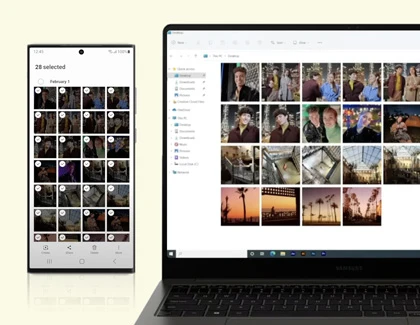
Samsung documents dragging a file from a supported file browser or Gallery to the receiving device, and using Ctrl+C followed by Ctrl+V to copy and paste. Some apps and devices restrict these actions. Try a file in My Files or Windows File Explorer before treating one app's refusal as a failed connection.
FAQ
Does Multi Control make the phone another Windows monitor?
The phone continues running its own apps while the PC's input controls it. Samsung lists Second screen separately for using a supported Galaxy tablet as an additional PC display. Choose the feature according to what you want on the second screen.
What information helps when the devices won't connect?
Tell me the Galaxy model, One UI version, PC model, whether you used Samsung Settings or Galaxy Connect, and the exact message. For a hardware warning, include the Bluetooth adapter and driver version, but leave account addresses and other personal information out of screenshots.
Was this guide helpful?
Your answer helps us keep it accurate.
Comments (0)
Comments are moderated, and published only if they are relevant to the topic and add value in a constructive way. If you disagree with something, please be polite and respectful.