
To inspect background processes on your Samsung Galaxy, use adb shell ps -A. For an app's RAM usage, adb shell dumpsys meminfo gives you a more useful breakdown. I'll show you how to read both alongside Samsung's Memory screen, without clearing the evidence first.
Background processes and cached apps
A long process list can look worrying. But Android deliberately keeps some apps cached so they can reopen faster. Finding an app there is the beginning of a check, rather than a reason to stop it. Google explains this behavior in its Android memory overview.
Look at Device care before changing anything
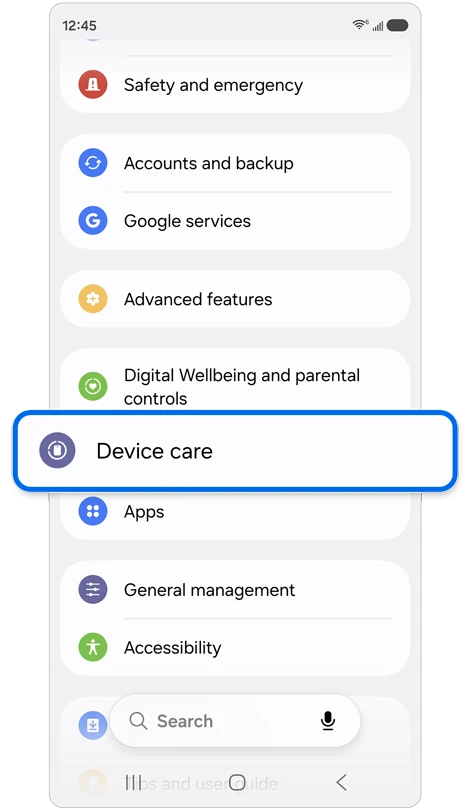
Open Settings > Device care > Memory on your Galaxy. Samsung's Canadian Device care instructions show this route, with a reminder that screens vary by model and software.
- Enter Device care from Settings.
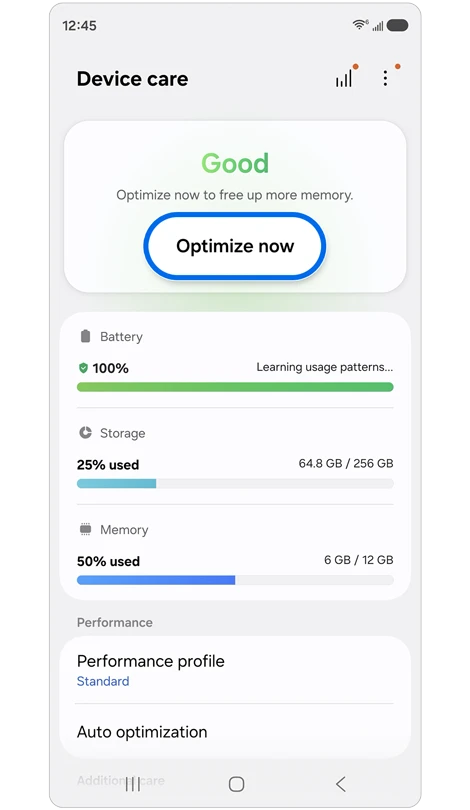
- Read the Memory amount on the overview. Keep the Storage reading separate.
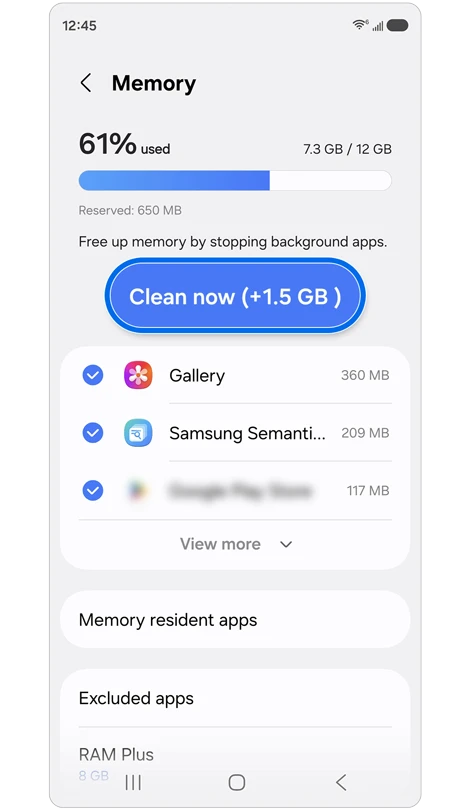
- Tap Memory and note the used and total amounts, the time, and any apps listed below.
- Leave Clean now alone while you collect your first readings. Samsung describes that action as freeing memory by stopping background apps.
Storage tells you about space for files and installed apps. This guide is about RAM and running processes. If you are comparing readings, write down which screen supplied each number so a storage percentage does not become part of your RAM comparison.
The detailed Memory screen includes its own controls and selected apps. A value beside Clean now describes a proposed cleanup, so record it separately from the used-memory total at the top. The two numbers answer different questions.
List the processes with ADB
You need an authorized ADB connection before the following commands will work. If the connection says unauthorized, use our USB debugging approval instructions first. There is no need to change the phone's bootloader or flash anything for this check.
In your configured ADB terminal, run:
adb shell ps -AThe Android Open Source Project's Toybox process-list documentation defines -A as all processes. Read the column headings on your device rather than relying on the position of a number in someone else's output.
For a smaller list containing the process ID and name, you can request those fields explicitly:
adb shell ps -A -o PID,NAMEPID identifies a process. NAME identifies the process name. Keep both when you investigate an entry, since the next command accepts a process ID as well as an app package name. The list itself does not tell you how much useful work each process is doing.
I would collect the list while the symptom is happening, then repeat it after the same app action. That gives you something concrete to compare. Running cleanup between those captures changes the state you are trying to inspect.
Read memory usage for one app or process
Google documents dumpsys meminfo as a snapshot of an app's memory allocations. Replace PACKAGE_NAME below with the app's actual package name, or replace PID with a process ID from your list. The capitalized words are placeholders.
adb shell dumpsys meminfo PACKAGE_NAME
adb shell dumpsys meminfo PID
Use either form for the target you are inspecting. To view the broader memory report instead, run the command without a target:
adb shell dumpsys meminfoThe output can differ between Android versions. Google's documentation describes allocations in kilobytes and explains why shared memory needs special handling. Focus on the labels before you compare totals.
| Field | What you are reading |
|---|---|
| PSS or Pss Total | Memory attributed to the process, with shared pages divided proportionally among the processes sharing them. |
| Private Dirty | Private memory whose contents need to be retained or reclaimed with a cost. It is useful when examining the process's own allocations. |
| Heap Alloc | Memory tracked by the relevant heap allocator. Read it in its own column, rather than treating it as another name for PSS. |
Here is a simple way to understand PSS. If two processes share a page, each gets half of that page counted toward its PSS. Adding the whole shared page to both would overstate their combined usage. Google uses this proportional accounting to make process comparisons more meaningful.
Turn the readings into a useful report
Save the command, its target, and the output together. Add the app action you performed, such as opening the same photo or returning to the same page. Capture a second snapshot under that same condition instead of comparing an idle app with one doing a different task.
Android may retain a process after you leave an app, then reclaim cached processes when resources are needed. That is why I would describe a finding precisely: which process changed, which memory field grew, and what the app was doing. A single large reading does not explain a leak or establish a battery-drain cause.
Battery information needs a separate interpretation. Our Samsung Members and ADB battery guide explains the difference between charge readings and battery condition, so you can avoid attaching a battery-health conclusion to this memory report.
FAQ
Should I clear RAM before taking the readings?
Collect an initial snapshot first. Samsung's Clean now action stops background apps, so pressing it before recording the original state removes part of the comparison. If you later use it, label the next capture as a reading taken after cleanup.
Why does Device care differ from an app's PSS total?
Device care shows the device's memory view, while a targeted meminfo command examines a particular app or process. They have different scopes and may be captured at different times. Compare like fields and like targets before looking for a discrepancy.
Which details should I share if I need help?
Tell me your Galaxy model, Android and One UI versions, the app involved, and the exact command you ran. Include the relevant column labels and readings, with personal information removed, and describe the action that produced them.
Was this guide helpful?
Your answer helps us keep it accurate.
Comments (0)
Comments are moderated, and published only if they are relevant to the topic and add value in a constructive way. If you disagree with something, please be polite and respectful.