
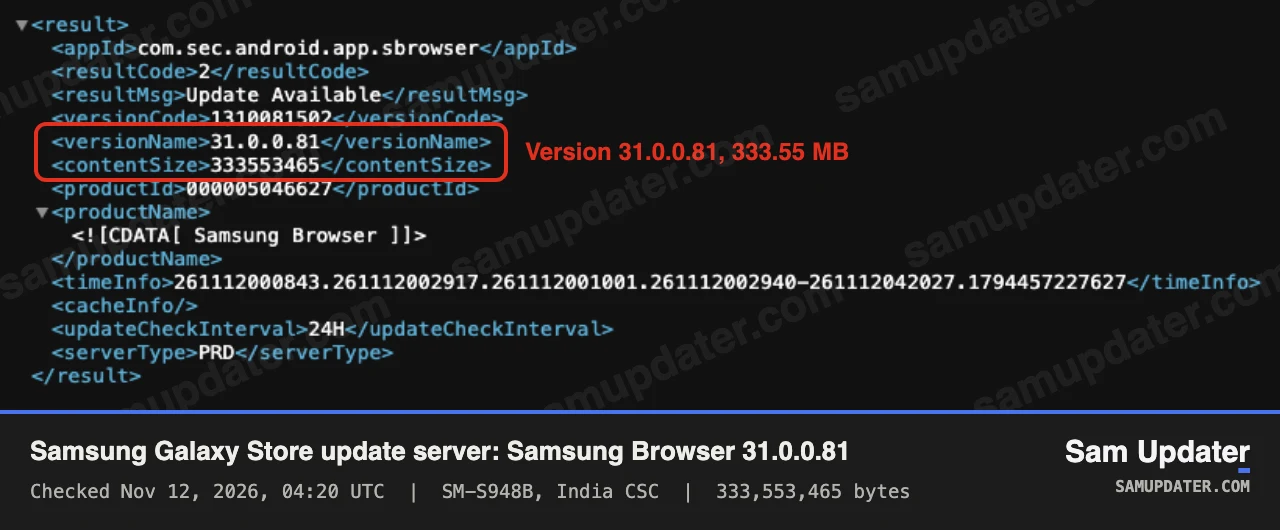
Samsung Browser 31 is out as a stable update. When we checked Samsung’s Galaxy Store update server on November 12, 2026, it was offering Samsung Browser 31.0.0.81, a 333.55 MB download, to Galaxy phones and tablets on One UI 7 through One UI 9.
It replaces version 30.0.5.27, the stable build dated October 23 on Galaxy Store. If you use Samsung Browser, open Galaxy Store and look at your Updates list. The new version may already be waiting there.
Samsung Browser 31.0.0.81 on Samsung’s update server
Galaxy Store asks Samsung’s update server which app versions your device can install. We sent that server the same kind of request at 04:20 UTC, and it answered with version 31.0.0.81, version code 1310081502 and a package of 333,553,465 bytes.
It wasn’t limited to one phone. Every setup we tried got the same build:
| Galaxy device | Model | One UI reported | Version offered |
|---|---|---|---|
| Galaxy S26 Ultra | SM-S948B | One UI 9 | 31.0.0.81 |
| Galaxy S26 Ultra (US) | SM-S948U | One UI 9 | 31.0.0.81 |
| Galaxy S25 Ultra | SM-S938B | One UI 9 | 31.0.0.81 |
| Galaxy S24 Ultra | SM-S928B | One UI 8 | 31.0.0.81 |
| Galaxy A56 5G | SM-A566B | One UI 8.1 | 31.0.0.81 |
| Galaxy S23 Ultra | SM-S918B | One UI 7 | 31.0.0.81 |
| Galaxy Tab S11 Ultra | SM-X930 | One UI 9 | 31.0.0.81 |
Those requests used India, Europe, South Korea and US T-Mobile region codes. Your own Galaxy Store still has to check in before the update shows up, so if it isn’t in your Updates list yet, look again later today.
What’s new in Samsung Browser 31
Samsung hasn’t put the stable 31.0.0.81 notes on the public web listing yet. The Samsung Browser Beta page on Galaxy Store already describes version 31, though, under beta 31.0.0.64 from September 22. It lists two new features:
- Split view, for tablets only. Choose Split view from the menu and the browser window splits into left and right panes, so you can read two web pages side by side.
- Faster switching to open tabs. When you search for a page in the URL bar and that page is already open, you can jump straight to its tab instead of loading it again.
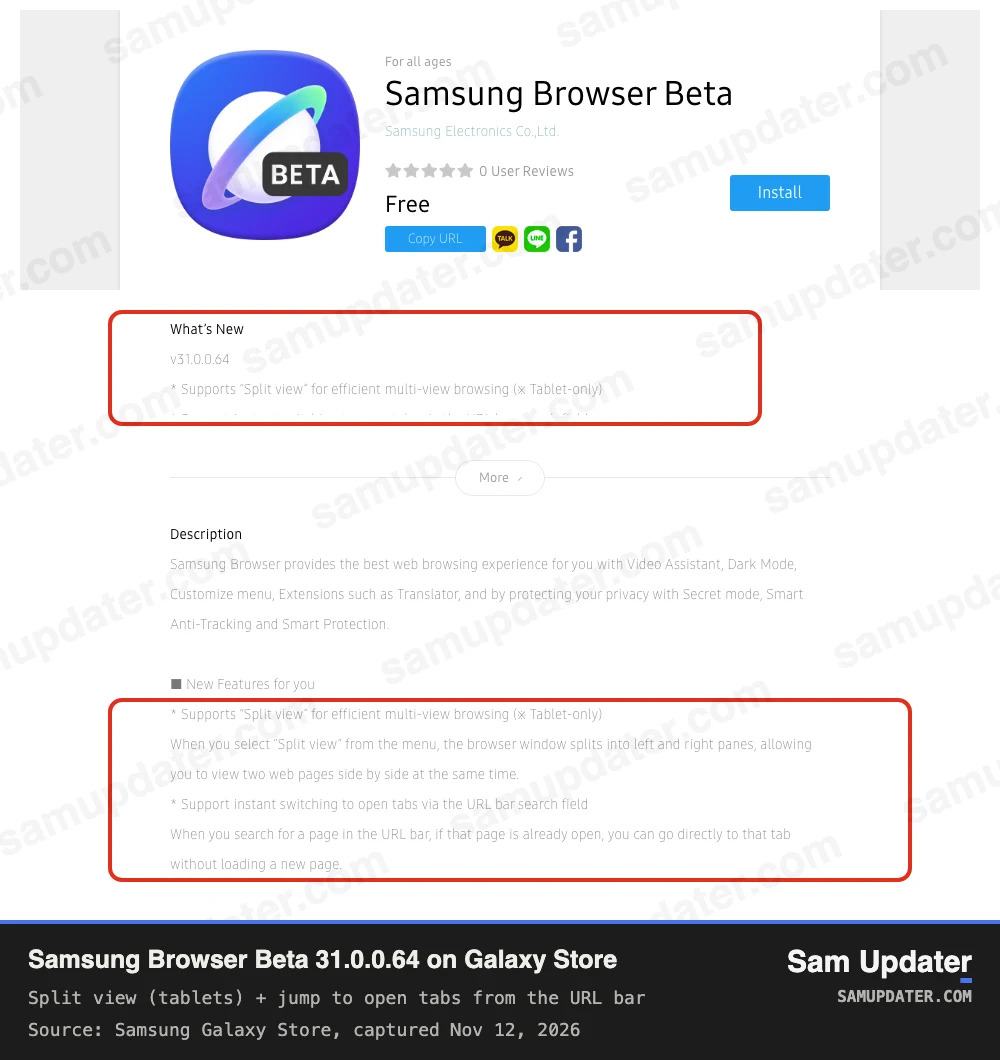
Those notes belong to the beta, so treat them as a preview until Samsung posts the stable list. On a phone, the tab change is the one that applies to you. Split view is for Galaxy Tab owners, and the Tab S11 Ultra was offered the same 31.0.0.81 build.
For comparison, version 30.0.5.27 added Smart Shopping coupon suggestions on some shopping sites and a Manage windows menu in the tab manager.
Why Galaxy Store may still show version 30.0.5.27
Here’s the confusing part. The Samsung Browser page on the Galaxy Store website still showed 30.0.5.27, dated October 23, when we checked it right after the server offered 31.0.0.81.
So go by the Updates list inside Galaxy Store on your phone, not the website. The web page simply hadn’t caught up when we looked.
This is also different from the 31.0.0.79 build in a report we covered on October 31. That version came from a report on X, and the public listing still showed 30.0.5.27 at the time. Version 31.0.0.81 is the first version 31 build we’ve seen Samsung’s own update server offer for the regular app.
How to update Samsung Browser on your Galaxy
Samsung Browser can be updated through Galaxy Store or Google Play, as explained in Samsung’s Browser FAQ. Our version 31.0.0.81 check used Samsung’s Galaxy Store update server; we have not verified that build’s availability on Google Play. Samsung’s US support page on app updates gives this route:
- Open Galaxy Store.
- Tap Menu, the three lines in the bottom right corner.
- Tap Updates.
- Tap the circling arrow next to Samsung Browser, or tap Update all.
Want Galaxy Store to do this for you next time? In the same Menu, tap the Settings gear and then Auto update apps.
You may see Samsung Gallery in that list too. The update server was offering Gallery 15.9.02.2, a 61.68 MB download, at the same time. We explained what Gallery’s new Google storage sync does in our Samsung Gallery Google sync post.
If you’d rather have Samsung Browser open every link you tap, our guide to changing the default browser on a Galaxy shows where that setting lives.
Was this guide helpful?
Your answer helps us keep it accurate.
Comments (0)
Comments are moderated, and published only if they are relevant to the topic and add value in a constructive way. If you disagree with something, please be polite and respectful.