
If your Samsung Galaxy stops charging at 80% or 85%, open Settings > Battery > Battery protection and compare the selected limit with the percentage on your screen. An intentional charging limit can look like a charging problem. I'd check that setting before replacing a cable or changing anything else.
Samsung lets supported devices pause charging below 100% to reduce the time the battery spends fully charged. You can choose a different limit or charging mode. The available choices depend on your software, which explains why instructions for another Galaxy may look different.
Choose the charge limit you actually want
On the newer interface shown in Samsung Canada's charge-limit instructions, Maximum includes a slider. Use the options on your own phone rather than looking for an identical screen from an older tutorial.
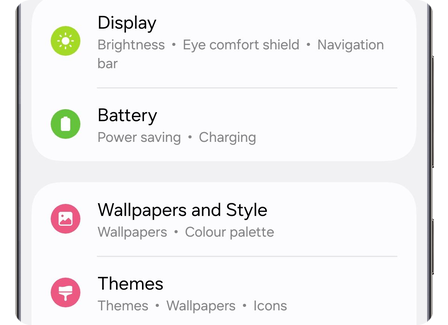
- Open Settings and tap Battery.
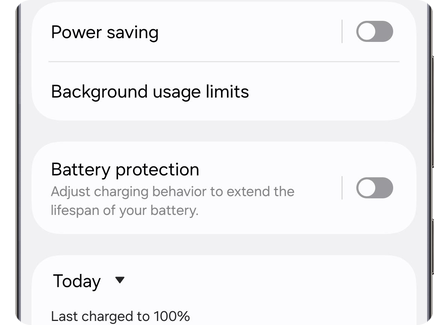
- Select Battery protection. On some versions, Battery is inside Device care.
- Check whether protection is enabled and which mode is selected.
- If Maximum offers a slider, choose the charging limit you prefer.
- If you want a full charge, choose an appropriate alternative mode or turn Battery protection off.
Turning the feature off allows full charging, according to Samsung's US charging guidance. You don't have to leave it disabled permanently. Choose the limit for the day you have ahead, then change it again when that choice no longer suits you.
Why another Galaxy has a different limit
The feature has changed across One UI releases. Samsung UK's One UI 6.1 explanation describes a fixed 80% Maximum mode and says older software used an 85% limit. That older explanation doesn't describe every control available now.
Samsung's current Canadian Battery protection page says selectable Maximum limits of 80%, 85%, 90% and 95% are provided from One UI 7.0. It also notes that menus and operation can vary with the device and software.
| What you see | What to check |
|---|---|
| An older Protect battery switch | It may use the older 85% ceiling. |
| Maximum with no adjustable limit | The One UI 6.1 version described by Samsung stops at 80%. |
| Maximum with selectable percentages | Read the selected percentage rather than assuming it must stop at 80%. |
To identify your software, go to Settings > About phone > Software information. Note the One UI version as well as the model. A long build string is a separate piece of information; our Samsung firmware version guide explains how to read it.
Pick a mode for your daily charging
Maximum makes sense when you want a predictable ceiling. For example, if 80% leaves you short before you get home and your phone offers 90%, changing the slider is an option. You can keep using protection without treating the lowest available limit as compulsory.
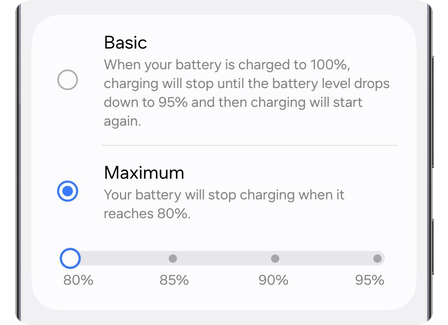
Basic follows a different pattern. Samsung describes charging to 100%, then waiting until the level falls to 95% before charging again. Seeing 100% in Basic therefore isn't evidence that the feature failed.
The overnight option needs another distinction. Samsung's older UK instructions call it Adaptive; the current Canadian page describes Sleep time protection. These modes use sleep patterns to hold charging around 80% overnight and finish closer to waking. They aren't the same as choosing a fixed Maximum ceiling.
Read the description beside the option on your phone before choosing it. If your goal is a fixed limit throughout the day, check Maximum. If your goal is a full battery for the morning, look at the documented overnight mode available on your device.
If charging stops somewhere else
Compare the actual behavior with the selected setting. A phone stopping at its chosen limit needs a different investigation from one that doesn't recognize the charger, repeatedly disconnects or fails to reach the selected percentage.
For an unexpected result, note the mode, chosen limit, battery percentage and any charging message. Recheck those details before changing several settings together. They give Samsung Support a much clearer description than simply saying the phone won't reach 100%.
Also separate charging capacity from battery use. If the phone reaches its chosen limit but runs down unusually quickly afterward, the charge ceiling doesn't identify which app or activity used the power. Our One UI battery-drain investigation explains the usage details to collect for that different problem.
FAQ
Can I charge to 100% for a long trip?
Yes. Samsung's US instructions allow choosing another protection option or turning the feature off for full charging. You can return to your preferred setting afterward. Check the selected mode again rather than assuming the phone automatically restored your usual limit.
Why can the percentage be above the limit I just chose?
A lower setting doesn't mean the phone must immediately discharge to that number. Samsung's Canadian mode guide says that when the battery is already at or above the selected limit, additional charging is paused while the current level is maintained. Read the charging status alongside the percentage.
What if my Battery protection screen looks different?
Use the controls documented for your device instead of forcing a menu path from another software version. If you need help identifying the right option, share your Galaxy model, One UI version and the mode names you can see. Leave your IMEI and serial number out of the comment.
Was this guide helpful?
Your answer helps us keep it accurate.

Comments (0)
Comments are moderated, and published only if they are relevant to the topic and add value in a constructive way. If you disagree with something, please be polite and respectful.