
Samsung Nice Shot adds controls for the Galaxy screenshot toolbar, crop behavior, and screen recording. Open it through Good Lock and enable the option you need, such as Add delete button or Disable crop snapping.
I would begin with the screenshot control you actually want to change. The recording options are separate, and turning them all on together makes it harder to tell which setting changed the result.
Open Nice Shot from Good Lock
Samsung India describes Nice Shot as a Good Lock app for screenshot and screen-recording customization. Its support reference shows Nice Shot in the Plugins list, with the module's own controls on the next screen.
- Open Good Lock on your Galaxy.
- If you need to install Good Lock, use its official Galaxy Store page first.
- Find Nice Shot among the available modules and install or update it using the displayed control.
- Open Nice Shot and look for the Screenshots and Screen recorder sections.
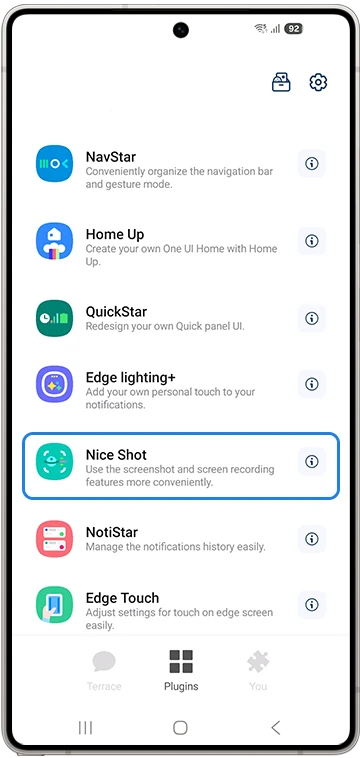
Samsung says module availability can vary with software and model. Follow the choices offered on your device. The reference is useful for identifying the controls, rather than promising every pictured option on every Galaxy.
Add a Delete button to the screenshot toolbar
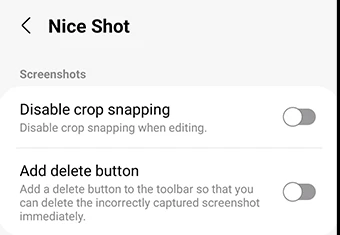
Enable Add delete button in Nice Shot to place a deletion control on the toolbar that appears after capture. Samsung describes it as a way to delete an incorrectly captured screenshot immediately.
- In Nice Shot, find the Screenshots section.
- Turn on Add delete button.
- Take a screenshot of something you do not need to keep.
- Look for the new Delete control in the capture toolbar.
- Use it only if you want to remove that capture.
The toolbar is the immediate place to check the result. Our Galaxy screenshot guide covers capture methods if you first need help taking the image. Nice Shot is where you change the extra behavior around that capture.
If no toolbar appears, check the toolbar setting before reinstalling a module. Samsung Canada's toolbar instructions use Settings > Advanced features > Screenshots and screen recorder > Show toolbar after capturing. Menu names can differ on devices without screen recording.
Turn off crop snapping for manual selection
Disable crop snapping is a separate switch in the same Screenshots section. Samsung's reference describes it as disabling crop snapping when editing. Use it if you want to adjust the crop without that automatic snapping behavior.
Enable the switch, capture an image, and open its crop editor. Move a crop edge and check whether the selection behaves the way you want. You can return to Nice Shot and turn the switch off again if you prefer the earlier behavior.
The wording is easy to misread: turning Disable crop snapping on disables snapping. It does not remove the crop editor. Choose the state according to how you want to select the image area.
Review recording interruptions before sharing a video
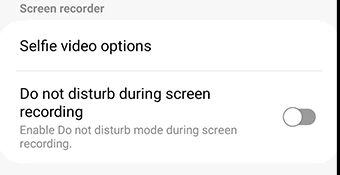
Under Screen recorder, Nice Shot offers Do not disturb during screen recording. Turn it on if you want that mode used during a recording, and read any access request the device displays.
Review your Do not disturb exceptions before recording something you plan to share. Samsung's US Do not disturb guide allows exceptions for calls, messages, apps, alarms, and sounds. It also says critical phone activity or status notifications will not be hidden.
For a practical check, make a short recording of a nonsensitive screen, stop it, and review the saved video. Check what is visible as well as what is audible. Make the final recording only after its notification and sound behavior suits what you intend to share.
Samsung's US Screen recorder instructions place sound selection before Start recording. Nice Shot's interruption control and the recorder's sound choice serve different purposes, so check both.
Other options depend on the available layout
Samsung also lists screenshot clipboard control and selfie-video options among Nice Shot's features. The exact choices may differ from the reference above. Read the labels in your installed module before using another version's instructions.
For ordinary selfie-window sizing, Samsung documents a Selfie video size option in the built-in recorder settings on supported devices. Touch and hold Screen recorder in Quick settings to see those settings. Front-camera recording support varies by model.
FAQ
Can Nice Shot record a phone call or a protected screen?
Samsung says its Screen recorder does not record phone, VOIP, or video calls, and some apps block capture for copyright restrictions. Use supported capture features rather than expecting a customization module to remove those restrictions.
Can I keep a gesture shortcut for taking screenshots?
Our One Hand Operation+ guide explains supported edge-swipe actions, including Screenshot. That chooses how you trigger capture; Nice Shot controls the extra options covered here. If a control is missing, tell me your model, One UI version, Nice Shot version, and the exact setting you were looking for.
Was this guide helpful?
Your answer helps us keep it accurate.
Comments (0)
Comments are moderated, and published only if they are relevant to the topic and add value in a constructive way. If you disagree with something, please be polite and respectful.