
To show network speed in the status bar on a supported Samsung Galaxy, open Good Lock > QuickStar > Visibility of Indicator Icons and turn on Network Speed. Samsung documents this feature starting with One UI 9.
If you already use QuickStar, go straight to its icon settings. If Network Speed is missing, check your One UI version and the QuickStar update offered inside Good Lock.
Check One UI before installing another app
Samsung India's Good Lock guide specifically places the Network Speed feature at One UI 9 or later. It also says Good Lock app availability varies with the device and software. Installing the main Good Lock app does not mean every module or control is available.
To check your software, use Settings > About phone > Software information. Samsung gives that route in its US Quick panel instructions. Read the One UI version rather than relying on the appearance of the notification panel.
If your Galaxy is still on older software, check its supported update path separately. Our One UI 9 update tracker is the place to check rollout coverage. A QuickStar setting cannot install a system update or make that update available to a model.
Get Good Lock and open QuickStar
Good Lock contains separate customization apps. For this task, QuickStar is the module that matters. You can leave the other modules alone rather than installing the whole collection to reach a single indicator.
- Open Galaxy Store on your Samsung device.
- Search for Good Lock and open its store page.
- Install it, or use the available update if it is already installed.
- Open Good Lock and read its setup screen. Samsung's instructions show Agree and continue during first setup.
- Find QuickStar among the available customization apps. Download or update it through the option provided, then open it.
The distinction between the app and module is useful here. If you can open Good Lock but have never installed QuickStar, you are still at the module-selection stage. If QuickStar opens and shows its own controls, you are ready to configure the indicator.
Enable Network Speed in the indicator list
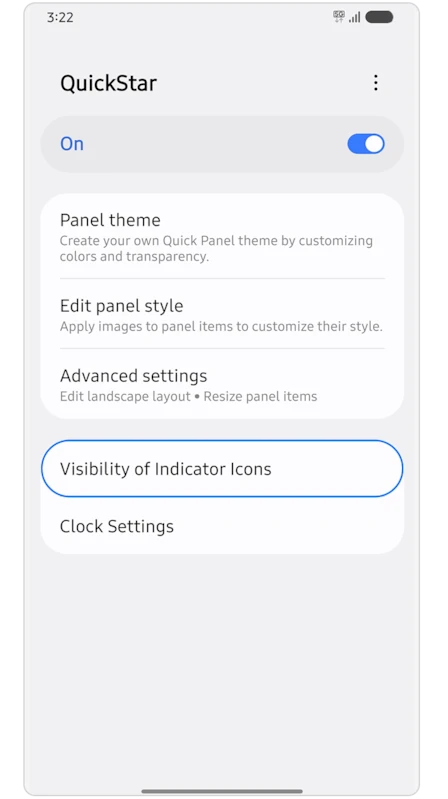
The setting is inside QuickStar's icon visibility controls. The Samsung reference below shows QuickStar enabled, with Visibility of Indicator Icons as a separate entry beneath its panel settings.
- Open QuickStar and turn on its main switch if necessary.
- Tap Visibility of Indicator Icons.
- Find Network Speed in the Network Information section.
- Turn on Network Speed.
- Look at the status bar for the added readout.
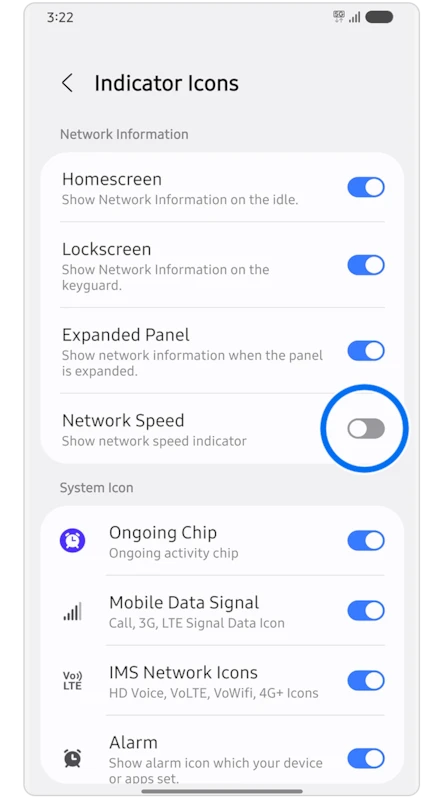
Read the row name carefully. The same screen includes Mobile Data Signal and other system icons. Those are different switches; you do not need to hide or change them to add the speed readout.
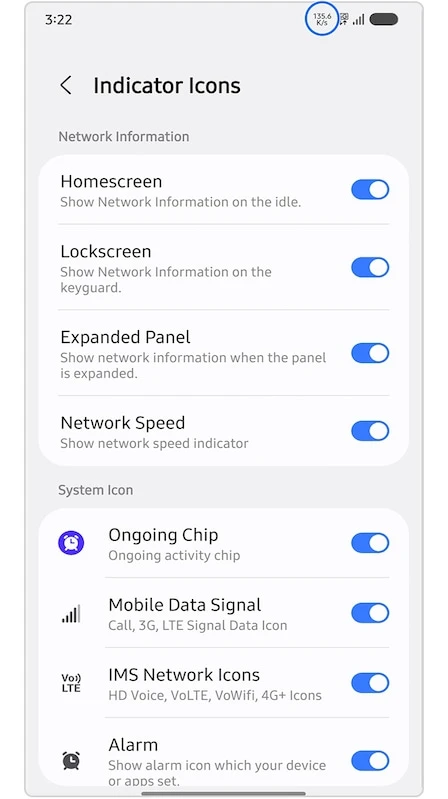
To see the reading change, keep the status bar visible while an app loads data over your connection. Try it on Wi-Fi if you want to avoid using your mobile allowance. The number shows the transfer rate at that moment. For a speed test you would start a separate measurement.
Check the screen where you want to see it
Samsung's reference lists Homescreen, Lockscreen, and Expanded Panel under Network Information. Their descriptions refer to showing network information on the idle screen, keyguard, and expanded panel respectively.
If you can see the readout in one place but not another, compare these switches on your own screen. Note which screen you were viewing, then check the matching visibility control. This is a more useful comparison than changing several unrelated status icons at once.
If you also want to change the sliders or the Wi-Fi and Bluetooth panel, see our guide to One UI 9 settings and fixes. Those controls live separately from the Network Speed switch.
If the Network Speed row is missing
- Open Settings > About phone > Software information and read One UI version. Samsung’s instructions put the Network Speed setting at One UI 9 or later.
- Open Good Lock. If QuickStar is listed with an update, install it from there. If QuickStar itself is missing, check whether Good Lock offers it for your Galaxy. Samsung says the available modules can vary by device and software version.
- Open QuickStar again, check that its main switch is on, and reopen Visibility of Indicator Icons. If the Network Speed switch is there, turn it on and check the top of the screen.
If you still can’t find the row, record the Galaxy model, One UI version, and installed QuickStar version. Good Lock also lets you view each module’s update history. That gives you something specific to check when you ask Samsung about availability.
To remove the number later, return to Visibility of Indicator Icons and turn off Network Speed. Leave the main QuickStar switch on if you use its other settings.
FAQ
Does the readout show how much mobile data I have left?
Use Settings > Connections > Data usage for usage totals and billing-cycle controls. Samsung's US data usage guide explains the Mobile data usage breakdown and warnings. Check your carrier for its account usage records. A live rate in the status bar serves a different purpose.
Which details help if the switch still does not appear?
Tell me your Galaxy model, One UI version, QuickStar version, and whether QuickStar itself opens. Include the names of the controls you can see under Visibility of Indicator Icons. That helps distinguish an unavailable module from a missing option inside an installed one.
Was this guide helpful?
Your answer helps us keep it accurate.
Comments (0)
Comments are moderated, and published only if they are relevant to the topic and add value in a constructive way. If you disagree with something, please be polite and respectful.