
One Hand Operation+ adds gesture handles along the sides of your Samsung Galaxy screen. Install the Samsung app, enable it, then choose a handle and assign an action to a straight or diagonal swipe.
I would configure one useful gesture first and adjust its touch area before adding more. Samsung recommends keeping the handle as thin as you can use comfortably because it sits over the app underneath and can intercept touches.
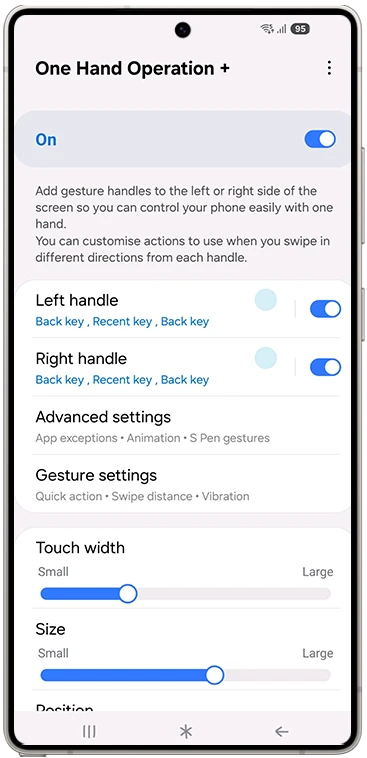
Install the Samsung app and enable a handle
The official One Hand Operation+ listing identifies Samsung Electronics as the developer. You can install it from Google Play or Galaxy Store. Samsung's UK instructions also link directly to the Galaxy Store app.
- Find One Hand Operation+ in one of those stores and check that it is the Samsung app.
- Install it and open it.
- Read any setup requests shown by the app, then turn on its main switch.
- Enable the left or right handle you want to use.
- Tap the handle's name to open its gesture assignments.
Samsung India's Good Lock directory includes One Hand Operation+ among its customization apps. You can use that route if you already manage modules through Good Lock, but installing the separate app is also supported.
Make a diagonal swipe open Gallery
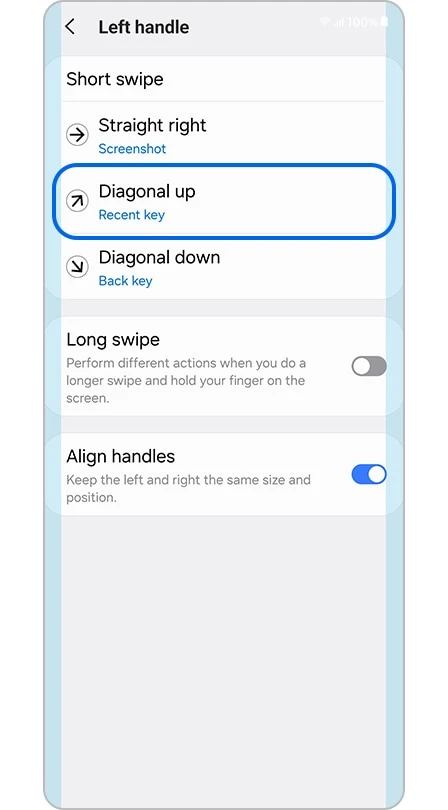
Samsung's UK guide gives a concrete example: assign Gallery to Diagonal up on the left handle. That is a useful starting exercise because you can check whether the gesture opens the intended app before building a larger set of shortcuts.
- Open the Left handle settings.
- Under Short swipe, tap Diagonal up.
- Choose Start application from the action list.
- Select Gallery from the app list.
- Leave the settings and swipe diagonally upward from the left handle to check the assignment.
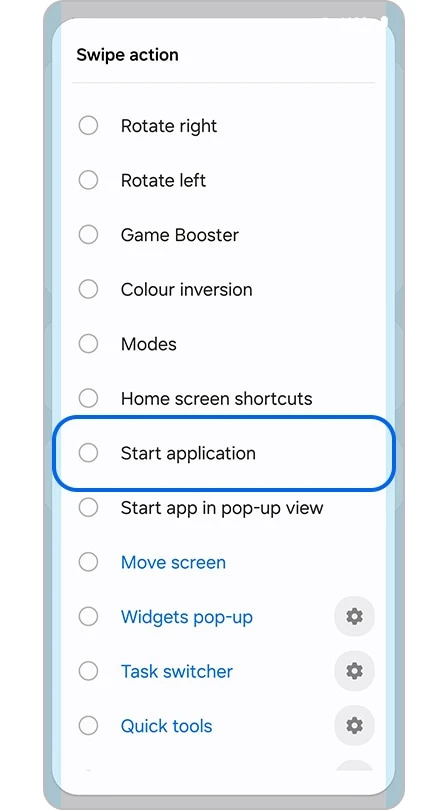
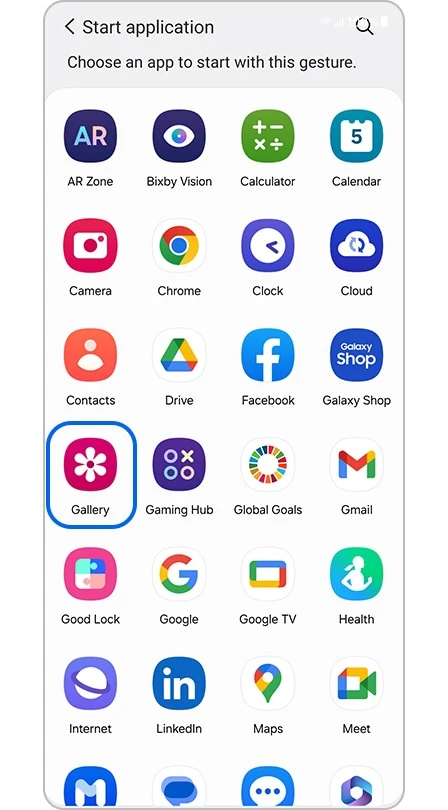
The direction and destination are two separate choices. If the correct swipe opens the wrong app, return to that direction's assignment. If it keeps performing a straight-swipe action, concentrate on the gesture angle before choosing a different app.
Fit the handle to your thumb and case
Touch width controls the edge area that receives the gesture. The app also provides size and position controls. Adjust those to a place you can reach while holding the phone normally, rather than copying someone else's maximum slider values.
Samsung explains in the app listing that a handle receives touch events over the running app. A larger target can be easier to hit, but it also occupies more of that app's touch area. Its recommendation is to use the thinnest handle that still recognizes your gestures.
- Return to the main One Hand Operation+ screen.
- Adjust Touch width a little at a time.
- Try the assigned swipe while holding the phone as you usually do.
- Check taps and swipes near the same edge inside an app you use often.
- Adjust the handle's size or position if reaching it is the problem.
This is a fit check for your hand and case. Keep track of which slider you changed so you can return to the earlier position if the new setting catches touches you intended for another app.
Exclude an app when edge gestures interfere
For interference in a particular app, Samsung recommends Advanced settings > App exceptions. Handles stop working while an excluded app is running. That gives you a targeted way to leave a game or another touch-sensitive app alone.
Choose the affected app there, then check it again. You can retain the handle elsewhere instead of disabling every shortcut because of one app. The ordinary app controls remain the way to interact with that excluded app.
Add more actions after the first gesture feels right
The Samsung listing supports horizontal, diagonal-up, and diagonal-down gestures. It suggests learning short swipes before adding long-swipe actions. Those longer gestures give you another set of assignments once you are comfortable with the first ones.
For example, choose Open notification panel if reaching the top of the screen is your main difficulty. Open quick panel is a separate action in the list. Our notification and Quick settings layout guide explains the panel arrangement if you also want to change what those panels show together.
Start application opens the chosen app. Other supported choices include Back key, Recent key, Screenshot, and Quick tools. Select actions by the job you need to do, then check each assignment before adding another direction.
FAQ
Is this the same as Samsung One-handed mode?
No. Samsung's UK page describes One-handed mode as shrinking the display on a smartphone. One Hand Operation+ adds gesture handles and is available on phones and tablets. Choose the app when you want edge shortcuts rather than a smaller version of the whole screen.
Can I open an app with a button instead?
Our Galaxy Side button guide covers that option. It is useful when you prefer a physical shortcut. If a swipe is hard to trigger, tell me your Galaxy model, which handle you enabled, and whether the problem is a missed gesture or touches being caught inside another app.
Was this guide helpful?
Your answer helps us keep it accurate.
Comments (0)
Comments are moderated, and published only if they are relevant to the topic and add value in a constructive way. If you disagree with something, please be polite and respectful.