
To continue an app after closing your Galaxy Z Fold, open Settings > Display > Continue apps on cover screen. Select the behavior offered by your phone: Samsung documents Always, Swipe up to continue app, and Never on the Galaxy Z Fold8 Ultra. Other Fold layouts use switches beside individual apps.
I would check which of those screens your Galaxy actually shows before following a guide for another model. The setting concerns the app you were using on the large main screen when you fold the phone.
Choose what happens when you close the phone
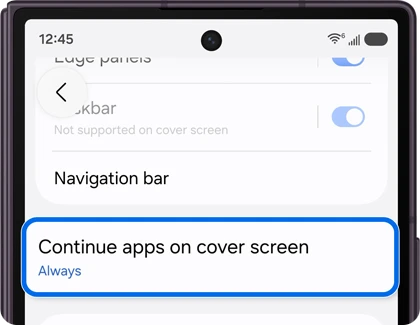
Samsung Canada's Galaxy Z Fold8 Ultra instructions give a choice of three behaviors. Open the menu from the main screen so you can set the behavior before trying the transition.
- Open Settings on the Galaxy Z Fold.
- Select Display > Continue apps on cover screen.
- Read the available choices and select the one that matches how you want to use the cover screen.
| Choice | What happens when you fold |
|---|---|
| Always | The supported app continues automatically on the cover screen. |
| Swipe up to continue app | You swipe up on the cover screen to continue. Samsung's reference screen says it locks after a few seconds if you do not swipe. |
| Never | The cover screen locks instead of continuing the app. |
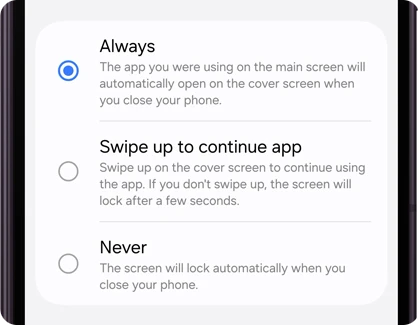
Always suits a task you want to carry straight onto the smaller display. The swipe choice gives you a decision at the moment you close the phone. Never suits closing the device as the end of that interaction.
These choices change the folding handoff. If you only want a convenient way to wake the display later, our Galaxy double-tap settings guide covers that separate control.
If your menu lists apps with switches
Samsung's US Galaxy Z Fold6 guide documents an app-by-app layout. In that version of the menu, turn on the switch beside the app you want to continue, then open that app on the main screen and close the phone.
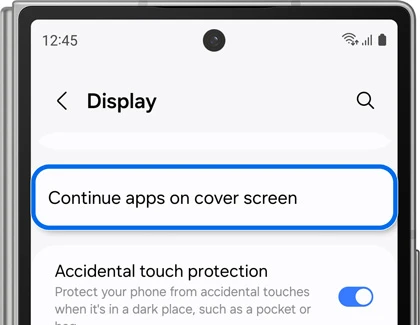
Follow the controls visible on your software rather than searching an app list for an Always button or looking for individual switches on a three-choice screen. The screenshots represent different documented layouts, not steps you must combine.
For an app-switch layout, begin with one app you use often. Check its behavior with that switch enabled, then decide which other apps need the same treatment. This makes it easier to notice a difference than changing a long list and trying to remember what each app did before.
Compare the handoff with the app's own behavior
Open a recognizable page in the app, note your place, and fold the phone. Check both whether the app reaches the cover screen and whether it keeps the same content. For Swipe up to continue app, include the swipe when checking the result.
Samsung says some apps do not support continuation. That makes an app comparison useful: record one app that behaves as expected and the exact behavior of the one that does not. Include whether it refreshes the page, returns to its start screen, or simply remains unavailable on the cover display.
Google's configuration-change guidance for Android developers lists folding a multi-display device and moving between displays as situations apps must handle. It tells developers to preserve the user's place through those changes. Include the app version if folding loses your page or clears a form.
Check Samsung's specific Android 16 refresh advice
For Galaxy Fold models that developed refreshing when folding or unfolding after an Android 16 update, Samsung has a separate troubleshooting article. Its workaround briefly adjusts Screen zoom, restores the preferred size, and then checks an app that supports continuity.
Use that documented advice for the matching symptom and software context. The page also directs owners to check software updates. It does not identify every app refresh on every Fold as the same defect, or provide a build number that I can promise fixes all models.
FAQ
Does this make the Home screen layout match on both displays?
Samsung Canada describes Cover screen mirroring under Home screen settings for matching the layouts. App continuation controls the running app instead. If the issue is an icon you hid rather than a folding transition, our Galaxy app-hiding guide explains how to restore its visibility.
Can I use Continue apps on cover screen on a Galaxy Z TriFold?
Samsung's continuity troubleshooting page explicitly says that feature is not supported on the Galaxy Z TriFold. Use instructions for the exact foldable you own. For help with a transition, tell me the model, Android and One UI versions, the app version, and which direction you were folding.
Was this guide helpful?
Your answer helps us keep it accurate.
Comments (0)
Comments are moderated, and published only if they are relevant to the topic and add value in a constructive way. If you disagree with something, please be polite and respectful.