
To enable Samsung Auto Hotspot, open Settings > Connections > Mobile Hotspot and Tethering > Mobile Hotspot > Auto Hotspot. For another person's Galaxy, check the sharing controls inside that menu. Samsung says Group sharing replaces the older Family sharing option on One UI 8.5 and later.
I will walk you through the current choices so you can distinguish your own devices, invited contacts, and Family device sharing before changing the setup.
Connect a Galaxy Tab using your Samsung account
Samsung Canada's connected-device instructions describe Auto Hotspot between a Galaxy smartphone and Galaxy Tab signed into the same Samsung account. The tablet finds the phone through its Wi-Fi list.
- On the Galaxy phone, open Settings > Connections.
- Choose Mobile Hotspot and Tethering > Mobile Hotspot.
- Turn on Auto Hotspot.
- On the Galaxy Tab, open the Quick panel and touch and hold Wi-Fi.
- Find the Galaxy phone in the Wi-Fi network list and select it.
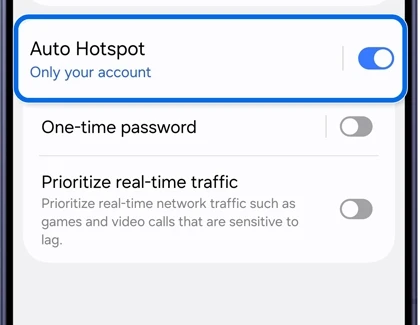
Samsung's US hotspot guide also instructs you to enable the main Mobile Hotspot switch when sharing the connection. Check that main screen as well as Auto Hotspot if the receiving device does not find the phone.
Seeing Only your account is a useful clue when the tablet belongs to someone else. Compare the account relationship next, rather than repeatedly selecting the network with unchanged sharing permissions.
Invite contacts through Group sharing
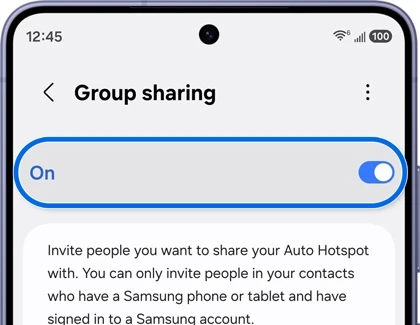
The current Samsung US hotspot troubleshooting page names Group sharing as the replacement for Family sharing. It supports invitations to contacts who have a Samsung phone or tablet and are signed into a Samsung account.
- Return to Mobile Hotspot > Auto Hotspot.
- Open Group sharing and enable the switch at the top.
- Use the invitation option to select an eligible contact.
- If the screen shows Edit members, open it and select Invite people.
- Review which people are included before asking the other device to connect.
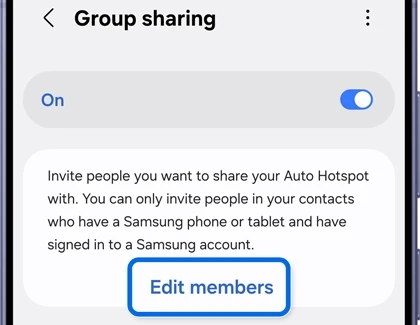
The page uses Invite members for initial setup and Edit members > Invite people for managing the group. Match the control on the screen you have reached. Samsung says Add allowed device was removed in One UI 8.5, so a search for that older button will not complete this setup.
Use Family device sharing for your Samsung family
Family device sharing is another named control. Samsung Gulf's Family device sharing guide covers a Samsung-account family group and supported Galaxy phones and tablets on One UI 8.5 or later.
On each Galaxy phone, open Settings > About phone > Software information and read One UI version. Compare the participating devices before using instructions for a different release.
Samsung says your account ID, email address, and name are shared with family members who join. Review who you intend to invite, then use its documented family-group route:
- Open Settings > Samsung account > Family.
- If needed, choose Create family group.
- Select Invite family member > Invite someone.
- Choose Send an invitation, Use a QR code, or Send a text message.
Once the family group is ready, enable Family device sharing on the devices involved. Samsung Canada specifies that both your account and the family member's intended device need that feature enabled. Merely belonging to the family group is not the whole setup.
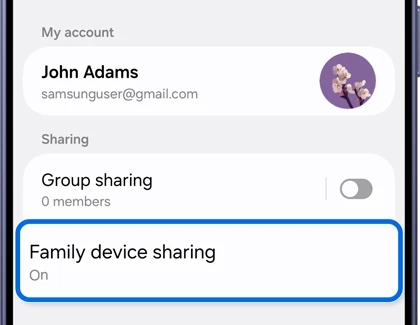
Samsung Gulf says Family device sharing can be reached through supported connected features, including Auto Hotspot and Quick Share. Open its member details to review the shared devices rather than assuming every device using a relative's account is ready.
Read the sharing choice before troubleshooting Wi-Fi
| Situation | Choice to inspect |
|---|---|
| Your phone and your own Galaxy Tab | The Samsung account used on each device and Auto Hotspot. |
| A contact with a separate Samsung account | Group sharing and the invited member list. |
| Devices within your Samsung family group | Family device sharing enabled on the participating devices. |
Use the result to narrow the next check. A missing device points you toward account, membership, and visibility conditions. A device that joins the hotspot but cannot load a webpage has reached a different stage, covered below.
FAQ
Why can the tablet connect but has no internet?
Samsung's current troubleshooting page says to check your carrier's tethering policy and remaining data. It warns that a hotspot can accept a connection while its tethering allowance is exhausted. Confirm the phone's own data connection and the plan's hotspot allowance before changing the sharing group again.
Is Auto Hotspot the same as Quick Share?
Auto Hotspot shares an internet connection. For sending photos or documents, our nearby Quick Share instructions cover the file-transfer task. If you are setting up phone access on a Windows PC, see our Phone Link pairing guide. Tell me both device models and One UI versions if you need help choosing the right connection.
Was this guide helpful?
Your answer helps us keep it accurate.
Comments (0)
Comments are moderated, and published only if they are relevant to the topic and add value in a constructive way. If you disagree with something, please be polite and respectful.