
If Wipe cache partition isn’t showing in your Samsung recovery menu, your phone isn’t broken. Samsung removed the option with the February 2026 security update on One UI 8.5, and it isn’t there on One UI 9 either. Your recovery now shows only three options: Reboot system now, Wipe data/factory reset and Power off.
So you’re not pressing the wrong buttons. The option is simply gone. Let me show you how to confirm that on your phone, and what you can do instead to get the same result.
Why is Wipe cache partition missing on my Samsung?
Samsung took it out of stock recovery. According to 9to5Google’s February 27, 2026 report, the February 2026 One UI 8.5 updates removed Wipe cache partition, Apply update from ADB, Apply update from SD card, View recovery logs, Run graphics test and Run locale test. Samsung hasn’t explained the change.
Owners on Samsung’s own forum confirmed it too. In a One UI Beta thread from March 2026, Galaxy S24 users said the cache option disappeared with the February update, and the beta team only replied that the feedback would be forwarded.
Here’s what the recovery menu looks like now, compared to before:
| Before the February 2026 update | One UI 8.5 (Feb 2026 patch) and One UI 9 |
|---|---|
| Reboot system now | Reboot system now |
| Reboot to bootloader | Not shown |
| Apply update from ADB | Not shown |
| Apply update from SD card | Not shown |
| Wipe data/factory reset | Wipe data/factory reset |
| Wipe cache partition | Not shown |
| View recovery logs, graphics and locale tests | Not shown |
| Power off | Power off |
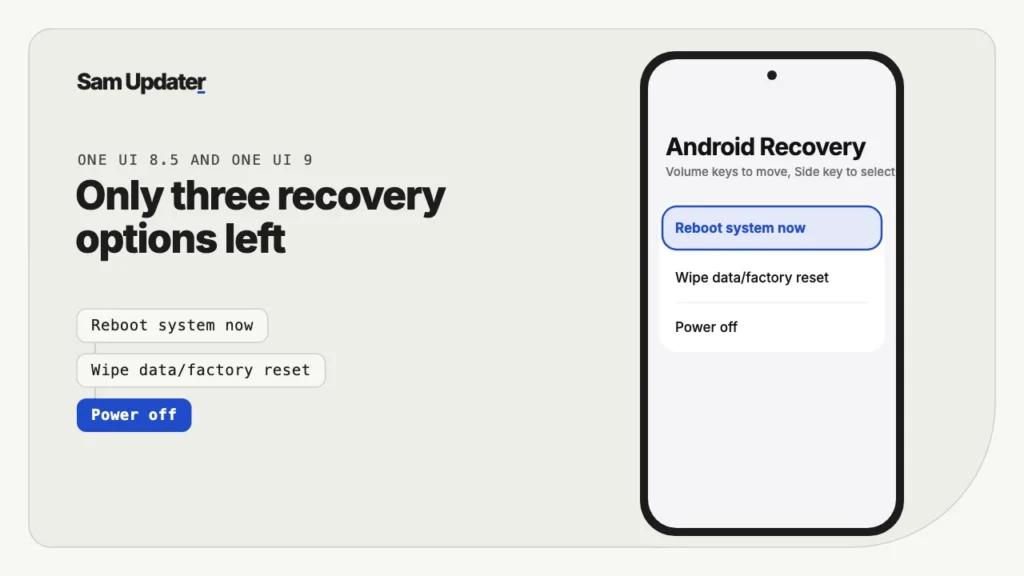
The menu on older phones that never got One UI 8.5 still looks the old way. If your Galaxy stopped at One UI 7 or One UI 8, Wipe cache partition should still be there.
How do you check which One UI version and patch you have?
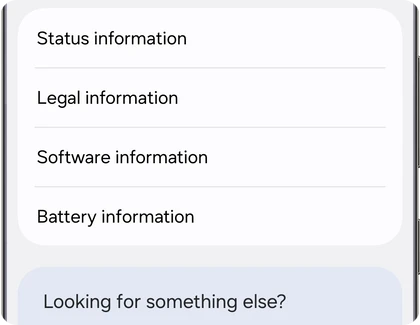
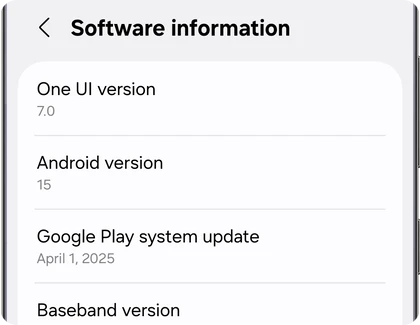
Open Settings > About phone > Software information and look at One UI version and Android security patch level. If it says One UI 8.5 with a February 2026 or newer patch, or any One UI 9 build, the missing option is expected.
- Open Settings.
- Tap About phone.
- Tap Software information.
- Check One UI version and Android security patch level.
If your phone is on an older version and the option is still missing, you’re probably not in stock recovery at all. A black screen with an Android robot and “No command” is a step before the menu. Hold the Side key and tap Volume Up once to bring up the full list.
Can you get Wipe cache partition back?
No. There’s no setting that brings it back, and you can’t install an older recovery on its own. GalaxyClub, quoted in the 9to5Google report, says the February update also blocks downgrades because of a security policy change, so going back to an older build isn’t an option either.
Flashing an older firmware with Odin won’t help for the same reason. The bootloader on the new update has a higher binary, and Odin will stop with SW REV CHECK FAIL. I wouldn’t spend time on it.
What should you do instead of wiping the cache partition?
Clear the cache of the app that’s acting up, then run Device care. On Galaxy phones from the Galaxy S25 series on, Samsung uses A/B system partitions for updates, so the old system cache wipe matters much less than it used to. For most problems, these steps cover what the cache wipe used to do.
Here’s what I’d do, in this order:
- Restart the phone. Hold the Side key and Volume Down, then tap Restart.
- Clear the cache of the app that crashes or lags. Open Settings > Apps, pick the app, tap Storage, then tap Clear cache.
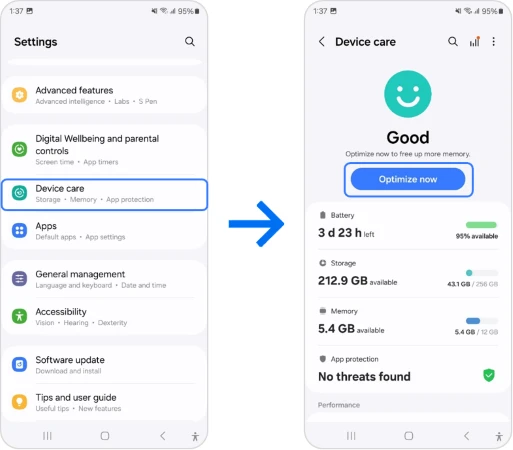
- Run a quick optimization. Open Settings > Device care and tap Optimize now.
- If the phone got slow right after an update, give it a day on the charger at night so app optimization can finish in the background.
- Check Settings > Software update > Download and install for a newer build that fixes the problem.
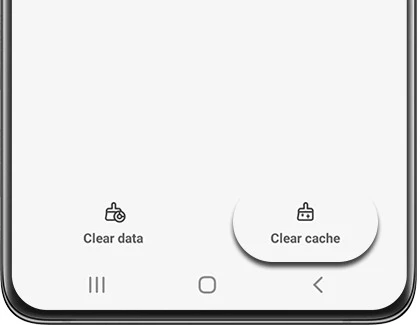
Make sure you tap Clear cache and not Clear data. Clear data removes the app’s settings, logins and offline files.
If the whole phone feels slow after One UI 9, we have a full list of fixes in our guide to a Samsung phone that’s slow after an update. For heavy battery drain, our One UI 9 battery drain guide covers what actually helps.
Does Galaxy App Booster replace the cache wipe?
Not exactly. Galaxy App Booster in Good Guardians optimizes installed apps after an update, which helps when apps open slowly. It doesn’t wipe a system cache, and it doesn’t remove junk files. Think of it as the closest tool for post-update lag, not a one-to-one replacement.
It’s free in the Galaxy Store, inside the Good Guardians app. Open it, pick App Booster, and run it with the phone plugged in, because it can take several minutes.
What if your phone won’t boot and you needed the cache wipe?
Your options are a factory reset from recovery or a fresh firmware flash. Before you erase anything, try a forced restart and Safe mode first. A boot loop after an update is sometimes caused by one app, not the system.
- Force a restart by holding the Side key and Volume Down for about 7 seconds.
- When the Samsung logo shows, hold Volume Down to start in Safe mode.
- If the phone boots in Safe mode, uninstall the apps you added most recently, then restart normally.
- If it still won’t boot, use Wipe data/factory reset in recovery. This erases everything on the phone.
- As a last step, flash the latest official firmware for your exact model with Odin.
Remember that after a factory reset, the phone asks for the Google account that was on it before. Make sure you know that password before you wipe. If you’re stuck on an error screen after an update rather than a boot loop, our One UI 9 stuck update fix goes through that case step by step.
Frequently asked questions
Which Samsung phones lost Wipe cache partition?
Galaxy phones that installed One UI 8.5 with the February 2026 security patch or later, and every phone on One UI 9. That includes the Galaxy S24, S25 and S26 series, the Z Fold and Z Flip models on One UI 8.5 or 9, and A series phones that got those updates.
Is Wipe cache partition the same as clearing app cache?
No. The recovery option cleared a system cache partition. Settings > Apps > (app) > Storage > Clear cache clears one app’s temporary files. For a single misbehaving app, the app cache is what you actually want.
Will a factory reset fix what a cache wipe used to fix?
Usually yes, because it rebuilds everything. But it also erases your data, so back up first and keep it as the last step. A forced restart, Safe mode and app cache clearing fix most problems without losing anything.
Can I still sideload an OTA update from recovery?
Not on One UI 8.5 with the February 2026 patch or later. Apply update from ADB and Apply update from SD card were removed along with the cache option. Use Settings > Software update, Smart Switch on a computer, or Odin instead.
Was this guide helpful?
Your answer helps us keep it accurate.

Comments (0)
Comments are moderated, and published only if they are relevant to the topic and add value in a constructive way. If you disagree with something, please be polite and respectful.