
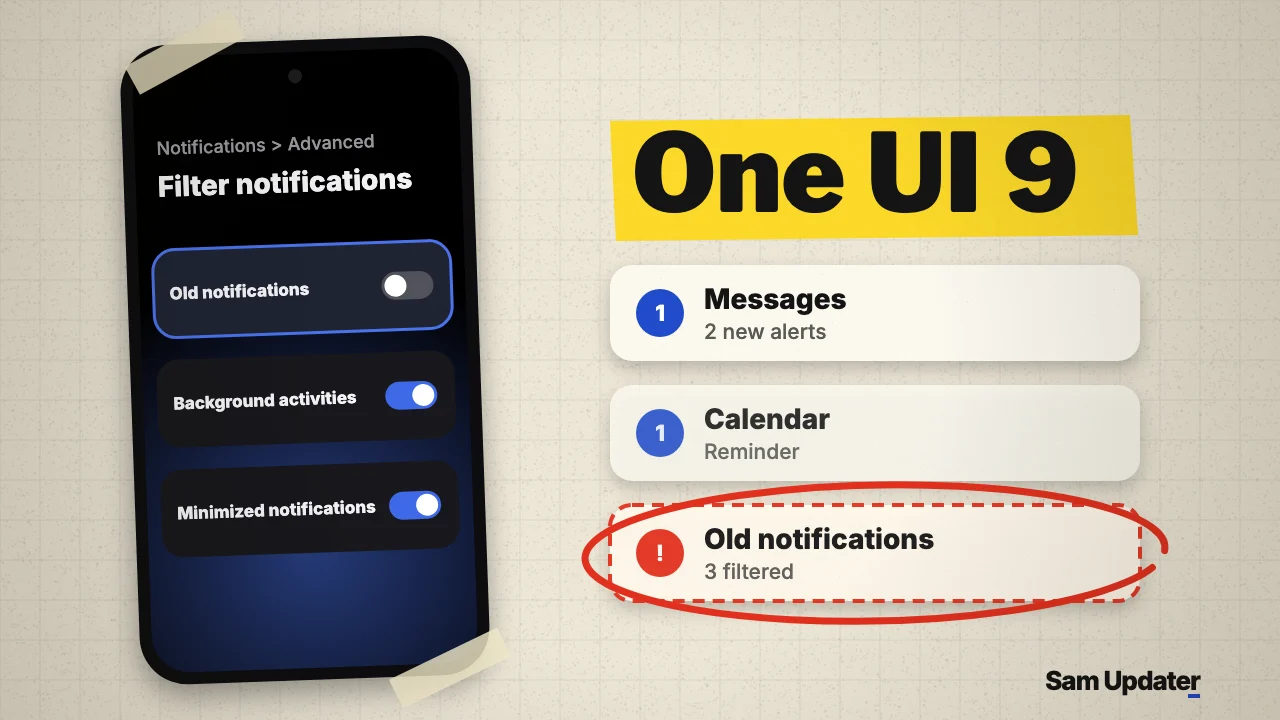
If you notice old notifications disappearing from your notification shade after a few days, open Settings > Notifications > Advanced settings > Filter notifications and turn off Old notifications. Starting in One UI 7 and continuing in One UI 9, Samsung uses that filter to sweep aging alerts out of the main list and tuck them into a compact group at the bottom of the panel. I will show you how to turn each notification filter off, why some app alerts still clear themselves after a set time, and how to keep reminders visible without losing them.
Turn off Old notifications in Filter notifications
Samsung added Filter notifications in One UI 7 to keep less urgent alerts from crowding the top of your notification panel. According to Samsung’s US notification settings guide, filtered alerts are not deleted when this feature runs. Instead, One UI moves them into a collapsed group at the very bottom of the notification panel with a number showing how many alerts are tucked inside.
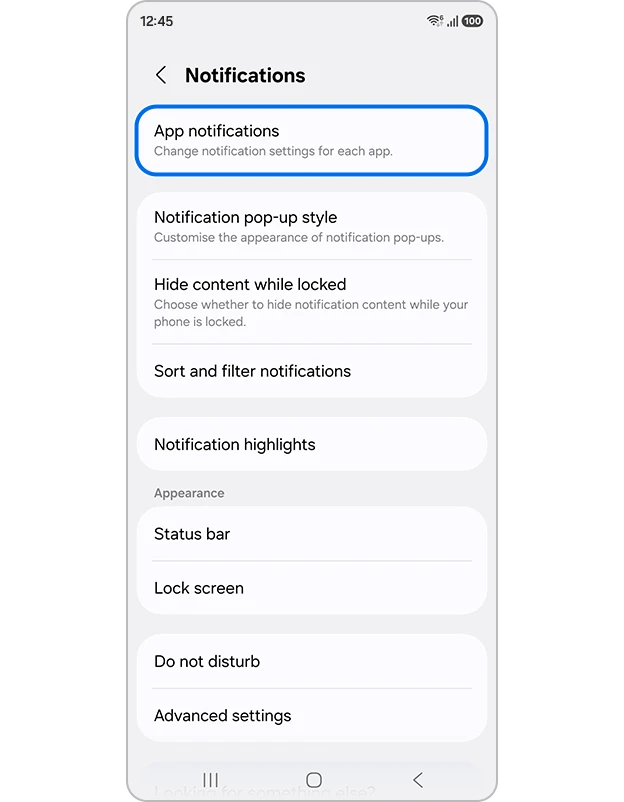
When people report old notifications disappearing on a new Galaxy phone, this bottom group is usually the reason. If you leave messages or bill reminders sitting in the shade until you deal with them, you can turn off any of the three filters individually so those alerts stay in your main list:
- Open Settings on your Galaxy phone and tap Notifications.
- Tap Advanced settings near the bottom of the screen.
- Tap Filter notifications.
- Turn off the switch next to Old notifications so older untouched alerts stay in your main notification list.
- Turn off Minimized notifications and Background activities as well if you want every silent or background alert to remain in the normal feed instead of dropping into the bottom group.
That’s it for the filter menu. Here is what each of the three switches in that screen controls:
| Filter switch | What One UI moves to the bottom group | Best setting if you keep alerts as reminders |
|---|---|---|
| Old notifications | Alerts that have been sitting untouched in your notification panel for a while | Turn off so older reminders stay in the main list |
| Minimized notifications | Silent alerts from notification channels you have set to Minimized | Turn off if you still want silent alerts visible in the main stream |
| Background activities | Ongoing background status alerts from apps running in the background | Leave on unless a specific background task card keeps hiding |
Why you see old notifications disappearing after a few days
Turning off Old notifications stops One UI from sweeping aging alerts into the bottom tray, but it does not stop an app or Android itself from removing an alert entirely. On November 10, 2026, one Galaxy S26+ owner on r/oneui who had upgraded from a Galaxy A52s noted that leaving a phone-bill alert in the shade for a couple of days or a week no longer worked on One UI 9 because the alert disappeared before the bill was paid.
As one community reply in that thread pointed out, an app developer can tell Android when a notification should expire. Android’s notification API includes a setTimeoutAfter() method that lets an app set a timer in milliseconds, after which Android automatically cancels the notification even if you never tapped or swiped it. That app-level timer is a separate cause of old notifications disappearing when you leave them unread for days, alongside background app syncs when a billing or promo window ends.
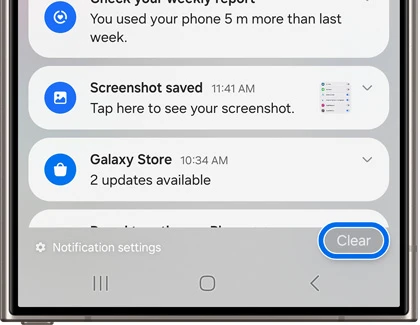
An accidental tap on Clear at the bottom of the panel will also wipe out a saved reminder. Per Samsung’s support documentation, the Clear button deletes every uncleared alert except call notifications, system-level security alerts, Knox notifications, and active ongoing events like voice recordings, timers, a stopwatch, or a workout.
Use Snooze, Sort by priority, and Notification history to keep reminders
Because an app timer or an accidental tap on Clear can still lead to old notifications disappearing before you act on them, leaving a notification untouched for a week is risky. Three built-in One UI tools give you a safer way to handle alerts you cannot deal with right away.
Turn on the Snooze button for alerts you need later
Instead of leaving an alert sitting in the shade, you can snooze it so it disappears now and pops back up as a fresh alert later:
- Go to Settings > Notifications > Advanced settings.
- Turn on the switch next to Show snooze button.
- Swipe down to open your notification panel and tap the down arrow on the alert you want to save.
- Tap the Snooze icon (shaped like a bell) at the bottom-right corner of that notification, pick how long to snooze it, and tap Save.
Switch Sort notifications back to By priority
In newer One UI builds, Samsung changed the default sorting order from priority to arrival time. If recent low-priority alerts keep pushing your important messages down the panel, open Settings > Notifications > Advanced settings > Sort notifications and change the selection from By time to By priority.
Recover dismissed alerts with Notification history or NotiStar
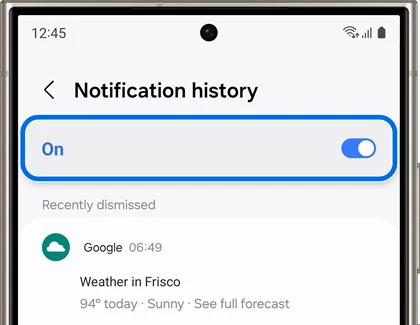
If an alert already vanished before you could read it, we walked through how to enable Samsung Notification history to check dismissed alerts from the past 24 hours under Settings > Notifications > Advanced settings > Notification history.
If you need a searchable log that lasts longer than 24 hours, install Samsung’s Good Lock app from the Galaxy Store and turn on the NotiStar module, which lets you filter and search past notifications by app or keyword.
Can you turn off notification grouping on One UI 9?
The same Galaxy S26+ owner on Reddit also asked whether there is a switch to stop One UI 9 from stacking multiple alerts from the same app into one card. There is no system toggle on Samsung phones to turn off app-level notification bundling across the phone.
That behavior comes from Android itself rather than One UI. According to Google’s Android developer documentation on notification groups, apps have been able to bundle related alerts into a single expandable summary card since Android 7.0, and Android automatically groups alerts whenever a single app has four or more active notifications on screen without a group set.
While you cannot disable Android’s four-notification bundling rule, you can make grouped cards easier to read and cut down how fast an app hits four alerts:
- Tap the small down arrow on any stacked notification card, or swipe down on the card with one finger, to expand the individual messages inside the bundle and swipe away single items one by one.
- If your notification cards feel cramped next to your quick toggles, check our guide on how to switch between Separate and Together panel settings on Samsung so your notifications get the full screen width.
- If one app keeps hitting four notifications because of promotional or background pings, turn off its extra channels. We explain how to turn on the hidden toggle in our guide on bringing back Manage notification categories for each app under Settings > Notifications > Advanced settings.
For other interface defaults that changed after updating, we also put together a roundup of One UI 9 settings changes you can switch back in a couple of taps.
Frequently asked questions
Does turning off Filter notifications bring back alerts that already disappeared?
If One UI only moved those alerts into the filtered group at the bottom of your notification panel, turning off Old notifications restores them to your main list right away. If the app itself canceled the notification or you tapped Clear, turning off the filter will not bring it back, and you will need to check Notification history instead.
Why do my notifications show up in the pull-down panel but disappear from the Lock screen?
Open Settings > Notifications > Lock screen notifications and check whether Show alerting notifications only is turned on. When that switch is active, One UI hides silent and minimized notifications from the Lock screen even though they are still waiting inside the pull-down notification panel.
What should I check if I still have old notifications disappearing right away?
Check which specific app is losing alerts and whether you have the notification panel open on another connected device (such as a Galaxy Watch or linked PC) that dismisses synced alerts when read. Drop a comment below with your Galaxy model number, One UI version, and the app whose notifications are disappearing if you are still running into trouble.
Was this guide helpful?
Your answer helps us keep it accurate.
Comments (0)
Comments are moderated, and published only if they are relevant to the topic and add value in a constructive way. If you disagree with something, please be polite and respectful.