
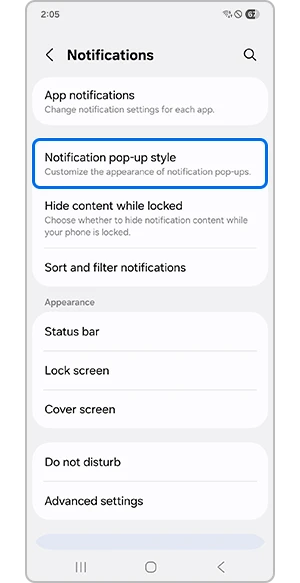
To add Samsung notification lighting, open Settings > Notifications > Notification pop-up style and look for Add lighting effect. Select an effect and tap Done. If your software uses the older name, open Edge lighting style from the same notification menu.
I would follow the label shown on your Galaxy rather than search for an Edge screen menu. Samsung's One UI 8 instructions warn that searching for Edge or Edge lighting may no longer find this control.
Find Add lighting effect in the notification menu
Samsung Saudi Arabia documents the updated layout under Notification pop-up style. Its reference shows Brief and Detailed choices, followed by Add lighting effect in the Brief pop-up settings.
- Open Settings on your Galaxy.
- Tap Notifications.
- Open Notification pop-up style.
- Look for Add lighting effect beneath the pop-up choices.
- Open it and select an available visual effect.
- Tap Done to keep the selection.
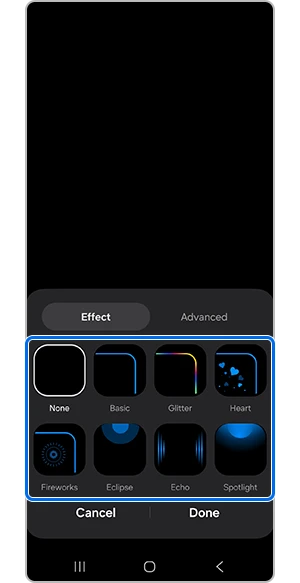
The reference effect picker includes None, Basic, Glitter, Heart, Fireworks, Eclipse, Echo, and Spotlight. Choose from the effects on your own phone, since Samsung says menus and screenshots vary with model and software.
Check Brief and Detailed before comparing effects
Samsung says some lighting effects are limited when Detailed pop-up style is used. If a choice is unavailable or behaves differently, check the pop-up style before treating it as a missing feature.
The phone also supports per-app pop-up choices in the documented One UI 8 layout. That matters if you changed the overall style but a particular app still uses a different presentation.
- Go to Settings > Notifications > App notifications.
- Select the app whose alerts you want to adjust.
- Open Notification pop-up style.
- Choose Brief pop-up or Detailed pop-up as offered for that app.
Make the comparison with the app you actually care about. A lighting preview shows the chosen design; an incoming notification helps you check the app's permission and pop-up choices together. Keep those two checks separate so you know which result you are looking at.
Allow the screen-off presentation if you want it
The updated Samsung reference includes Show brief pop-ups even while screen is off below Add lighting effect. Turn on that switch if you want the supported brief presentation when the display is off.
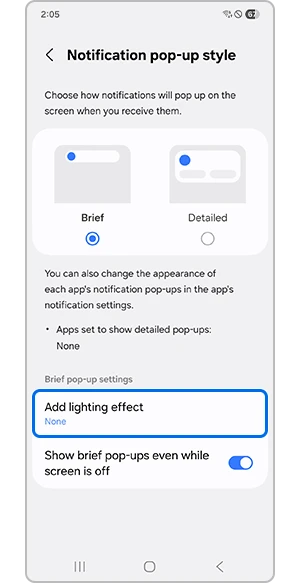
Check the result once while using the phone and once after turning the screen off. Note which app sent the alert and which pop-up style you selected. Those details are useful if only one of those situations behaves as expected.
If the menu still says Edge lighting style
Samsung's US Edge lighting page documents another layout. It uses Settings > Notifications > Notification pop-up style > Edge lighting style, with effect, color, and advanced controls.
- Open Edge lighting style and choose an effect.
- Use Color to select an automatic or custom color if that tab is offered.
- Open Advanced for the available transparency, width, and duration controls.
- Tap Done when the effect looks the way you want.
That US layout also lists Apps to show as brief, Color by keyword, and Show even while screen is off under Brief settings. Use those names when they match your screen. You do not need to find both Edge lighting style and Add lighting effect to finish the setup.
Check notification permission if one app stays quiet
A lighting choice is only part of notification setup. Samsung's app notification instructions place Allow notifications under Settings > Notifications > App notifications > the app. Review that permission if the app is not alerting you at all.
If the app sends some alerts but not the particular type you want, inspect its notification categories. Our Galaxy notification category guide explains how to reach those more specific controls. Keep app-wide permission and an individual category in mind as different settings.
For alerts silenced by Do not disturb, review that mode's exceptions and notification visibility. Samsung documents allowed apps and hidden notifications separately. There is no need to reset the whole phone just to compare a visual effect with those notification controls.
FAQ
Will this add a physical notification LED?
This setting draws a lighting effect on the display. Samsung's US page distinguishes Edge lighting from the separate notification LED found on some older phones. Choose the on-screen effect for its appearance, rather than expecting a new hardware light on the back or side of the phone.
Can I look up an alert after I dismiss it?
Lighting changes how an alert appears when it arrives. Our Samsung notification history guide covers the separate record of alerts. If you need help with lighting, tell me your model, One UI version, pop-up style, and whether your menu says Add lighting effect or Edge lighting style.
Was this guide helpful?
Your answer helps us keep it accurate.
Comments (0)
Comments are moderated, and published only if they are relevant to the topic and add value in a constructive way. If you disagree with something, please be polite and respectful.