
You can change a Samsung app's permissions from Settings > Apps > the app > Permissions. Tap the permission you want to review, then choose the access level offered on that screen. I'll explain the choices so you can limit access without disabling a feature you still need.
There are two useful ways to review permissions: start with one app, or start with a feature such as Camera and review the apps that can use it. Samsung documents the first approach in its Canadian app-management guide, and the second in its Gulf permission-manager instructions.
Review the permissions of one app
Use this route when you know which app you want to change. For example, you might want to let a messaging app use the microphone for voice messages while keeping its camera access disabled.
- Open Settings and tap Apps.
- Select the app you want to inspect. Check its name before changing anything.
- Tap Permissions on its app-information screen.
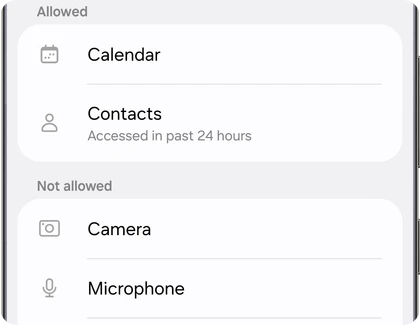
- Read the entries under Allowed and Not allowed.
- Tap a permission, then select the access option that fits how you use that app.
- Return to the permission list and check the new setting before trying the affected feature in the app.
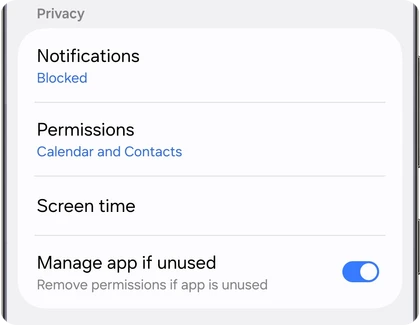
Allowed and Not allowed are the useful starting points here. They show the access decisions for that app, so you can work on one permission at a time rather than removing everything and trying to guess which change broke a feature.
Samsung cautions that some permissions are needed for an app to function properly. If you deny one of those, a feature may become unavailable or the app may stop working until you allow it again. Put that decision next to the task: a voice-message feature needs microphone access to record your message.
Choose the access level the screen actually offers
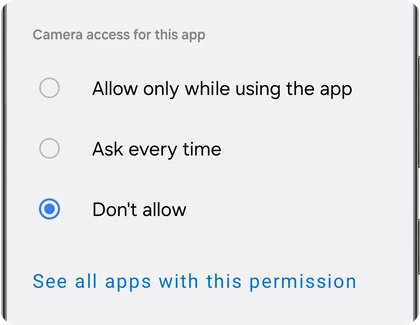
You will not get the same choices for every permission. Samsung says the options depend on the app, the permission and your software version. Google's Android permission documentation also distinguishes the access levels available for location, camera and microphone.
| Choice | What it allows |
|---|---|
| Allow | Grants the permission shown on that screen. Some permission types use this simpler choice instead of the timing options below. |
| Allow only while using the app | Lets the app use the permission while you are using that app. |
| Ask every time | Asks again when you open the app, with access available until you are done with it, as described by Google. |
| Allow all the time | Allows location access even when you are not using the app. Google identifies this option as location-only. |
| Don't allow | Blocks the app from using that permission, including while you are using the app. |
Ask every time is useful when you want to make the decision again on a later visit. It is not a live log that asks you to approve every individual photo or every moment of microphone use during the same session.
Similarly, look for Allow all the time when reviewing Location, rather than expecting to find it under Camera or Contacts. If your screen only offers Allow and Don't allow, choose between those actual controls. You do not need a hidden menu to reveal a timing choice that the permission does not offer.
Review all apps that can use a particular feature
Permission manager is useful when your question is broader: which apps can use my microphone, for example? Instead of opening every app's information page, choose that permission category and review the apps inside it.
On the route documented by Samsung Gulf, open Settings > Apps, tap the three-dot menu and select Permission manager. Choose a category such as Location, Contacts or Camera, then choose an app and change its permission.
If your software places Permission manager elsewhere, search Settings for its name. The Samsung Camera reference above provides another entry point for that particular category: See all apps with this permission. Use that link when it appears on your screen.
The category view saves the trip through separate app-information pages, but each app still has its own access decision. Review the app name and its selected option rather than assuming that opening a category revokes permission for every app in it.
Keep unused-app controls and notifications separate
Samsung's app-information reference also shows Manage app if unused, described there as removing permissions if the app is unused. Google describes the related Android control as Pause app activity if unused. Check the wording on your Galaxy if you want that automatic permission management.
That control serves a different purpose from changing a permission now. For a current access concern, open Permissions and make the specific choice immediately. The unused-app setting handles an app that you leave unused over time.
Notifications have their own control as well. Samsung Gulf documents Settings > Apps > the app > Notifications > Allow notifications. Turning off an app's alerts is a different action from denying its microphone or location access.
If your concern is an alert you dismissed, our Galaxy notification-history guide covers that task. For controlling how an app opens web links, use our default-browser instructions. Those settings answer different questions from the permission list.
FAQ
Can I restore a permission after denying it?
Yes. Samsung says you can return to the app's permission settings and change your decision. Reopen the same permission, choose the access level you need, then try the feature that was unavailable.
Does Allowed mean the app is using the camera right now?
Allowed is an access setting. Read it as permission to use the feature under the selected conditions. In Samsung's reference, recent activity appears as a separate note beside Contacts; the access list and an activity note carry different information.
What if the access choices look different on my phone?
Send me your Galaxy model, One UI version, app name and the permission you are changing. Include the choices shown on that screen, without personal information, so I can help you identify the matching control.
Was this guide helpful?
Your answer helps us keep it accurate.
Comments (0)
Comments are moderated, and published only if they are relevant to the topic and add value in a constructive way. If you disagree with something, please be polite and respectful.