
Updated your Galaxy S26 to One UI 9 and not liking it? Maybe an app broke, the battery is worse, or you just miss how things were.
The good news is that you can go back to One UI 8.5 right now. The bad news is that this window won’t stay open forever.
In this guide, I will show you how to downgrade One UI 9 to One UI 8.5 on the Galaxy S26, S26+ and S26 Ultra using Odin. I will also explain the one thing that decides whether a downgrade is even possible.
Can You Downgrade One UI 9 Right Now?
Yes, for now. Samsung blocks downgrades using something called the bootloader binary (or bit). It’s a single character in the firmware version.
You can only flash firmware with the same binary number or higher. Never lower.
Here’s where the Galaxy S26 Ultra stands today:
| Firmware | Version | Build | Binary |
|---|---|---|---|
| Korea (KOO) | One UI 9 | S948NKSU4BZI6 |
4 |
| Korea (KOO) | One UI 8.5 | S948NKSU4AZHJ |
4 |
| T-Mobile (TMB) | One UI 9 | S948USQU4BZID |
4 |
| T-Mobile (TMB) | One UI 8.5 | S948USQS4AZHL |
4 |
See the “4” right after KSU and SQU? That’s the binary. Both One UI 9 and One UI 8.5 are on binary 4, so the downgrade works.
The same applies to the Galaxy S26 (S942) and S26+ (S947) builds.
The moment Samsung releases a One UI 9 update with binary 5, the downgrade is gone for good. If you’ve installed a binary 5 build, Odin will fail with “SW REV CHECK FAIL” when you try to flash One UI 8.5. If you want to go back, do it soon.
Not sure how to read a firmware version? I have explained every character in my guide on Samsung firmware version numbers.
Before You Begin
Please read these points carefully. A downgrade is not the same as a normal update.
- Downgrading wipes your phone completely. You must flash the full CSC file, not HOME_CSC, because One UI 8.5 can’t read data created by One UI 9.
- Back up everything first. Use Samsung Cloud, Google backup or Smart Switch on a PC. Note that a backup made on One UI 9 may not restore on One UI 8.5, so a Smart Switch backup of photos and files is the safest bet.
- Charge your phone to at least 60%.
- You need a Windows PC and a USB cable. A good quality cable matters here.
- Downgrading with official firmware does not trip Knox or void your warranty.
What You Need
- The latest Odin flash tool.
- Samsung USB drivers installed on your PC.
- The One UI 8.5 firmware for your exact model and region. The easiest way to get it is with the Frija tool. Enter your model (for example SM-S948N) and CSC (for example KOO), and pick the build that starts with the same binary.
Make sure the firmware you download has the same binary number as the One UI 9 build on your phone. You can check your current build under Settings > About phone > Software information > Build number.
How to Downgrade One UI 9 to One UI 8.5
Once you have everything ready, follow these steps:
- Extract the downloaded firmware ZIP on your PC. You’ll see five files starting with BL, AP, CP, CSC and HOME_CSC.
- Open Odin on your PC by right-clicking it and choosing Run as administrator.
- Turn off your Galaxy S26.
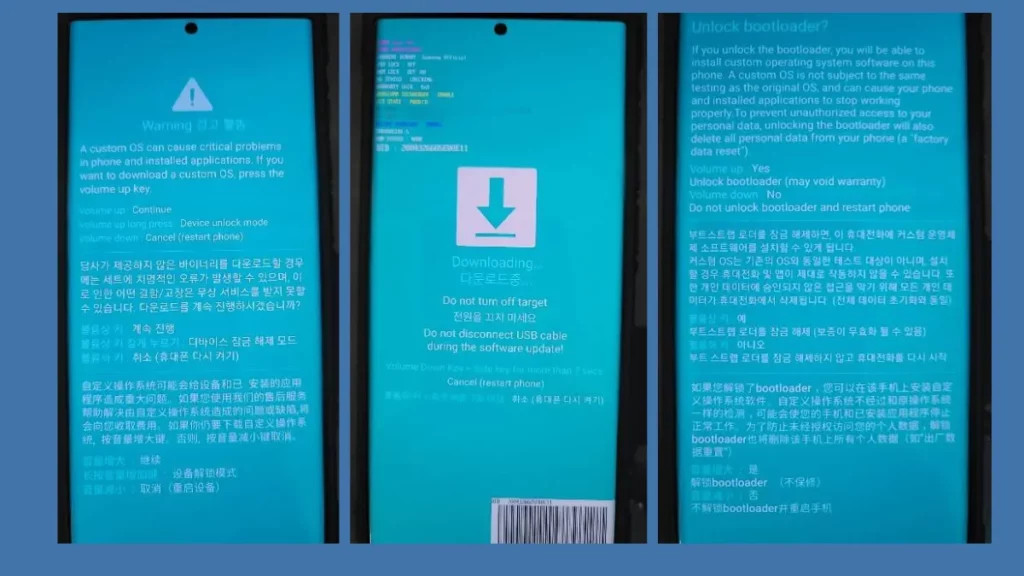
- Press and hold the Volume Up and Volume Down buttons together, then plug the phone into your PC while holding them.
- When the warning screen appears, press Volume Up to enter Download mode.
- Odin should show a blue “COM” box, which means it has detected your phone.
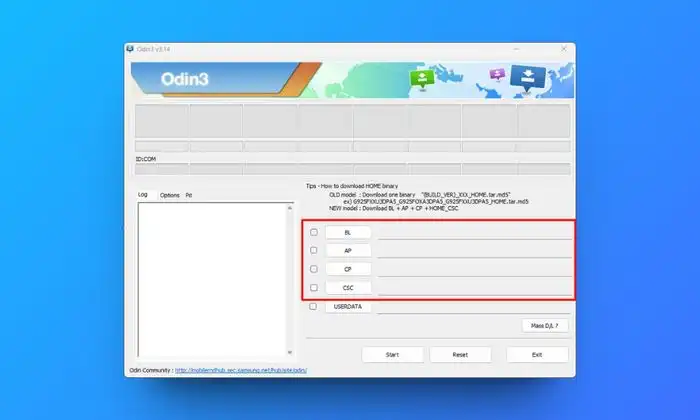
- Click the BL button and select the BL file.
- Click AP and select the AP file. It’s big, so Odin may take a minute to load it.
- Click CP and select the CP file.
- Click CSC and select the file that starts with CSC (not HOME_CSC).
- Go to the Options tab and make sure Re-Partition is unchecked.
- Click Start.
Odin will now flash One UI 8.5 on your phone. When it’s done, you’ll see a green PASS box and the phone will reboot.
The first boot takes a few minutes. Your phone will open the setup screen, just like a new phone.
That’s it. You’re back on One UI 8.5.
Want to know more about the difference between the two CSC files? Here’s my guide on CSC or HOME_CSC.
What If Odin Fails?
Here are the most common errors and what they mean:
- SW REV CHECK FAIL: the firmware has a lower binary than your phone. You can’t downgrade to that build.
- Odin stuck at “SetupConnection”: try a different USB port or cable, and reinstall the Samsung USB drivers.
- Odin fails at a random file: re-download the firmware. A corrupt download is the usual cause.
If your phone gets stuck in Download mode after a failed flash, don’t panic. Just start the steps again with a fresh download.
Will I Get One UI 9 Again After Downgrading?
Yes. Once you’re back on One UI 8.5, the One UI 9 update will show up again under Settings > Software update > Download and install.
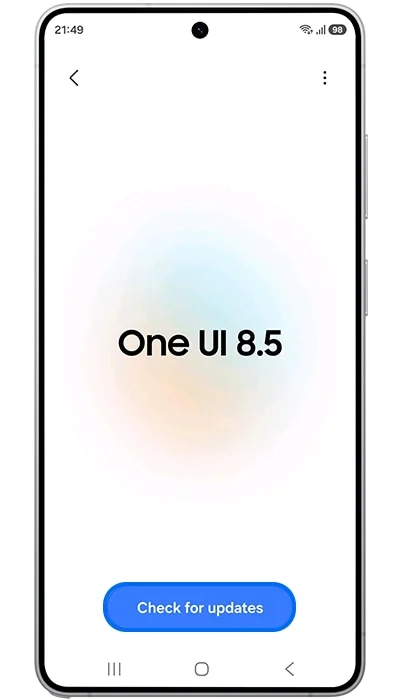
If you want to stay on One UI 8.5, just don’t install it. You can keep an eye on new builds in the One UI 9 update tracker and see if a later build fixes your problem.
Frequently Asked Questions
Can I downgrade without losing data?
No. Going from Android 17 back to Android 16 always needs a full wipe.
Does this work on the Galaxy Z Fold8 or Z Flip8?
No. Those phones launched with One UI 9, so there’s no older version to go back to.
Will downgrading void my warranty?
No. You’re flashing official Samsung firmware, so Knox stays intact.
Conclusion
If One UI 9 isn’t working out for you, now is the time to go back to One UI 8.5, while both are still on binary 4. Once a binary 5 build lands, there’s no way back.
Did the downgrade work for you? Let me know your model number and the build you flashed in the comments below. If you get stuck, share the Odin error and I’ll help you out.
Was this guide helpful?
Your answer helps us keep it accurate.
Comments (0)
Comments are moderated, and published only if they are relevant to the topic and add value in a constructive way. If you disagree with something, please be polite and respectful.