
Samsung started rolling out One UI 9 to the Galaxy S26, S26+ and S26 Ultra on September 16. But updates go out in waves, and your phone might still be sitting on Android 16 while someone in another country already has Android 17.
You don’t have to wait. You can download the official One UI 9 firmware for your exact model and install it yourself with Odin.
I’ve flashed firmware on Galaxy phones this way for years, and the process on the S26 is almost the same as on older models. In this guide, I will show you every step, from picking the right file to the first boot.
Before you start
Flashing firmware isn’t hard, but a few mistakes can cost you your data. So take five minutes and get these things ready first.
- A Windows PC. Odin only runs on Windows.
- A good USB-C cable. The one that came with your phone works best.
- At least 50% battery on your phone.
- The Samsung USB driver installed on your PC.
- A full backup of your phone.
Don’t skip the backup. Even if you plan to keep your data, one wrong file in Odin can wipe everything. I’ve put together a separate guide on how to back up your Galaxy before One UI 9 if you need help with that.
Find your exact model number
Firmware is made for one model number only. Flashing a file built for a different model will fail, or worse.
Go to Settings > About phone and look at the model number. Here are the main Galaxy S26 models we track:
- Galaxy S26: SM-S942B (international), SM-S942U and SM-S942U1 (US), SM-S942W (Canada), SM-S942N (Korea), SM-S9420 (China, Hong Kong and Taiwan).
- Galaxy S26+: SM-S947B, SM-S947U, SM-S947U1, SM-S947W, SM-S947N and SM-S9470.
- Galaxy S26 Ultra: SM-S948B, SM-S948U, SM-S948U1, SM-S948W, SM-S948N and SM-S9480.
You’ll also need your CSC code. That’s the three-letter region code, like EUX for Europe, INS for India or XAA for US phones bought without a carrier. You can see it in Settings > About phone > Software information > Service provider software version.
Step 1: Download the One UI 9 firmware
The easiest way to get official Samsung firmware is with Frija. It pulls the files straight from Samsung’s servers, so you know they haven’t been tampered with.
- Download and open Frija on your PC. My Frija download guide covers the setup.
- Type your model number, for example SM-S948B.
- Type your CSC code, for example EUX.
- Check the Auto box and click Check Update.
- Make sure the Android version shows 17, then click Download.
The file is big, usually several gigabytes. When it’s done, extract the ZIP file. You’ll get five files that start with BL, AP, CP, CSC and HOME_CSC.
Not sure which build is the newest for your model? As of October 5, the latest SM-S942B, SM-S947B and SM-S948B build in our feed is S942BXXS4BZIG (or the S947B and S948B versions), with the October 2026 security patch. The table below shows the current One UI 9 builds for the S26 series.
Live data from Samsung's official release notes. Last checked Oct 5, 2026, 21:52 UTC.
| Device | One UI 9 status | First release | First build |
|---|---|---|---|
| Galaxy S26 Ultra | Rolling out (37 regions) | Sep 16, 2026, South Korea | S948NKSU4BZI6 |
| Galaxy S26+ | Rolling out (36 regions) | Sep 16, 2026, South Korea | S947NKSU4BZI6 |
| Galaxy S26 | Rolling out (37 regions) | Sep 16, 2026, South Korea | S942NKSU4BZI6 |
Step 2: Download Odin
Odin is the tool that sends the firmware files to your phone. Grab the latest version from my Odin download page and extract it to a folder on your PC.
Right-click the Odin .exe file and choose Run as administrator. If you see a small “ID:COM” box at the top left, you’re good so far.
Step 3: Boot your Galaxy S26 into Download Mode
Download Mode is a special screen that lets Odin talk to your phone. Here’s how to get there on the S26 series.
- Turn off your phone completely.
- Press and hold both Volume Up and Volume Down.
- While holding them, plug the USB-C cable from your PC into the phone.
- When you see a light blue warning screen, let go of the buttons.
- Press Volume Up once to continue.
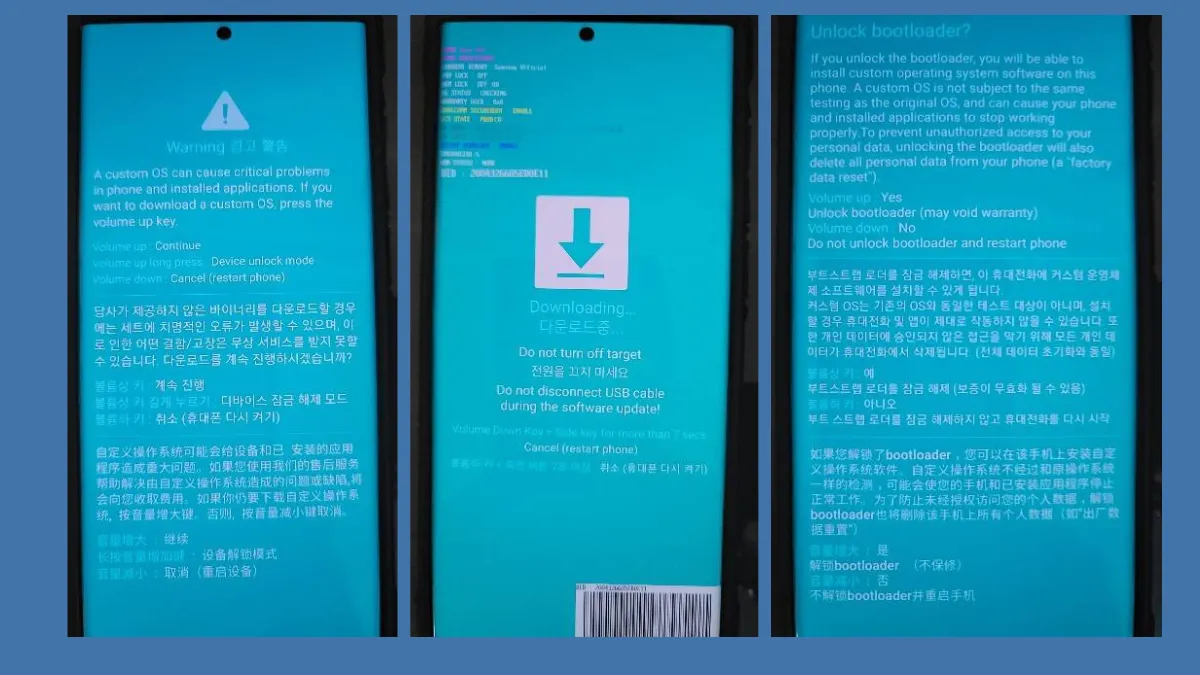
Now look at Odin. The ID:COM box should turn blue and the log should say “Added!!”. If it doesn’t, reinstall the USB driver and try a different USB port.
Step 4: Load the firmware files in Odin
This is the step where most people make mistakes. Take it slow.
- Click BL and pick the file that starts with BL.
- Click AP and pick the file that starts with AP. This one is huge, so Odin may freeze for a minute while it checks the file. Just wait.
- Click CP and pick the file that starts with CP.
- Click CSC and pick either the HOME_CSC file or the CSC file.
Which CSC file should you use? Here’s the simple rule.
HOME_CSC keeps your apps and data. Use it if you’re just updating from One UI 8.5 to One UI 9 on the same region.
CSC wipes your phone clean. Use it if you want a fresh start, or if you’re changing regions. I explain this in more detail in my CSC vs HOME_CSC guide.
Check the Options tab
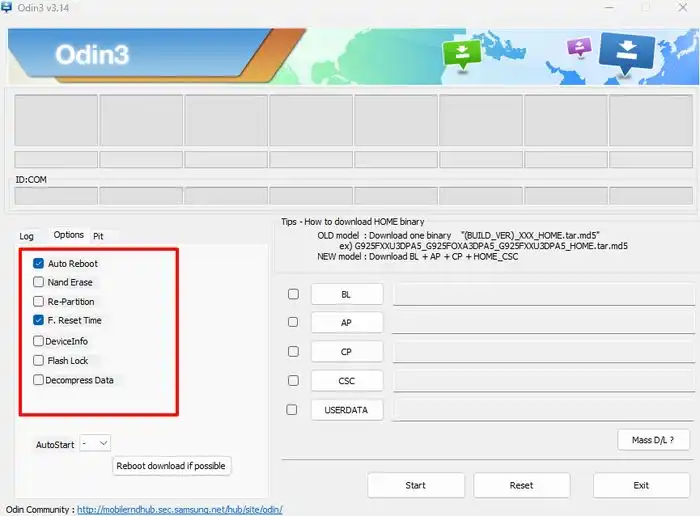
Open the Options tab in Odin. Auto Reboot and F. Reset Time should be checked. Leave everything else alone, and never tick Re-Partition unless you know exactly why you need it.
Step 5: Flash One UI 9
Click Start. Odin will start sending the files and you’ll see a progress bar on both the PC and your phone.
Don’t touch the cable or the phone while this runs. It usually takes 5 to 10 minutes.
When it’s done, Odin shows a green PASS! box and your phone reboots on its own. That’s it.
The first boot after a big update can take a while, sometimes 10 minutes or more. That’s normal. Once you’re in, go to Settings > About phone > Software information and check that the One UI version says 9.
What about Knox and warranty?
Flashing official, signed Samsung firmware with Odin does not normally trip Knox. Knox is tripped by unofficial files, like custom recoveries or patched images for root.
Since Frija downloads the same signed files Samsung sends over the air, you should be fine. Just never flash a file from a random website that you can’t verify.
Frequently Asked Questions
Can I go back to One UI 8.5 after flashing One UI 9?
It’s often not possible. Look at the fifth character from the end of the build number. That’s the bootloader version, and Odin won’t flash firmware with a lower one. The current S26 One UI 9 builds are on bootloader 4, so an older build on the same bootloader might work, but a lower one will fail.
Odin is stuck at “SetupConnection”. What do I do?
This is almost always a cable or driver issue. Try the original cable, plug into a USB port on the back of your PC, and reinstall the Samsung USB driver.
Can I flash international SM-S948B firmware on a US SM-S948U?
No. US and international models use different hardware and different firmware. Only flash files that match your exact model number.
Will HOME_CSC really keep my data?
In most cases, yes. But things can go wrong, which is why I always tell you to back up first.
Final Words
Flashing One UI 9 on the Galaxy S26 with Odin takes about half an hour, most of it waiting for downloads. Pick the right model and CSC, use HOME_CSC if you want to keep your data, and you’ll have Android 17 running without waiting for the OTA.
Did it work for you? Tell me your model number and CSC in the comments, and let me know if you got stuck on any step.
Was this guide helpful?
Your answer helps us keep it accurate.
Comments (0)
Comments are moderated, and published only if they are relevant to the topic and add value in a constructive way. If you disagree with something, please be polite and respectful.