
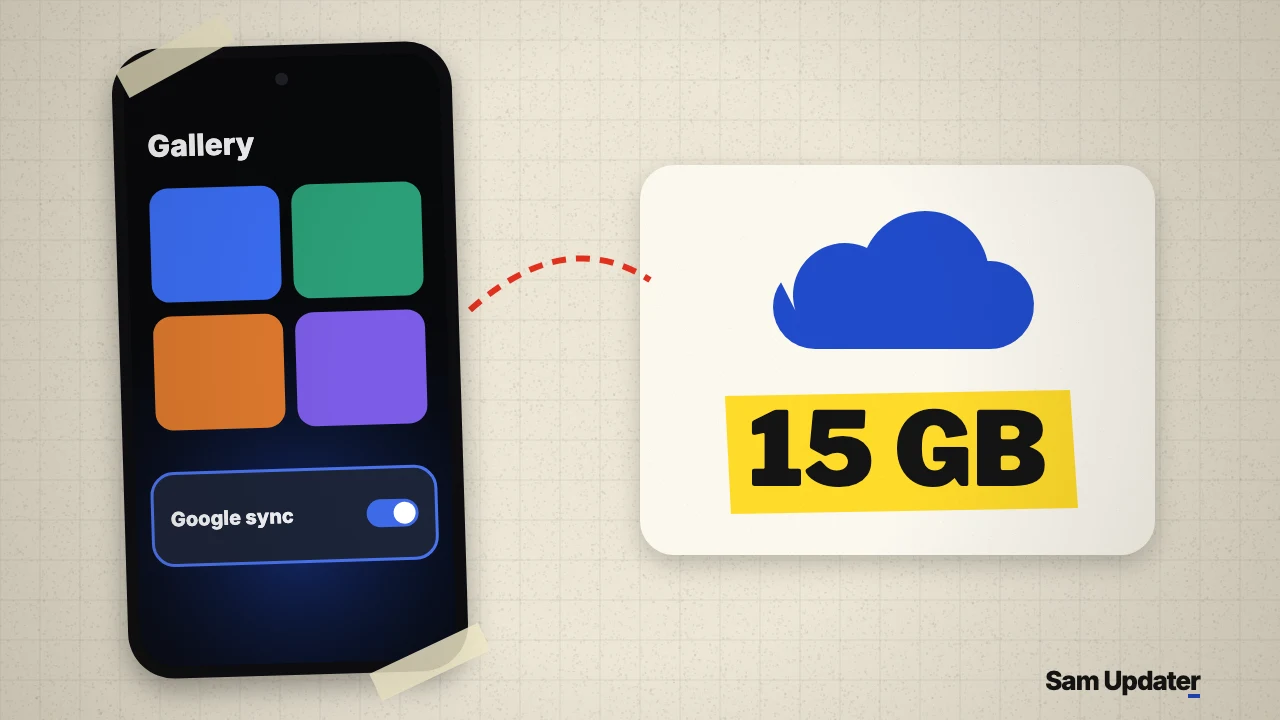
Samsung Gallery Google sync is officially rolling out to replace the retired OneDrive backup option. On November 10, 2026, Samsung Global Newsroom announced that select Galaxy phones and tablets running One UI 9 can now back up photos and videos straight to Google account storage from inside the built-in Gallery app, alongside a new Free up space tool.
If your phone or tablet is already on One UI 9, open the Samsung Gallery app and look for the Cloud icon or the setup tip card at the top. Availability is expanding in phases by device and market, so not every One UI 9 model gets the switch on day one.
How Samsung Gallery Google sync works across Galaxy devices
Direct sync between Samsung Gallery and Microsoft OneDrive shut down on September 30, 2026, leaving a gap if you preferred Samsung’s default Gallery app over switching full-time to Google Photos. Any photos you sent to OneDrive before that cutoff remain in the OneDrive app and website, while new native Gallery backups now go to Google storage instead.
You don’t need to create a separate cloud account or open another app to start backing up. As long as your Samsung account and Google account are both signed in on the device, Gallery handles the upload directly.
When you sign in with those same two accounts on a second One UI 9 phone or Galaxy Tab, your recent shots carry over between screens inside Samsung’s own Gallery layout instead of forcing you into a separate photo app.
Turn on Samsung Gallery Google sync and Free up space
Samsung documented two places inside Gallery to enable the backup once the phased rollout reaches your model. If you want to compare this cloud option against Smart Switch or local PC copies first, our Galaxy backup guide walks through each method.
- Confirm both your Samsung account and Google account are signed in under Settings > Accounts and backup > Manage accounts.
- Open the Samsung Gallery app and tap the Cloud icon, or open Gallery Settings and turn on Sync photos and videos.
- Follow the on-screen prompts to confirm which Google account will store your backups.
- Once your items finish uploading, use Free up space in Gallery if you want to remove local original files while keeping cloud thumbnails visible.
Be careful when deleting inside Gallery after turning sync on: Samsung warns that deleting a synced photo or video in Samsung Gallery also deletes it from your linked Google storage and every other connected Galaxy device on the same accounts. If you want private photos kept separate from your main Gallery library instead, our Samsung Secure Folder guide covers how that isolated space works.
The big catch with existing Google Photos libraries
Before you expect decades of cloud pictures to show up inside Samsung Gallery, read Samsung’s launch footnote closely. At launch, Samsung Gallery only displays photos and videos that were synced through Gallery after you enabled the service.
Anything you already backed up through the Google Photos app or Google Drive stays safe in the cloud, yet it will not appear automatically inside Samsung Gallery. Samsung Gallery Google sync also shares your existing Google storage quota rather than adding a separate allowance: Google’s storage help page notes that personal accounts start at 15 GB free across Google Photos, Drive, Gmail and WhatsApp backups unless you pay for a Google One plan.
To see what else came with Android 17, check our One UI 9 features overview, or check whether your phone has received the OS upgrade yet in our One UI 9 update tracker.
FAQ
Do you have to download your whole cloud library onto a new Galaxy device?
No. When you sign in on a new supported One UI 9 phone or tablet with the same Samsung and Google accounts and turn on Samsung Gallery Google sync, Gallery displays lightweight previews first. You only download full-resolution original files for the specific photos or videos you select.
What happened to photos I previously synced from Samsung Gallery to OneDrive?
Samsung ended direct Gallery-to-OneDrive sync on September 30, 2026, but your older files were not wiped. You can still view or download them from the Microsoft OneDrive app or website.
Why isn’t Sync photos and videos showing in my Samsung Gallery settings yet?
Samsung says the feature launched on select Galaxy phones and tablets running One UI 9 and is expanding in phases, with regional restrictions in some markets. Tell me your Galaxy model, country and One UI version in the comments if you’re checking whether it has reached your device.
Was this guide helpful?
Your answer helps us keep it accurate.
Comments (0)
Comments are moderated, and published only if they are relevant to the topic and add value in a constructive way. If you disagree with something, please be polite and respectful.