
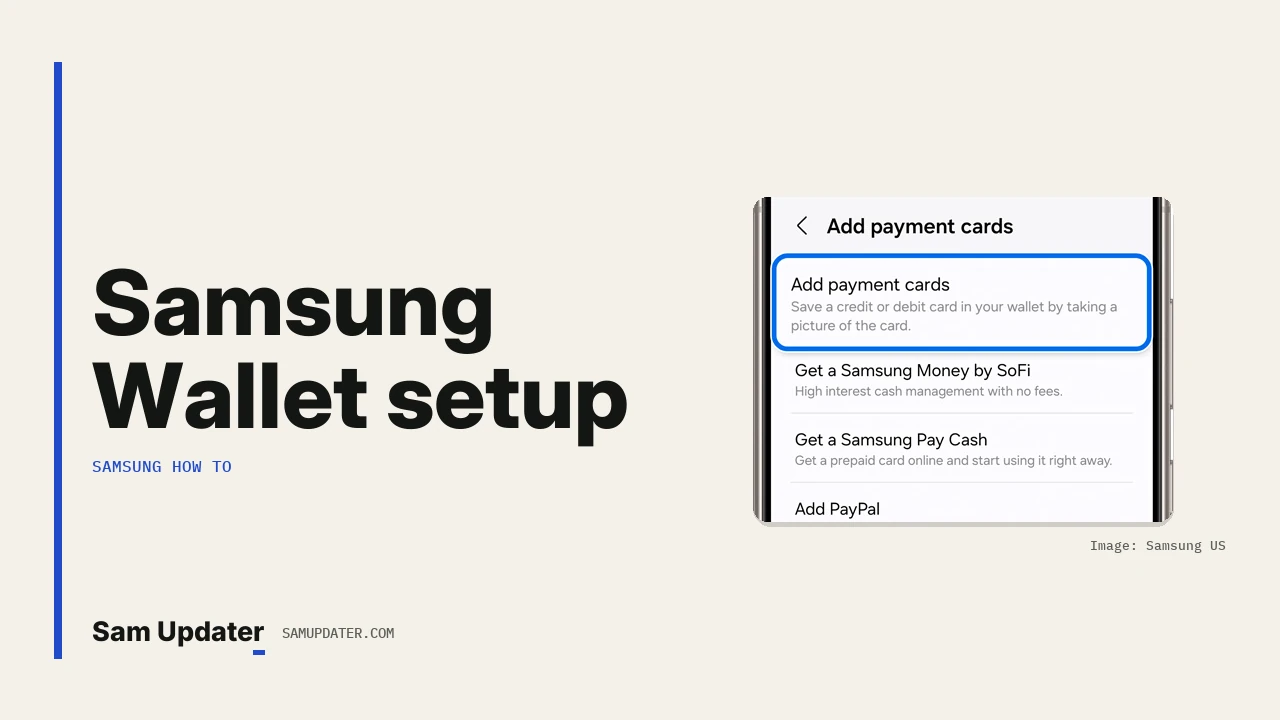
Samsung Wallet setup takes a few minutes on a Galaxy phone. Open Samsung Wallet, tap the All tab, then Payment cards, and tap Add credit or debit card. Scan the card with the camera or type it in, then finish your bank’s verification step.
I’ll start with what Samsung says you need, because most failed setups trip on one of those. The steps come from Samsung US’s Wallet setup page and its guide to adding credit or debit cards.
What do you need before Samsung Wallet setup?
Samsung lists four things. Your phone needs NFC or MST support, and you need a card from a supported bank, credit union or vendor. You also need a registered fingerprint or a Samsung Wallet PIN, and you must live in a country your bank supports for card verification.
| Requirement | What Samsung says |
|---|---|
| Phone | Select Galaxy phones with NFC or MST support |
| Card | Credit, debit or gift card from a supported bank, credit union or vendor |
| Security | A registered fingerprint or a Samsung Wallet PIN |
| Location | Residence in a country your bank supports for card verification |
| Watch with a non-Samsung phone | Android 6.0 or later on the phone |
Samsung US says you can add up to 10 payment cards, and there’s no limit on gift cards. It names American Express, Visa and MasterCard among its card partners.
Check which One UI version your phone runs under Settings > About phone > Software information before you contact your bank. They may ask for it.
Add a credit or debit card
The first card and later cards start from slightly different buttons. Here’s the full order.
- Open Samsung Wallet.
- Tap the All tab, then tap Payment cards.
- For your first card, tap Add credit or debit card. If you already have cards, tap the plus sign in the upper right, then Add credit or debit card.
- Allow camera access and scan the card, or tap Add card manually and enter the card number and cardholder name.
- Tap Next and follow the verification steps.
- Agree to the card’s terms and conditions.
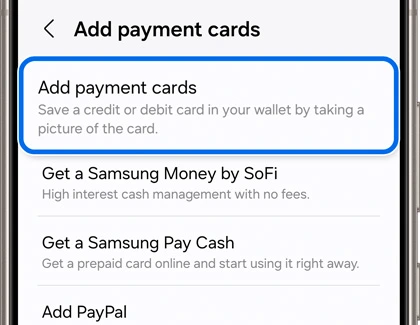
Verification can send you to your bank’s app or website. That part is up to your bank, not Samsung, so keep the banking app signed in before you start.
Find and manage the card after it’s added
Go back to the All tab, tap Payment cards and pick the card. From there you can activate it, see its digital card number and view recent transactions.
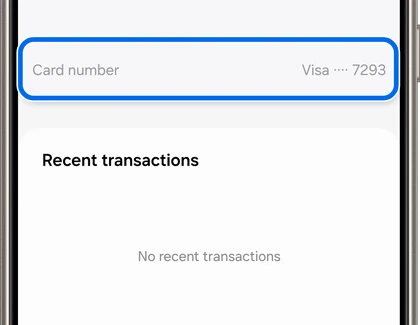
Samsung says the last four digits shown here belong to the digital card number. That’s why they can differ from the number printed on your plastic card.
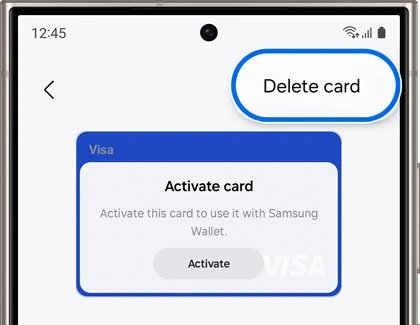
Tap the three dots on the card for more options. Samsung lists Delete card, Card memo, Set or unset as default payment method and transit card setup. Use the default option for the card you pay with most.
How do you add a card to Samsung Wallet on a Galaxy Watch?
Connect the watch to your phone and add a PIN on the watch first. Then the card is added from the Galaxy Wearable app on the phone. Samsung’s path below is for the Galaxy Watch5, Watch6, Watch7 and Watch Ultra.
- Open Galaxy Wearable on your phone.
- Tap Watch settings, then Pay.
- Tap Payment cards, then Add payment card.
- Tap Add credit or debit card and enter the card details.
- Tap Agree to all, finish verification, then tap Submit and Done.
You may be asked to sign in to your Samsung account, allow permissions and download the latest plugin along the way. Samsung also notes that watch payments are tracked apart from your phone’s. Before you start, our guide to updating apps on a Galaxy Watch helps you get the watch apps current first.
Why won’t Samsung Wallet add my card?
Start with the four requirements above. A card from an unsupported bank won’t verify, and neither will one tied to a country your bank doesn’t support. Without a fingerprint or Wallet PIN set up, setup can’t finish either. The bank’s own check can also decline the card.
| What you see | What to check |
|---|---|
| The card is rejected right away | Ask your bank if it supports Samsung Wallet |
| Verification never arrives | Open your bank’s app or website, where the check may be waiting |
| Setup stops before the card step | Register a fingerprint or set a Samsung Wallet PIN |
| You already have 10 payment cards | Delete one you don’t use, since 10 is Samsung’s limit |
Keeping private apps apart on the same phone? Our guide to setting up Samsung Secure Folder explains how that separate space works. For a security check before you store cards, our walkthrough to check your Galaxy security patch level takes a minute.
Remove a card from Samsung Wallet
Deleting a card only removes it from the phone. Your physical card stays active, so call your card issuer if you want to cancel it.
- Open the All tab and tap Payment cards.
- Tap the card, then the three dots for More options.
- Tap Delete card.
- Confirm with your PIN or fingerprint, then tap Delete.
FAQ
How many cards can I add to Samsung Wallet?
Samsung US says up to 10 payment cards. Gift cards have no limit.
Can I use iris scan instead of a fingerprint?
Samsung lists fingerprint and iris scan, but iris works only on certain phones. You turn biometrics on in Samsung Wallet’s settings.
Does deleting a card from Samsung Wallet cancel it?
No. The physical card stays active until you ask your issuer to cancel it.
Still stuck on the verification step?
Tell us your Galaxy model, One UI version and your bank’s name. Leave out your card number, IMEI and account details.
Was this guide helpful?
Your answer helps us keep it accurate.
Comments (0)
Comments are moderated, and published only if they are relevant to the topic and add value in a constructive way. If you disagree with something, please be polite and respectful.