
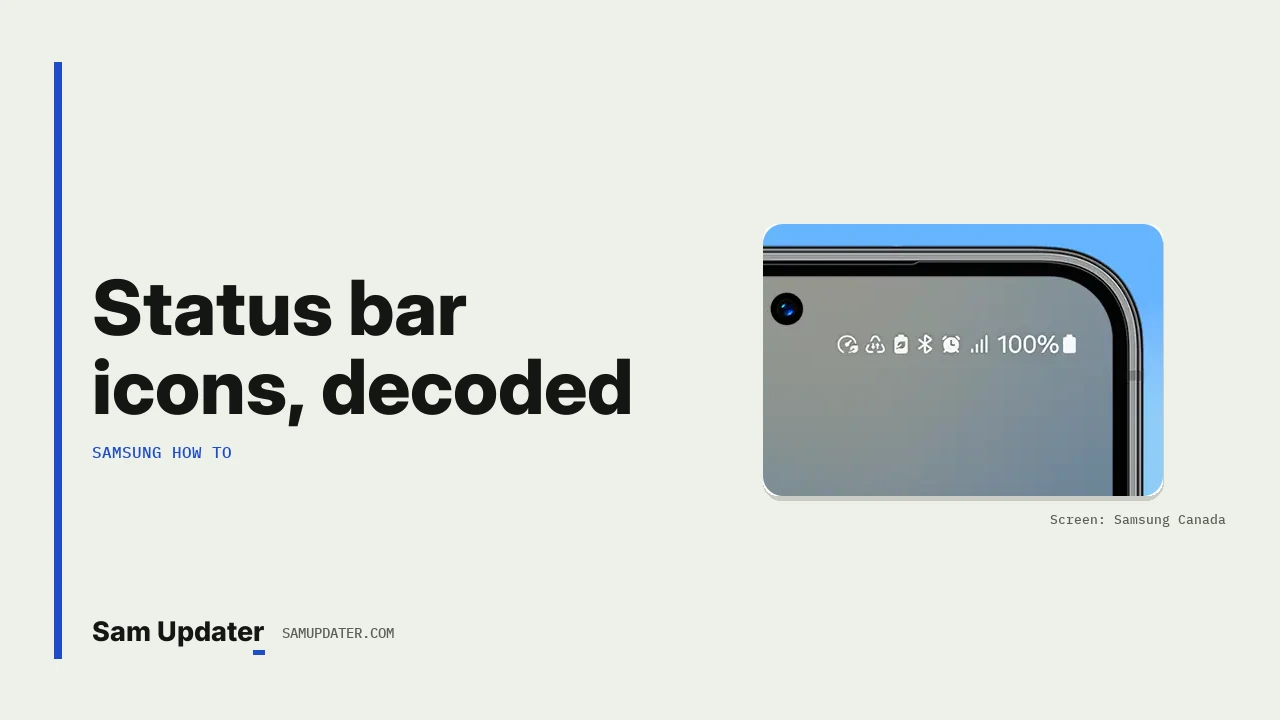
Samsung status bar icons meaning in one line: the right side of the bar shows your connection, battery and active modes, and the left side shows apps with pending notifications. Swipe down from the top right to open Quick settings and see which feature is behind an icon you don’t recognize.
I’ll go through the icons group by group, using Samsung Canada’s icon guide, last updated September 4, 2026. Samsung notes that the icons you see depend on your model, software version, carrier and the features you have turned on.
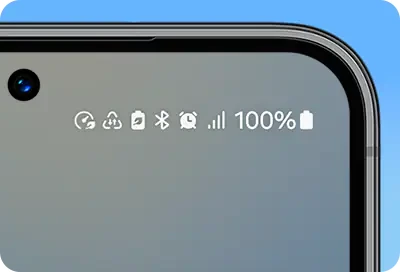
Network and connection icons
These tell you how the phone is connected right now. The letters next to the signal bars name the mobile data type, from the oldest and slowest to the newest.
| Icon | What it means |
|---|---|
| Signal level | Strength of the mobile signal |
| No signal | Not connected to a mobile network, so calls, texts and mobile data may not work |
| Roaming | Connected to a network outside your carrier’s coverage, and extra charges may apply |
| GPRS, EDGE, 3G | Basic or older mobile data that may be slower than newer networks |
| HSDPA, HSPA+ | Enhanced versions of 3G that can be faster than standard 3G |
| 4G, LTE | 4G data, where LTE is a 4G technology |
| 5G | Connected to a 5G data network |
| 5G available | On LTE in an area that has 5G, and the phone may switch when your carrier and plan allow it |
| Connected to Wi-Fi | Connected to Wi-Fi with internet access |
| Wi-Fi with no internet access | Joined a Wi-Fi network that can’t reach the internet |
| Bluetooth active | Bluetooth is on and can pair with earbuds, watches, speakers or cars |
Why does my Samsung show 5G available instead of 5G?
Samsung’s guide says the 5G available icon means you’re actually on LTE in a place where 5G service exists. The phone can move to 5G when it needs to, as long as your carrier and plan support it. So it isn’t a fault. If you expected full 5G, check your plan with your carrier first.

The Wi-Fi icon with no internet is the other one people ask about. It means the phone joined the router, but the router itself can’t reach the internet.
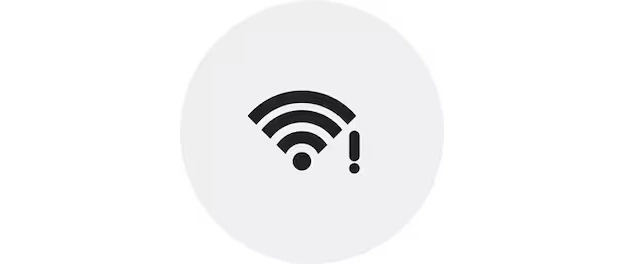
Samsung suggests checking your router, modem or internet service when that icon stays. If the problem is on the mobile side instead, our guide to resetting Samsung mobile network settings without losing Wi-Fi covers the safer reset.
Battery, power and system icons
This group covers charging, saving modes and alerts from the system itself. I’ve kept Samsung’s own names so you can match them to the pictures on its page.
| Icon name in Samsung’s list | What it means |
|---|---|
| Attention required | A warning or action is waiting, so open the Notification panel |
| Battery level | Current charge left |
| Battery charging | Connected to a charger or power source |
| Power saving mode active | Background activity and performance are reduced to save battery |
| Data saver active | Background data is limited for some apps |
| Do not disturb active | Calls and alerts may be silenced based on your settings |
| VPN service connected | Your traffic goes through a VPN |
| Mobile Hotspot active | Your mobile data may be shared, which uses more data and battery |
| Light performance profile active | Battery efficiency comes before top speed |
| Casting active | Content is going to a TV or monitor |
| Screenshot captured | Open the Notification panel to view, edit or share it |
What changed in the status bar with One UI 7?
Samsung lists two changes for One UI 7 and later. The battery icon may show the percentage inside it while the phone charges or while Power saving mode is on. And a pending notification can show as a small dot instead of the app’s icon. The dot goes away once you open the Notification panel.

One UI 7 also split the panels. Swipe down from the top left for notifications and from the top right for Quick settings. If you want the old single panel back, our walkthrough to combine Samsung Quick settings and notifications has the steps.
Calls, sound and other icons
These show up less often, but they’re easy to mix up.
| Icon | What it means |
|---|---|
| Location active | Location services are on and apps with permission may use them |
| Call in progress | The icon stays while the call is active |
| Missed call | Open the Phone app or Notification panel to call back |
| Text message received | Open Messages or the Notification panel to read it |
| Alarm set | The alarm sounds at its time unless you turn it off |
| Silent mode | Calls and alerts are muted unless your settings allow them |
| Vibration mode | Calls and notifications vibrate instead of ringing |
| Flight mode | Flight mode, so mobile connections are off |
| S Pen connected or disconnected | Only on models with S Pen support, and Air actions may stop while it’s disconnected |
Show or hide the battery percentage
Samsung UK’s battery percentage page was written for Android 10 to 12, so newer builds may name the switch differently. On those versions the path was Settings > Notifications > Status bar:
- Open Settings.
- Tap Notifications.
- Tap Status bar.
- Turn on Show battery percentage.
Can’t find it on your phone? Tap the search icon in Settings and type battery percentage. For a live speed meter beside these icons, our guide to showing network speed in the Samsung status bar has the QuickStar setup.
FAQ
What is the dot in my Samsung status bar?
On One UI 7 and later, a dot can stand in for a pending notification. Open the Notification panel and it disappears.
Why are my status bar icons different from these?
Samsung says icons vary by model, software version, carrier and the features you use. So a carrier model can look a little different from an unlocked one.
Where did my old notifications go?
If you cleared one by mistake, our guide to Samsung notification history shows where dismissed alerts are kept.
Still seeing an icon you can’t place?
Tell us your Galaxy model, One UI version and what the icon looks like. Leave out your IMEI and account details.
Was this guide helpful?
Your answer helps us keep it accurate.
Comments (0)
Comments are moderated, and published only if they are relevant to the topic and add value in a constructive way. If you disagree with something, please be polite and respectful.