
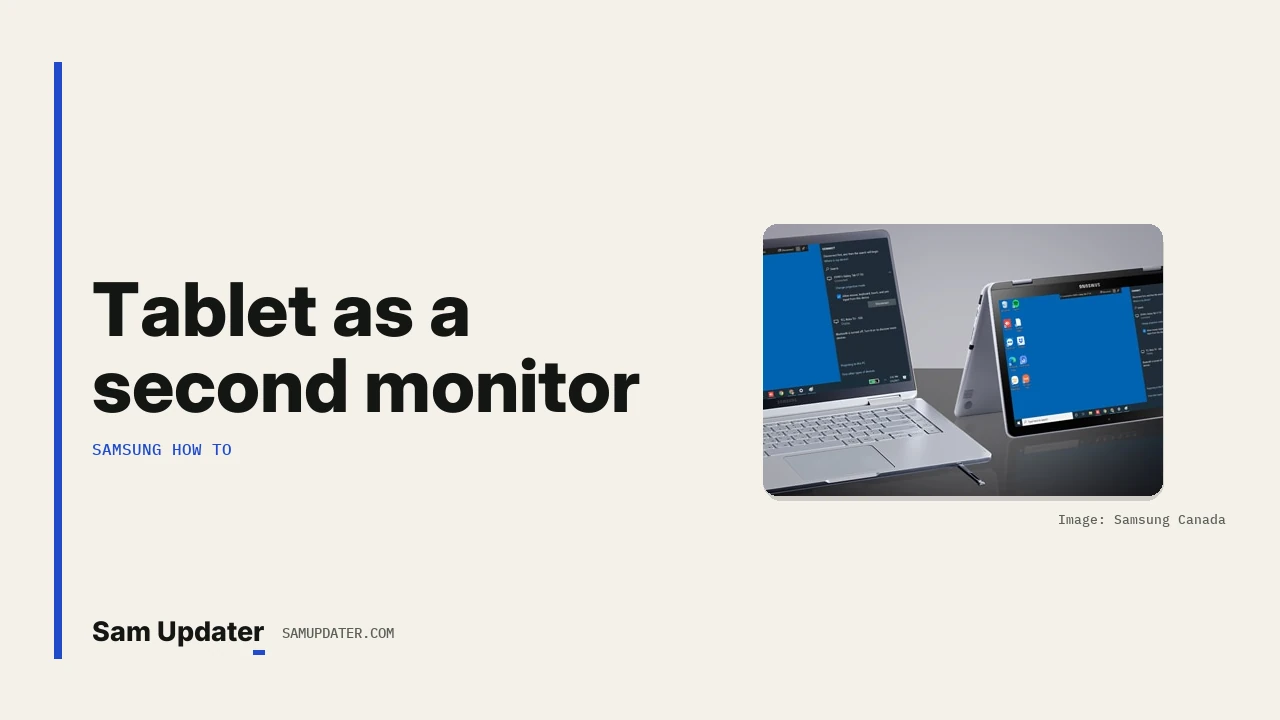
To use a Samsung tablet as a second monitor, open Quick settings on the Galaxy Tab and tap Second screen, then press Windows+K on your PC and pick the tablet from the list. The PC treats the tab as a wireless display, so you can extend or mirror your desktop without a cable.
I’ll cover what you need first, then both sides of the setup and the display options on Windows. The steps come from Samsung US’s Second screen guide and Samsung Canada’s Second screen page, last updated February 5, 2026.
What do you need for Samsung Second screen?
Samsung US lists Galaxy Tab S7, S8, S9 and S10 series tablets running One UI 3.1 or later. The PC needs Windows 10 version 2004 or later with Wireless Display support. Both devices should sit on the same Wi-Fi network and close to each other.
| Requirement | What Samsung lists |
|---|---|
| Tablet | Galaxy Tab S7, S8, S9 and S10 series |
| Tablet software | One UI 3.1 or later |
| Computer | Windows 10 version 2004 or later with Wireless Display |
| Network | Tablet and PC on the same Wi-Fi network |
| Distance | Keep the two devices close together |
Check your version under Settings > About tablet > Software information. Samsung’s pages don’t name newer tabs in that list yet, so if your model isn’t there, open Quick settings and look for the Second screen button before you plan around it.
Turn on Second screen on the Galaxy Tab
Start on the tablet. Samsung Canada points out that the tab stays visible to your computer only while the Second screen page is open, so don’t switch apps during setup.
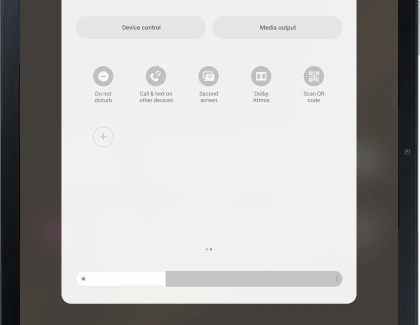
- Swipe down from the top right with two fingers to open Quick settings.
- Tap Second screen.
- Choose a connection mode: Drawing/gaming or Video.
- Leave the Second screen page open on the tablet.
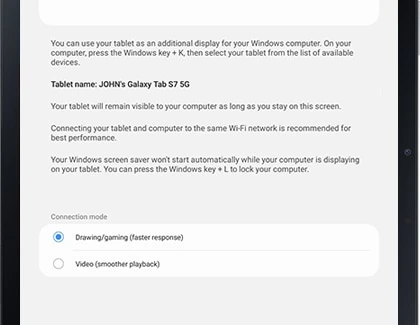
The mode is a simple trade. Drawing/gaming favors faster response, which suits an S Pen. Video favors smoother playback, which suits a movie or a slide deck on the tablet.
Connect the tablet from your Windows PC
Now move to the computer. Samsung US gives two ways to open the wireless display list.
- Press the Windows key and K together.
- Or open Display settings, select Multiple display and click Connect next to Connect to a wireless display.
- Select your Galaxy Tab from the list.
- If Windows offers it, tick Allow mouse, keyboard, touch, and pen input from this device.
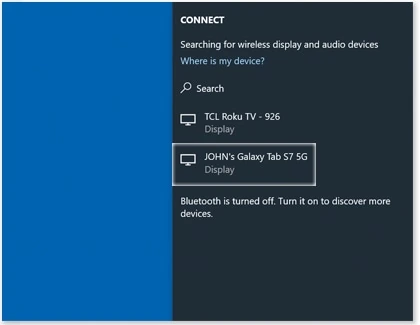
That input box matters if you want to draw with the S Pen or tap on the tablet. Without it, the tab only shows the picture.
Once connected, a toolbar appears on both screens. Samsung Canada says the pin icon keeps that toolbar in place.
Should you extend or duplicate the display?
Extend gives you extra desktop space, so you can drag a window onto the tablet and keep working on the main screen. Duplicate mirrors the same picture on both. Pick Extend for multitasking and Duplicate when you’re showing your screen to someone sitting across from you.
Samsung US lists three settings to check in Windows Display settings after the tablet connects:
- Arrange displays: the tablet shows as display 2, and Identify shows which number belongs to which screen.
- Display mode: Duplicate, Extend or Second screen only.
- Scale and resolution: set these for the tablet so text isn’t too small.
Drag the display 2 box to the left or right of display 1 so it matches where the tablet sits on your desk. Your mouse then moves across in the right direction.
Why can’t my PC find the Galaxy Tab?
Most failures come back to one of Samsung’s listed requirements. The tablet may be on a different Wi-Fi network, too far away or the Second screen page may have closed. An older Windows build without Wireless Display won’t list the tab at all.
| What you see | What to check |
|---|---|
| Tablet missing from the Windows+K list | Reopen Second screen on the tab and keep that page in front |
| Still missing | Put both devices on the same Wi-Fi network and move them closer |
| No Connect option on the PC | Check that Windows is version 2004 or later with Wireless Display |
| Tablet shows the picture but ignores the pen | Reconnect and tick the input permission box |
Need a phone and a PC to share one keyboard instead? Our Samsung Multi Control guide covers that setup. For calls and texts on the PC, our walkthrough to connect your Galaxy to Windows 11 with Phone Link is the better fit.
Disconnect when you’re done
You can end the session from either device. On the tablet, tap Disconnect on the toolbar. On the PC, press Windows+K again and choose Disconnect. Your desktop goes back to one screen.
If you’d rather run the tablet or phone on a bigger screen instead, our guide to Samsung DeX on a TV or monitor goes the other direction.
FAQ
Does Second screen need a cable?
No. Samsung describes it as a wireless connection over the same Wi-Fi network, using Windows Wireless Display.
Can I use the S Pen on the PC through Second screen?
Yes, when you allow mouse, keyboard, touch and pen input on the PC during setup. Use the Drawing/gaming mode for faster response.
Does it work with a Mac?
Samsung’s pages only list Windows 10 version 2004 or later, so a Mac isn’t covered by these steps.
Still can’t get your tab to show up?
Tell us your Galaxy Tab model, One UI version and your Windows version. Leave out your IMEI and account details.
Was this guide helpful?
Your answer helps us keep it accurate.
Comments (0)
Comments are moderated, and published only if they are relevant to the topic and add value in a constructive way. If you disagree with something, please be polite and respectful.