
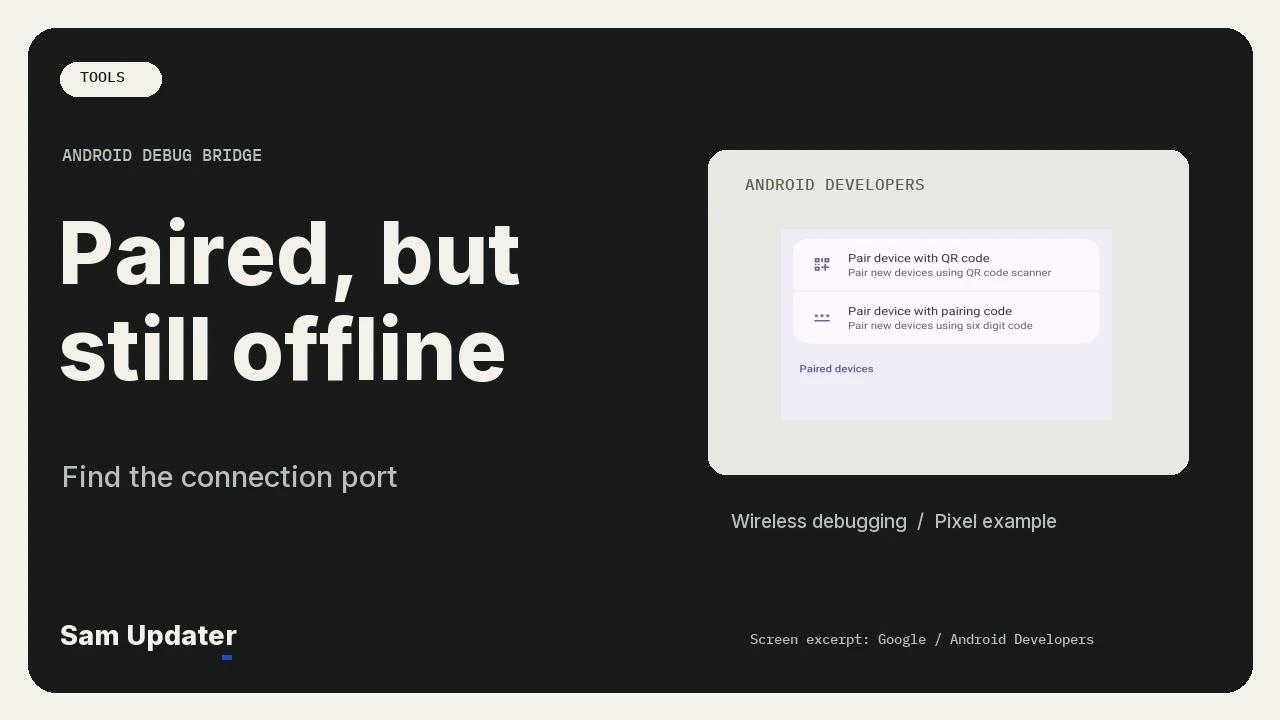
When wireless ADB pairs with your Galaxy but the phone stays missing, check adb devices -l on the computer you paired. If there’s no wireless entry, close the pairing-code dialog on the phone and use the IP address and port on the main Wireless debugging screen for the connection.
What does a successful pairing actually tell you?
Pairing saves your workstation as a computer the phone trusts. ADB still has to find the phone on the network and open a connection before you can use it. That’s why a computer can appear under Paired devices on your Galaxy while the device list on that computer is empty. Google’s wireless debugging guide documents both checks.
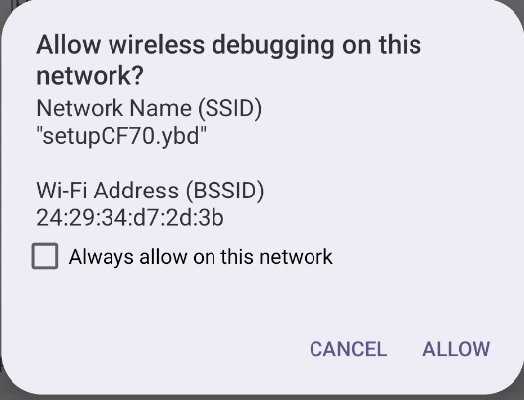
Use your own Galaxy and the workstation you authorized, on the same trusted Wi-Fi. Google supports this pairing workflow on phones running Android 11 and later. Open Settings > Developer options > Wireless debugging on the phone. If the name of the workstation is already under Paired devices, leave it there while you work through the checks below. Generating a fresh code sends you back to the part that already worked.
Read the device list before changing settings
Open a terminal in the current Android SDK Platform-Tools folder. The examples below use adb when it is on your path. To run the binary directly from that folder, use ./adb on macOS or Linux, or .\adb in Windows PowerShell.
Keep using that terminal so you’re checking the same installation.
- Disconnect any USB cable from the Galaxy for this check. Otherwise you may see the wired connection and think Wi-Fi is working.
- Run
adb devices -l. Under the list header, look for your phone and read the state beside its identifier. A row markeddevicemeans ADB has a connection. If you have several phones, compare the model shown in the longer listing. - An empty list means the workstation has no active device to use. If a row says
offline, Google describes that state as a device that isn’t connected to ADB or isn’t responding. In either case, return to the phone for its current connection address.
If the problem appears only when the cable is attached and the row says unauthorized, see our USB authorization guide. Our Windows USB driver instructions apply to a wired connection. Reinstalling that driver won’t change how a Wi-Fi network handles discovery.
Connect to the port on the main screen
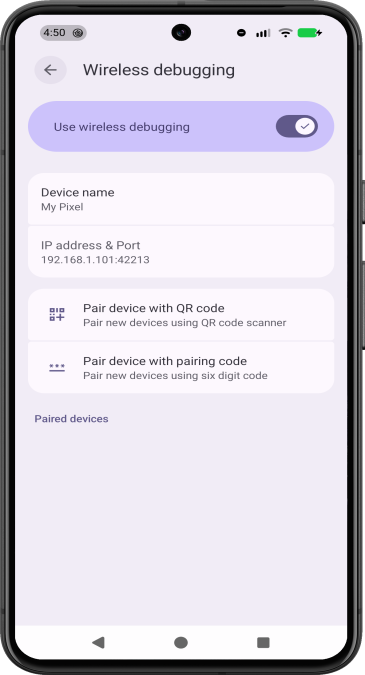
The pairing dialog shows a port alongside a short code. That port belongs to the pairing service. On the Wireless debugging page itself, find the field labeled IP address & Port. Use both parts of that field, exactly as they appear now. The Android project describes the separate pairing and connection services in its ADB documentation.
- Leave Wireless debugging enabled. On your computer, type
adb connect IP:PORT, replacing IP:PORT with the address and port from the main page. Enter that as a single argument with a colon between the two values. - Run
adb devices -lagain. If the Galaxy now has a wireless row markeddevice, you have the connection you need. You can stop troubleshooting here. - If the direct connection fails too, check that both devices are still on the approved network and reread the address on the phone. Use the port the Galaxy displays. Port 5555 belongs to a separate setup in Google’s guide that starts with a USB cable.
I would keep the result of that direct check handy. A successful connection to the displayed address narrows the problem to how the phone was found automatically. A failed attempt gives you a different starting point, especially if either device switched networks while the terminal was open.
Check automatic discovery and the Platform-Tools version
Google lists 37.0.3 in its November 2026 Platform-Tools release notes. Update the package on your workstation, then run adb server-status. The current troubleshooting page calls for a server version of at least 37.0.0, mdns_enabled: true and mdns_backend: LIBADBMDNS. These fields describe the server your terminal reached.
With wireless debugging still on, run adb mdns track-services --proto-text. Look for your phone’s connection service, _adb-tls-connect._tcp, and compare its address with the one on the phone. Stop the display with Ctrl+C. A pairing-service entry alone tells you nothing about whether the connection service is visible. Google’s troubleshooting steps include the settings to correct if the server reports disabled discovery or an obsolete backend.
The ADB Wi-Fi 2.0 announcement specifies Android 17, Platform-Tools 37.0.0 and Android Studio Quail 3 or later for the new experience. Updating the computer alone doesn’t give an older phone the new network behavior.
On a supported phone, Google’s diagnostic looks for mdns_service_version of 2.0 or higher.
Need help interpreting a result? Share the Galaxy model, Android version, Platform-Tools version and device state. Leave the pairing code, serial number and network addresses out. If the original task was moving photos over a cable, our USB file transfer guide covers that separately.
Frequently asked questions
Can office Wi-Fi keep a paired phone out of the device list?
Yes. A network that restricts communication between clients can prevent your workstation from reaching the Galaxy. Automatic discovery also needs mDNS. Try an approved network where the two devices can communicate, or ask the administrator about that network’s policy before changing anything on a managed computer.
Can wireless debugging turn itself off when I leave my network?
Yes. On the Android 17 wireless debugging stack, Google says the phone turns wireless ADB off when it detects an untrusted network and enables it again on a user-allowed network. Check the network name and the switch on the phone before generating another pairing code.
How do I remove just one old workstation from my Galaxy?
Open Wireless debugging, tap the old computer under Paired devices and choose Forget. That removes the pairing for the workstation you selected. Google also documents a separate option to revoke debugging authorizations for all computers, so use the individual entry when the other pairings should stay.
Was this guide helpful?
Your answer helps us keep it accurate.
Comments (0)
Comments are moderated, and published only if they are relevant to the topic and add value in a constructive way. If you disagree with something, please be polite and respectful.