
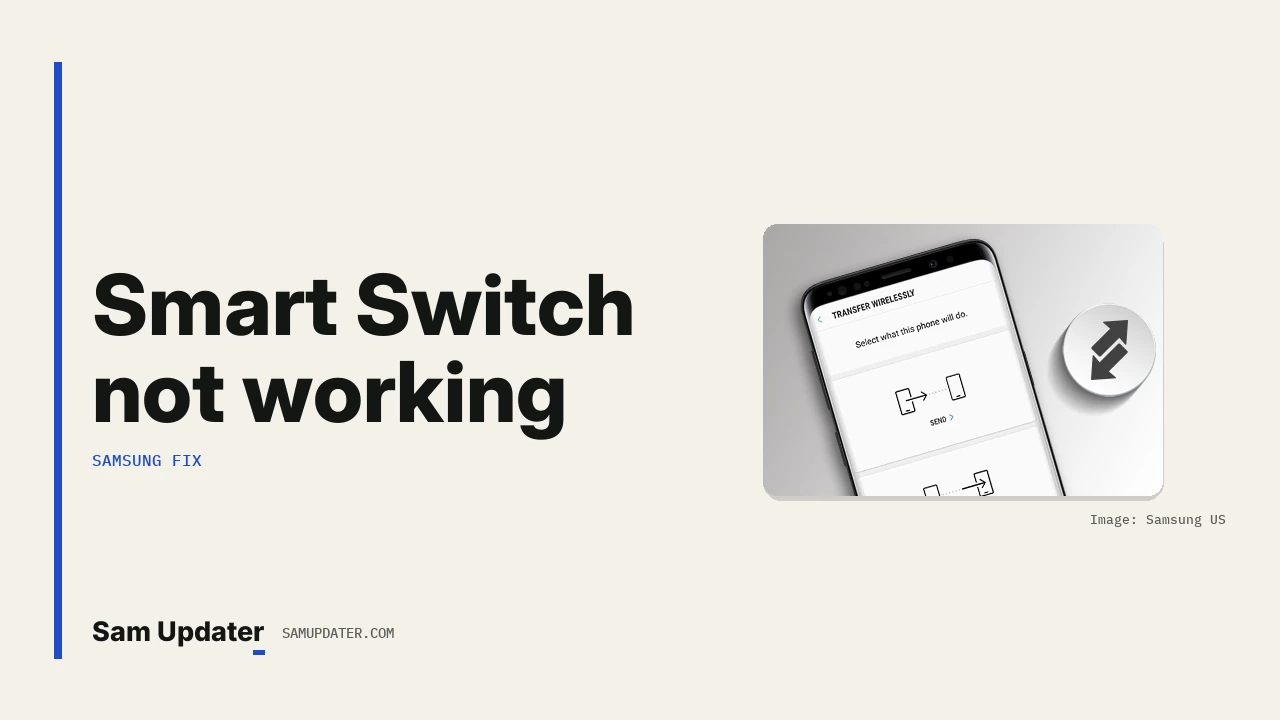
When a Smart Switch transfer stalls, clear the app’s cache on the Galaxy, check free storage on both phones and start again with less content selected. If wireless keeps freezing after that, switch to a USB cable or a computer, as Samsung suggests.
A stuck progress bar is frustrating when you’re halfway through setting up a new phone. The good news is that the fixes are quick, and Samsung says Smart Switch doesn’t delete anything from the old phone.
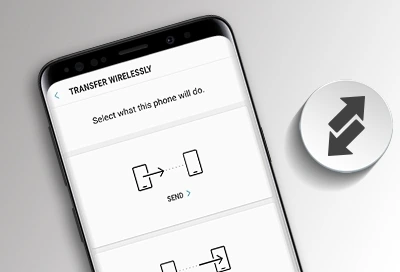
Why does a Smart Switch transfer get stuck?
Most stalls come down to storage, the amount of content selected, the app itself or the connection. Samsung’s Smart Switch troubleshooting page lists those exact areas for a transfer that doesn’t complete, and it gives one fix for each. Work through them in order rather than restarting the same transfer over and over.
It also helps to know what Smart Switch is built for. Samsung’s Smart Switch FAQ says it moves data onto a Galaxy and can’t send data from a Galaxy to another brand’s phone. For an Android phone, the app needs to be on both devices. From an iPhone, it only has to be on the Galaxy.
Clear the Smart Switch cache and try again
This is Samsung’s first fix when a transfer doesn’t finish. Clearing the cache gives the app a fresh start without touching your other data.
- Open Settings > Apps > Smart Switch on the Galaxy.
- Tap Storage.
- Tap Clear cache.
- If that alone doesn’t help, tap Clear data, then Delete.
- Open Smart Switch again and restart the transfer.
Still stuck after a clean start? Samsung’s page suggests uninstalling and reinstalling Smart Switch (you’ll find it under Settings > Apps), restarting the phones, and then contacting Samsung support if the transfer still won’t go through.
Check free storage on both phones
Smart Switch shows an estimate of how much data it’s going to move. That number has to fit on the receiving Galaxy. Samsung’s troubleshooting page says to free up space on both devices when a wireless transfer fails.
Compare the estimate with the free space shown in the Galaxy’s storage settings. If the gap is tight, delete a few large videos or downloads first. We go deeper into this in our Smart Switch not enough space guide, including what to do when the old phone is the full one.
Send less content in each run
A huge first transfer gives Smart Switch more chances to trip over something. Samsung’s fix is to tap Deselect All and then pick content one category at a time.
- Start the transfer as usual until you reach the content list.
- Tap Deselect All.
- Select one or two categories, such as contacts and messages.
- Run the transfer and let it finish.
- Repeat for photos, apps and the rest.
Samsung’s FAQ adds that you can deselect content on the Basic information screen too. Splitting it up also tells you which category is causing the stall, because that’s the run that freezes.
Is a USB cable more reliable than wireless?
It’s the route Samsung recommends when wireless keeps failing. A cable avoids Wi-Fi drops between the phones, but only if the cable carries data. Samsung’s page says not all USB cables can transfer data, so use one you know carries data, and try a different port if nothing happens.
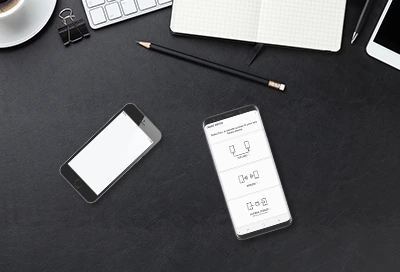
When the phones are connected, watch for a prompt asking to allow access to data, and tap Allow. Samsung’s page also says to set the USB mode to Transferring files if the connection doesn’t register.
Here’s what Samsung lists as supported for each method:
| Device or method | Samsung’s stated requirement |
|---|---|
| Android phone, general data | Android 4.3 or later |
| Android phone, encrypted data | Android 7.0 or later |
| iPhone by cable | iOS 5 or later |
| iPhone over Wi-Fi | iOS 12 or later |
| Windows PC | Windows 10 or later, USB 2.0 recommended |
| Mac | macOS 10.9 or later |
| Chromebook | Not compatible |
Restore through a computer instead
If phone-to-phone keeps stalling, Smart Switch for PC or Mac is another way in. You back up the old phone to the computer, then restore that backup to the Galaxy.
Samsung’s page notes that some Windows editions need the Media Feature Pack before Smart Switch can talk to a phone. If the computer can’t see the Galaxy, the app’s Reinstall device driver option is the next thing to try.
If the Galaxy shows a message saying its current software version isn’t supported, that’s a separate problem from a stalled transfer. We cover it in our guide to the Samsung software version not supported message. And before you reset the old phone, keep a full copy somewhere safe using our Galaxy backup guide.
Frequently asked questions
Can I use my phone while Smart Switch is transferring?
Yes. Samsung’s Smart Switch FAQ says you can close the app once the transfer has started, and you can follow its progress from the notification panel. If it stalls after you switch away, open Smart Switch again from the notification and check whether it’s still moving before you restart it.
Will my game progress transfer with the games?
No. Game apps are reinstalled on the new Galaxy, but Samsung’s FAQ notes that their game data doesn’t come along. Before you wipe the old phone, sign in to each game’s own account or cloud save so you can pick up where you left off on the new device.
Will retrying the transfer create duplicate contacts?
Contacts with the same name and the same number are merged. Samsung puts it simply: identical contacts are combined and displayed as one contact. Since the FAQ only describes exact matches, entries with a changed number or a different spelling may still appear twice. Check your contact list after a second or third run.
Does a new attempt overwrite data already on the Galaxy?
No. According to Samsung, Smart Switch doesn’t overwrite the data that’s already on the receiving phone. That makes it safe to send content in smaller batches across several runs, as long as you keep an eye on free storage, since each run adds to what’s already there.
Was this guide helpful?
Your answer helps us keep it accurate.

Comments (0)
Comments are moderated, and published only if they are relevant to the topic and add value in a constructive way. If you disagree with something, please be polite and respectful.