
Samsung Knox is the security platform under every Galaxy phone, and its warranty bit is a one-time fuse that flips from 0x0 to 0x1 when a non-Knox bootloader or kernel is installed. You can check your own bit in Download Mode, and neither Samsung’s signed firmware nor Auto Blocker will trip it.
This guide is for anyone about to root, flash with Odin or buy a used Galaxy. Once that fuse reads 0x1, nothing in software can set it back, so it pays to know what trips it before you plug in a cable.
What is the Knox warranty bit on a Galaxy phone?
It’s a one-time programmable e-fuse inside the phone. Samsung’s Knox Platform for Enterprise FAQ says the bit can only go from 0X0 to 0X1. It trips when a non-Knox bootloader or kernel is installed, because Knox can then no longer guarantee the security of its container.
The bit is part of a larger chain. Samsung’s Trusted Boot whitepaper explains that Secure Boot checks the signature of each bootloader stage before it runs. The work profile key also contains a tamper fuse, which gets set if an unauthorized or out-of-date component shows up.
Samsung’s Knox support article on the warranty bit adds one detail power users miss. The value changes to 1 if an older or unofficial Android build is installed, and a device report shows it as androidboot.warranty_bit=1.
How to read the bit in Download Mode
On current Galaxy models without a home button, Samsung’s FAQ gives this method. You’ll need a PC and a USB cable.
- Connect a compatible USB cable to a PC that’s turned on.
- Power off the phone completely.
- Press and hold Volume up and Volume down together.
- While you’re still holding both keys, plug the cable into the phone.
- When the warning screen shows, release the keys and press Volume up.
- Look for the WARRANTY VOID line among the other values on the screen.
- To leave, unplug the cable and hold Volume up and Power for more than 7 seconds.
A reading of 0x0 means the fuse is intact. A reading of 0x01 is permanent, according to the same FAQ. The only fix is replacing the PBA, the main circuit board, which is a hardware repair.
Older phones with a home button use Volume down, Home and Power instead. Our Galaxy S24 Ultra Magisk guide explains the OEM Lock and KnoxGuard values that show up on that same screen.
What stops working once the bit reads 0x1?
Samsung’s FAQ lists four groups of Knox features that stop working once the fuse is tripped. Everything in this list depends on Knox being able to vouch for the device, and a tripped fuse tells it the software has been changed.
- Knox Platform for Enterprise: existing Workspaces are locked for good, and new ones can’t be created.
- Knox cloud services: Knox Mobile Enrollment, Knox Configure and Knox Manage stop working.
- Samsung E-FOTA, Real Time Kernel Protection (RKP) and Device Attestation stop working.
- Other Samsung services that need Knox stop, and Samsung names Samsung Pay and Secure Folder as examples.
The Knox support article also shows the enrollment error a company phone gets: “[ENROLLMENT ERROR] because a custom OS is or has been installed on this device.” So a tripped used phone can be a dead end for work use.
Everything outside Knox keeps working
A tripped phone still boots, calls and runs apps. In Samsung’s words, everything outside the Workspace “should be the same as before”, and the Trusted Boot whitepaper confirms the user can still boot the device and launch personal apps.
That’s the trade. You keep Play Store apps, calls, the camera and your personal data. You lose the Knox-backed extras for good, even if you later flash stock firmware and remove root.
Actions that trip Knox, and ones that don’t
Here’s how common power-user moves line up against the trigger Samsung describes.
| Action | Knox warranty bit | Why |
|---|---|---|
| Installing Magisk (patched boot image) | Trips to 0x1 | The Magisk install guide says it will trip the bit and can’t be reversed |
| Custom kernel, custom recovery or custom ROM | Trips to 0x1 | Samsung’s trigger is a non-Knox bootloader or kernel |
| Flashing an older Android build | Can trip to 0x1 | Samsung’s support article names older builds as a trigger |
| Official update in Settings or Smart Switch | Stays 0x0 | Samsung signs its own bootloader and kernel |
| Official firmware for your model in Odin | Stays 0x0 | Same signed Samsung software, sent over USB |
| Turning Auto Blocker on or off | Stays 0x0 | It’s a settings toggle and doesn’t change software |
| Factory reset after a trip | Stays 0x1 | Samsung says the fuse can’t be reverted |
The Magisk install guide also warns that the first Magisk install needs a full data wipe. It tells Samsung owners to check OEM Lock and KnoxGuard by turning on Settings > Device care > Maintenance mode, then booting into Download Mode.
Does Auto Blocker change your Knox status?
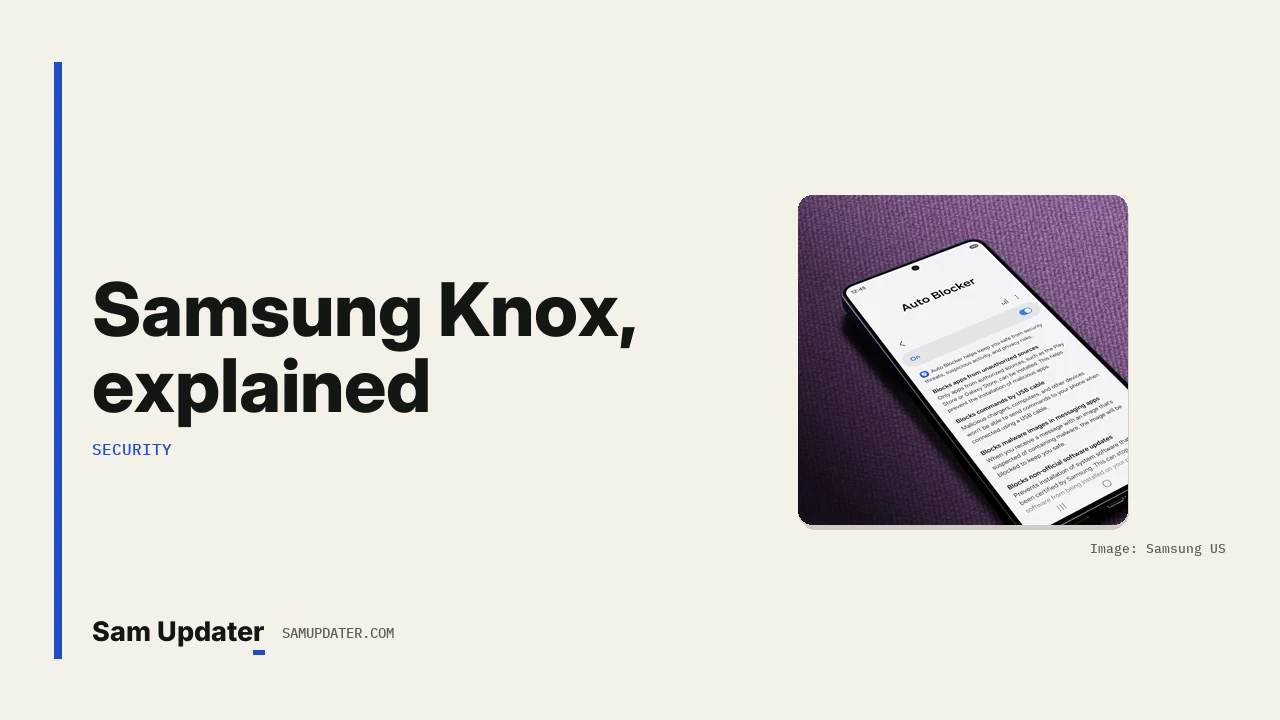
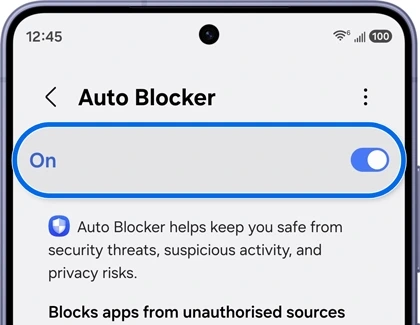
No, it only blocks things while it’s on. Samsung’s Auto Blocker support page says it blocks commands by USB cable, apps from outside Galaxy Store and Play Store, and system software Samsung hasn’t certified. Turn it off and those blocks lift, with the warranty bit untouched.
That’s why Odin or ADB can fail on a phone with a perfectly good 0x0. The Auto Blocker whitepaper says it’s on by default on One UI 6.0 (Android 14) or later. It also blocks installing system software over a physical USB cable.
You’ll find it at Settings > Security and privacy > Auto Blocker. Samsung added Maximum restrictions starting with One UI 6.1.1, and that switch sits at the bottom of the same screen.
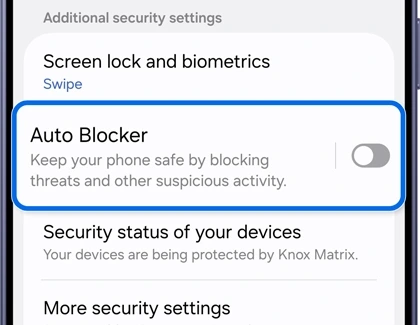
Official updates through device settings or Smart Switch aren’t affected, per the same page. Only USB tools and sideloaded APKs hit the wall. Our Auto Blocker USB guide covers the file transfer side of this.
Flash official firmware and keep 0x0
If your goal is a clean reinstall or a faster update, Samsung’s own firmware gets you there with Knox intact. The simplest route is Settings > Software update > Download and install, as Samsung UK’s update guide shows. For Odin, match three things before you start.
- The exact model number, such as SM-S948B, from Settings > About phone.
- Your CSC, so the firmware region matches your phone.
- A build that’s the same as or newer than the one installed, since Samsung lists older builds as a trigger.
Our Odin flashing guide covers the file slots, the cable and the Windows driver. Turn Auto Blocker off before you open Odin. To confirm the newest build for your model and CSC, run it through our Firmware Checker, or get alerts from the SamUpdater Android app and our Telegram channel.
Frequently asked questions
Can a Samsung service center reset a tripped Knox warranty bit?
No. A bit that reads 0x01 can’t be reverted, and Samsung’s Knox FAQ is clear on that. The only way to get Knox back is to replace the PBA, the phone’s main board, which is a hardware repair. A software reflash or factory reset at a service center leaves the fuse at 0x1.
Does going back to stock firmware bring Secure Folder back after rooting?
No. Flashing stock firmware removes root, but the e-fuse stays at 0x1. Samsung names Secure Folder among the services that stop working once the bit is tripped, so it stays unavailable after the unroot. Move anything you need out of Secure Folder before you install Magisk, since the folder stops working once the bit trips.
Can a company still enroll a Galaxy with a tripped warranty bit?
No. Samsung’s Knox support article says enrollment fails with an error saying a custom OS is or has been installed. Knox Mobile Enrollment, Knox Configure and Knox Manage all need an intact bit. A device report on that phone shows androidboot.warranty_bit=1, which an IT team can check before handing it out.
Should I check the Knox bit before buying a used Galaxy phone?
Yes. Samsung says Samsung Pay and Secure Folder stop working on a tripped phone, and the fuse can’t be reset without a board replacement. Boot the phone into Download Mode with the seller present and read the WARRANTY VOID line. A 0x0 reading means the Knox features are still available.
Was this guide helpful?
Your answer helps us keep it accurate.

Comments (0)
Comments are moderated, and published only if they are relevant to the topic and add value in a constructive way. If you disagree with something, please be polite and respectful.