
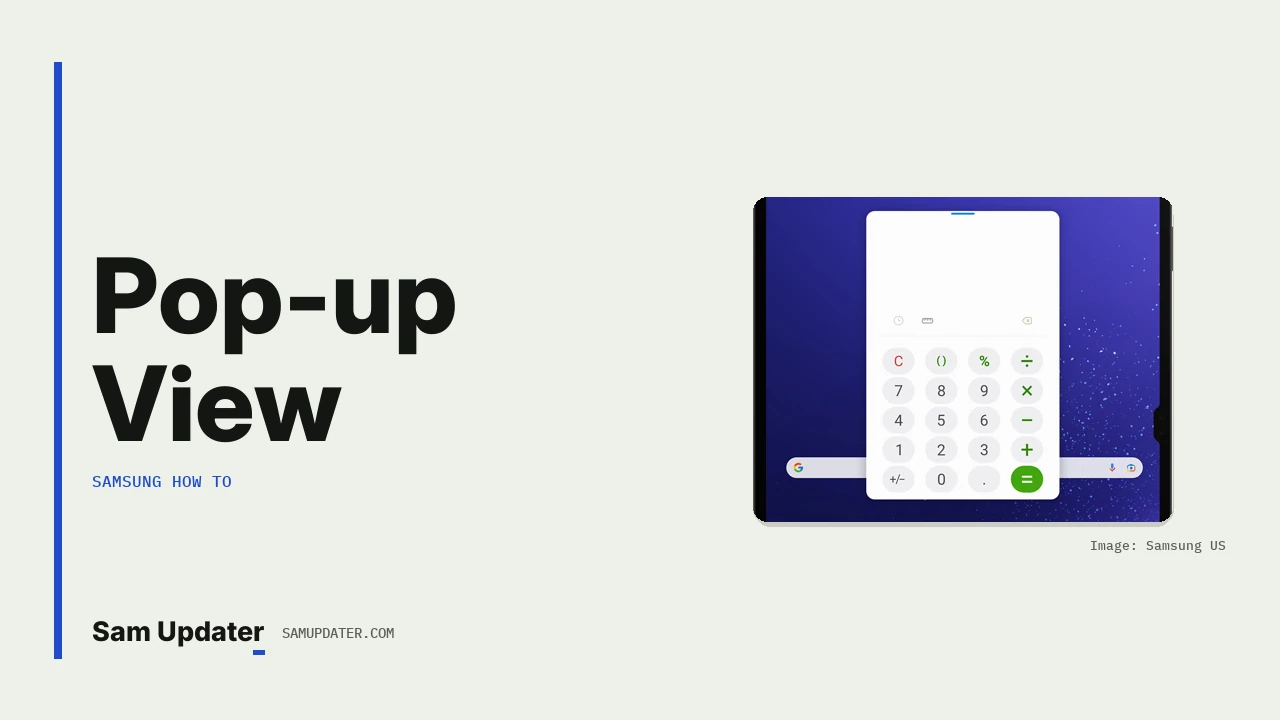
To use Samsung pop up view, open Recents, tap the icon at the top of the app you want and tap Open in pop-up view. The app shrinks into a floating window you can drag, resize or minimize. On One UI 6 and later, including One UI 9 on the Galaxy S26, you can also swipe in from a top corner to do the same thing.
I’ll cover both ways to open a pop-up window, the five buttons on top of it and what to do when an app refuses. The steps come from Samsung US’s Multi window guide and Samsung Gulf’s split screen and multi-window page.
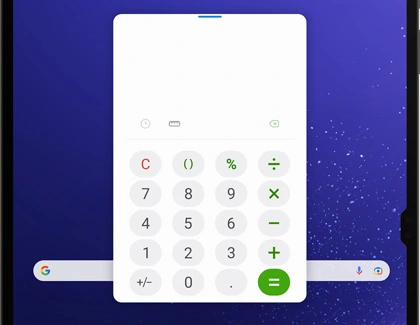
What is pop-up view on Samsung?
Pop-up view is part of Samsung’s Multi window feature. It makes an app’s window smaller so it floats over the screen, and you can move it wherever you like. That’s handy for keeping a calculator, a chat or notes on top while another app fills the rest of the display.
Samsung Gulf lists it on most Galaxy phones, naming the Galaxy S24, Galaxy S25, Galaxy S26, the Z Fold and Z Flip lines, and the Galaxy A series. There’s one exception worth knowing. Samsung US says split screen view and pop-up view aren’t supported on the front screen of the Galaxy Z Fold or Z Flip series.
Open an app in pop-up view from Recents
This is the method that works on every supported Galaxy, with no setting to turn on first.
- Open the app you want to float.
- Tap the Recents icon, to the left of the Home icon.
- Swipe to the app if it isn’t already in front.
- Tap the app’s icon at the top of its card.
- Tap Open in pop-up view.
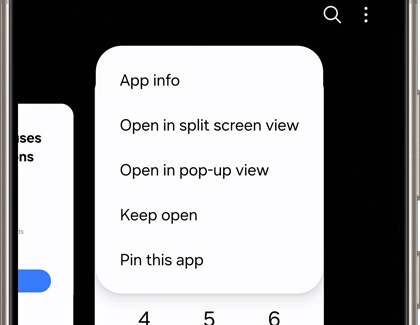
If you use gesture navigation, swipe up from the bottom and hold to reach Recents. The menu is the same either way.
The Edge panel works too. Samsung US says to swipe left from the right side of the screen, tap the All apps grid, then drag an app to the center of the screen to open it in pop-up view. Dragging it to the top or bottom puts it in split screen instead.
Turn on the swipe for pop-up view gesture
Samsung added swipe gestures for Multi window in One UI 6. The setting is under Settings > Advanced features > Multi window.
- Open Settings.
- Tap Advanced features.
- Tap Multi window.
- Turn on Swipe for pop-up view.
Now swipe in with one finger from either top corner while an app is open. Samsung US says the current app drops straight into a pop-up. The same page has a Swipe for split screen switch, which uses a two-finger swipe from the bottom.
Pulling down a pop-up by accident every time you reach for the notification panel? Turn the switch back off. Our guide to Samsung One-handed operation swipe shortcuts covers a different set of swipe gestures from the bottom edge.
Move, resize and hide the window
Once the app is floating, you control it with your finger. Samsung US says you can drag the window around the screen and resize it by touching its sides and dragging vertically or horizontally. Samsung Gulf says to drag the top of the window to reposition it.
You can also drag the pop-up to the side of the screen to hide it. Tap it again and it comes back to the center.
What do the buttons on a pop-up window do?
Tap the top of the pop-up and a row of controls appears. Samsung US lists five of them from left to right, and each one changes the window in a different way. Here’s what every button does, using Samsung’s own names for them.
| Button | What Samsung says it does |
|---|---|
| Pin options menu to top | Keeps the window options pinned to the top of the window |
| Open in split screen view | Moves the app into split screen |
| Minimize window | Turns the app into a floating icon you can open later |
| Maximize window | Expands the app back to full screen |
| Close app | Closes the pop-up, but the app still shows under Recents |
Minimized icons can be moved around, and you can turn more than one app into an icon. To get rid of a minimized one, Samsung Gulf says to touch and hold the icon, then drag it down to remove it.
If you’d rather keep two apps side by side at a fixed size, our Samsung split screen and App pairs guide covers the divider and saving a pair.
Why won’t an app open in pop-up view?
Some apps just don’t support it. Samsung Gulf says certain apps may not work in split screen or pop-up view because of compatibility, and Samsung US says available options vary by carrier, software version and model. On a Z Flip or Z Fold, check you’re not on the cover screen.
- Open in pop-up view is missing from the Recents menu: the app likely doesn’t support it.
- The corner swipe does nothing: check Swipe for pop-up view is on under Advanced features > Multi window.
- Pop-up view stopped responding: Samsung Gulf says to restart the phone.
- Apps feel slow with several windows open: Samsung Gulf suggests making sure you have enough free storage.
Video apps are a separate case. Samsung US says apps like YouTube support picture-in-picture, a floating video window that shows when you leave the app. That isn’t pop-up view, but it looks similar.
FAQ
Can I have more than one pop-up window open?
Yes. Samsung US says you can rearrange several open pop-up windows and minimize more than one app into a floating icon.
Does closing a pop-up window close the app?
It closes the window, but Samsung US says the app still opens under Recents.
Can I play a video in pop-up view?
Samsung Gulf says to tap the pop-up view icon in the video player to move the video into a window you can resize and move.
Still can’t get an app to float?
Tell us your Galaxy model, One UI version and the app name. Leave out your IMEI and account details.
Was this guide helpful?
Your answer helps us keep it accurate.
Comments (0)
Comments are moderated, and published only if they are relevant to the topic and add value in a constructive way. If you disagree with something, please be polite and respectful.