
On One UI 9, too many failed attempts at your PIN, pattern or password start a lockout that grows from 1 minute after the 5th miss to 24 hours after the 12th, and the 13th miss locks the phone for good. If you changed your lock in the last 72 hours, tap Forgot PIN? and enter the old code to get back in with your data intact.
Which rules apply depends on how your phone got One UI 9, so check that first under Settings > About phone > Software information.
One UI 9 lockout timer after each failed attempt
Samsung lists this schedule on its One UI 9 lock screen security page. Each wait starts after the attempt shown on the left.
| Failed attempt | What happens |
|---|---|
| 5th | 1 minute wait |
| 6th | 5 minute wait |
| 7th | 15 minute wait |
| 8th | 30 minute wait |
| 9th | 90 minute wait |
| 10th | 4 hour wait |
| 11th | 12 hour wait |
| 12th | 24 hour wait |
| 13th | Permanent lock, factory reset required |
Add up the waits and you get roughly 42 hours between the 5th and 13th tries. That’s plenty of time to stop, find the code or pick one of the routes below.
There’s one small mercy. Samsung calls it smart counting: typing the same wrong code twice back to back counts as a single failure. And once you pass a set number of misses, the lock screen shows exactly how many attempts you have left.
Which phones get the strict lockout rule?
Phones that ship with One UI 9.0 use the strict policy from the first boot. Phones updated to One UI 9.0 keep their previous security settings, and the new policy only takes over after a full factory reset done after the update, according to Samsung Ireland’s lock screen policy FAQ.
Take the Galaxy S26. It launched on One UI 8.5 with Android 16, per Samsung’s Galaxy S26 announcement. So an S26 that took the One UI 9 update keeps its older lock behavior until you reset it.
Planning that reset anyway? Start with our guide on backing up your Galaxy before One UI 9. To see the newest build for your exact model and CSC, use our Samsung firmware checker.
Can you get back in and keep your data?
Often, yes. It comes down to three things: whether you changed your lock recently, whether you still remember the old code, and how many attempts you’ve already burned. Match your situation in this table to the route Samsung documents for it, and you’ll know upfront whether your files survive.
| Your situation | What to do | Data kept? |
|---|---|---|
| You’re sure the PIN is right, but the phone keeps rejecting it | Soft reset: hold Power and Volume Down until the screen goes black and the Samsung logo appears, then try once more | Yes |
| You changed your lock in the last 72 hours and remember the old one | Tap Forgot PIN? and enter the previous code (steps below) | Yes |
| The phone shows the Lost mode Phone locked screen | From another device, open SmartThings Find, turn Lost mode off, then lock it again with a new PIN | Yes |
| You forgot both codes, or the previous code failed 3 times | Factory reset through recovery mode, SmartThings Find Erase data or a service center | No |
| You reached the 13th failed attempt under the strict policy | Factory reset is the only way back | No |
| Auto factory reset is on and you reach 20 wrong attempts | The phone wipes itself | No |
The soft reset tip comes from Samsung Ireland’s locked-out support page. The same page says SmartThings Find can no longer open a locked phone remotely. The Lost mode route is in Samsung Ireland’s PIN reset guide for Lost mode, and it only applies when you locked the phone from SmartThings Find yourself.
In every row marked No, your photos and messages come back only from a backup you made earlier.
How to reset a forgotten PIN with your previous one
This is the route most people miss. Samsung UK’s previous screen lock guide says it works on One UI 6.1 or newer for a PIN, password or pattern, with or without biometrics. You need to have changed the lock within the last 72 hours, and Delete previous PIN now must have stayed unticked when you set the new code.
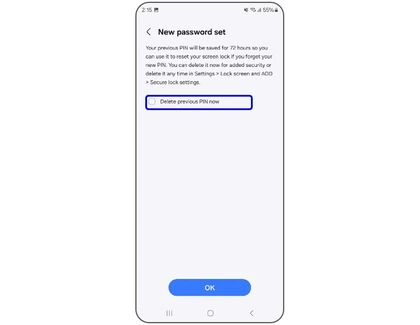
After five failed attempts, the lock screen shows a Forgot PIN, Forgot pattern or Forgot password link. That fifth miss also starts the first 1 minute wait, so switch to the link as soon as it appears instead of guessing again.
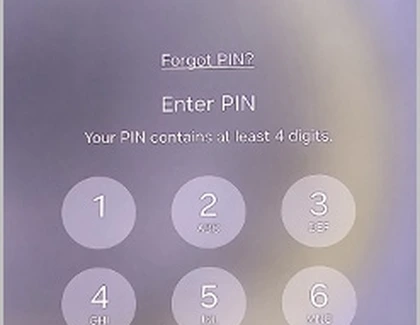
- Tap Forgot PIN? (or Forgot pattern? or Forgot password?) on the lock screen.
- On the Reset with previous screen lock screen, enter your old PIN, pattern or password.
- Set a new PIN, pattern or password and confirm it.
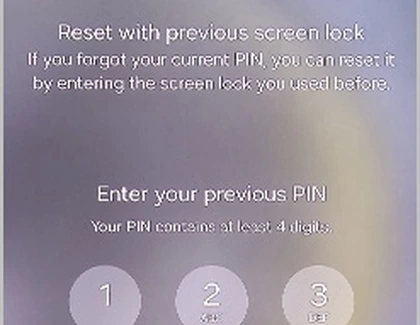
Go slowly on that old code. Samsung Gulf’s previous screen lock page says you get one use per lock type after each change, and three wrong entries of the previous code end further attempts. Samsung India’s support page lists the feature for One UI 6.1 through One UI 8.5, so on One UI 9 the link appearing on your lock screen is your best sign it’s available.
When a factory reset is the only way back
Samsung can’t view, retrieve or recover your local PIN, pattern or password, and its policy page says so directly. Once both codes are gone or you hit the permanent lock, you’re left with three ways to reset the phone.
- Recovery mode on the phone itself. If the key combination won’t bring the menu up, our Samsung recovery mode troubleshooting guide covers the button and USB fixes.
- Erase data from the SmartThings Find website. Sign in with your Samsung account, pick the phone, select Erase data, then Erase. Samsung US adds that an inserted SD card is wiped too.
- A Samsung service center. Samsung Gulf says staff can reset the phone after identifying you, though they can’t open it without deleting your data. Expect to show ID and possibly proof of your carrier subscription.
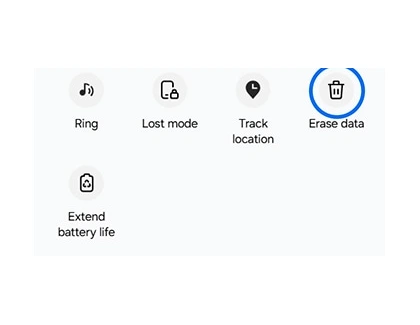
After the reset, the phone asks for the Samsung account and Google account that were signed in before. That’s Factory Reset Protection, and Samsung says you need those credentials to clear it, so confirm both passwords work today. If you saved a temporary backup before a repair, our guide to restoring a Samsung temporary cloud backup walks through getting it back.
Settings to check before you get locked out
Five minutes now saves a wiped phone later. Here’s what to set while you still have access.
- Open Settings > Security and privacy > Lost device protection. Turn on Allow this phone to be found, Send last location and Offline finding. Samsung US says these switch on by default once a Samsung account is added, so you’re mostly confirming.
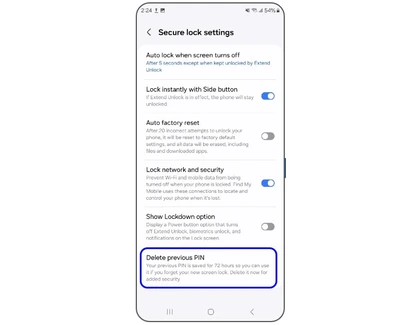
- Open Settings > Lock screen and AOD > Secure lock settings and enter your code. Decide whether you want Auto factory reset, which Samsung US says erases the phone after 20 incorrect attempts.
- In the same Secure lock settings list, leave Delete previous PIN alone if you want the 72 hour backup route to keep working after a lock change.
- Back up with Samsung Cloud or Smart Switch on a regular schedule, which is Samsung’s own advice for this policy.
For a phone a thief can’t simply switch off, see our walkthrough on how to require a PIN to power off your Galaxy. And if you’d like a heads-up when your model gets its next One UI build, the SamUpdater Android app sends alerts for the models you follow.
FAQ
Can I keep using my fingerprint if I forget my PIN?
For up to 72 hours. Android’s Strong Authentication asks for your backup PIN, pattern or password at least once every 72 hours, even if you normally use a fingerprint or face, according to Samsung. Use that window to back up your phone, because the next PIN prompt is coming and biometrics can’t answer it.
Can a Samsung service center remove my PIN and keep my data?
No. Samsung Gulf says a service center can’t open the phone without deleting user data, and staff will only perform a factory reset after identifying you. You may need to prove your identity and confirm your carrier subscription, so bring your ID and account details along.
Does Erase data work if the locked phone is offline?
Yes, once it reconnects. An offline phone gets erased the next time it goes online, per Samsung India, so the command waits in the queue. You’ll need your Samsung account login on the SmartThings Find website, and any SD card in the phone gets wiped along with internal storage.
Was this guide helpful?
Your answer helps us keep it accurate.
Comments (0)
Comments are moderated, and published only if they are relevant to the topic and add value in a constructive way. If you disagree with something, please be polite and respectful.