
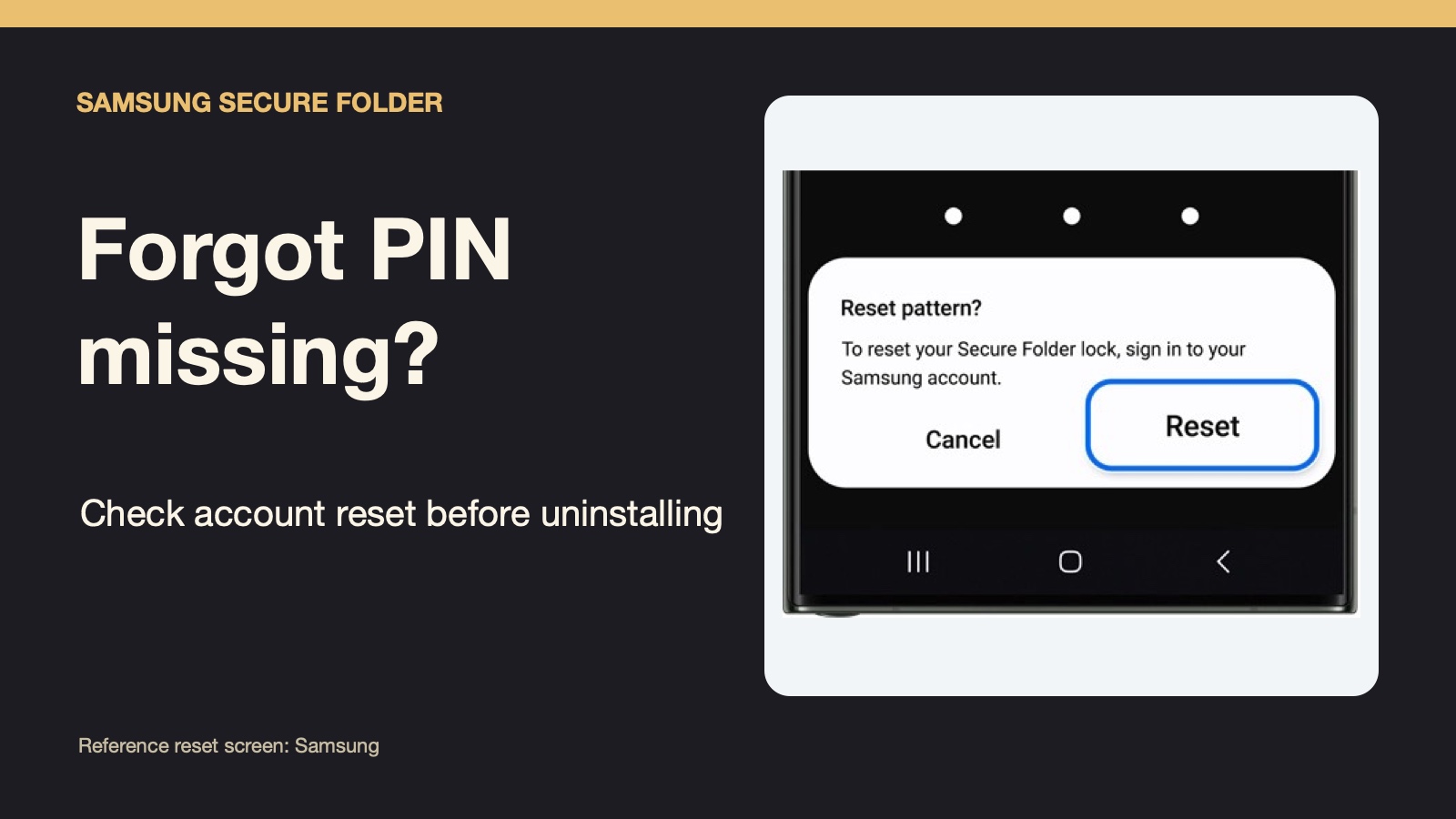
You can recover Samsung Secure Folder after you forgot its PIN only if Reset with Samsung account was turned on before the lockout: open Secure Folder, enter your best guess, tap Forgot and sign in to your Samsung account. If that option was off, Samsung says the Forgot prompt won’t appear and access can’t be recovered, so the remaining route is to remove the folder and set up a new one.
That one setting decides almost everything here. The sections below separate the two locks people mix up, cover the supported reset, and explain what removing the folder takes with it.
Is it the phone PIN or the Secure Folder PIN?
Secure Folder has its own lock, chosen when the folder is created. Samsung’s Secure Folder guide has you set a separate PIN, password or pattern during setup, and you can change it later under Lock type. It isn’t the same code you use on the lock screen.
This matters because the fixes are completely different. If your phone still unlocks and only the folder rejects your code, keep reading. If the phone itself is locked, that’s a separate lock screen problem, and the Secure Folder reset below won’t help with it.
Fingerprint unlock can make this confusing. Samsung lists it as an extra option under Lock type on supported devices, so a folder you usually open with a finger still has a PIN, password or pattern behind it.
Reset the folder PIN with your Samsung account
Samsung’s Secure Folder access troubleshooting page gives the supported reset. It works only when Reset with Samsung account was enabled while setting the lock.
- Open Secure Folder.
- Enter what you think the PIN, pattern or password is.
- When it’s rejected, tap Forgot on the prompt.
- Tap Reset on the pop-up and sign in to your Samsung account.
- Choose a new PIN, pattern, password or registered fingerprint.
- Follow the on-screen steps, then open Secure Folder with the new lock.
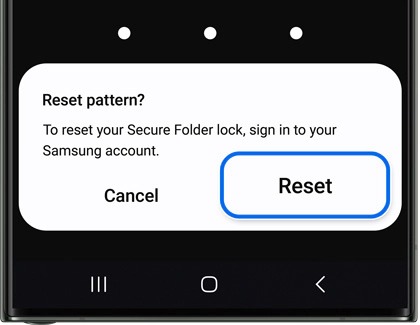
On UK models the button may read Forgot PIN. Samsung UK asks for your Samsung account password at that step, and says to contact Samsung Support if you’ve lost both the folder lock and the account password.
What does a missing Forgot prompt mean?
It means Reset with Samsung account was off when the lock was set. Samsung’s troubleshooting page says that without this option the Forgot prompt won’t appear and you won’t be able to recover access to that Secure Folder. Repeated guesses or a new account sign-in won’t bring the prompt back.
At this point, Samsung’s guidance moves from recovery to replacement. Its Secure Folder guide says you can remove the folder and set up a new one, which is the step that has consequences for your files.
What removing Secure Folder takes with it
Samsung says Secure Folder can be completely uninstalled if you want to remove all of its contents. Treat that as permanent. Apps, files and media inside a folder you can’t open go with it.
The uninstall route is Settings > Security and privacy > More security settings > Secure Folder > More settings > Uninstall, then Uninstall again to confirm. Samsung’s US guide shows a Move media files out of Secure Folder option before you confirm, but its file steps start by opening the folder with its passcode, so expect that option to help only while you still have access.
The Samsung UK page also lists a Clear data route for Secure Folder under Settings > Apps, with a clear warning that everything inside the folder is deleted. It’s the same outcome by a different path, so only use it if you’ve accepted that loss.
Can an older backup bring the files back?
Sometimes. Samsung says Secure Folder no longer supports new backups, but you can still restore data from a previous backup saved in your Samsung account. If you made one before the lockout, set up a fresh folder and restore it there.
- Set up a new Secure Folder from Settings > Security and privacy > More security settings > Secure Folder.
- Open the new folder, tap More options and choose Settings.
- Tap Restore from backup and add your Samsung account.
- Go back to Restore from backup, tap Restore, pick the data and tap Restore again.
A recent Samsung temporary cloud backup is a separate feature with its own 30-day window. Our guide to restoring a Samsung temporary cloud backup explains how to find and restore that one.
Turn on account reset while you still remember the PIN
If you’ve regained access, or you’re setting up a new folder, switch on the recovery option now. Our Secure Folder setup guide covers the full first-time setup, including the reset prompt.
- Open Settings > Security and privacy > More security settings > Secure Folder.
- Enter your current Secure Folder lock if asked.
- Tap Lock type.
- Turn on Reset with Samsung account.
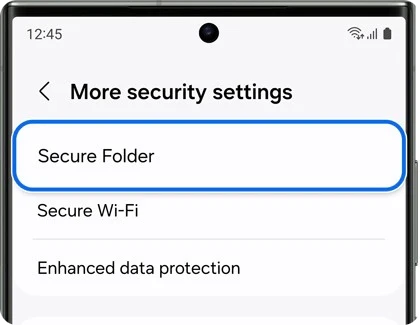
While you’re there, check Auto lock Secure Folder. Samsung says that starting with Android 16 and One UI 8, the Each time I leave an app option was removed, the default became When screen turns off, and a Lock and exit option was added.
FAQ
Can you enable account reset after you’re already locked out?
No. Samsung’s troubleshooting page says that if Reset with Samsung account wasn’t enabled, the Forgot prompt won’t appear and access can’t be recovered. The switch lives under Lock type in Secure Folder settings, so it has to be turned on during setup or later, while you still know the PIN, pattern or password.
Can you restore an older Secure Folder backup to a new folder?
Yes, if the backup already exists in your Samsung account. Samsung stopped new Secure Folder backups but still restores previous ones. Create the new folder, open More options > Settings > Restore from backup, sign in to the same Samsung account, choose the data and tap Restore. Files added after that backup won’t be included.
Does a missing Secure Folder icon mean the folder was erased?
No. Samsung says a grayed-out Secure Folder tile in Quick settings means the folder is hidden from the Apps screen and Edge panel. Turn on Add Secure Folder to Apps screen in its settings to bring the icon back. Hiding regular apps works differently, as our hide apps guide shows.
Was this guide helpful?
Your answer helps us keep it accurate.
Comments (0)
Comments are moderated, and published only if they are relevant to the topic and add value in a constructive way. If you disagree with something, please be polite and respectful.