
One UI Home is the Samsung launcher, the app that draws your Home screen, app icons and widgets on a Galaxy phone or tablet. You can’t uninstall it, but you can clear its cache under Settings > Apps, or switch to another launcher from Choose default apps.
I’ll start with what the app actually does, then cover the battery question, the cache steps and what changes if you pick a different launcher. Everything here comes from Samsung US’s One UI Home page and Samsung’s own app management guides.
What is One UI Home?
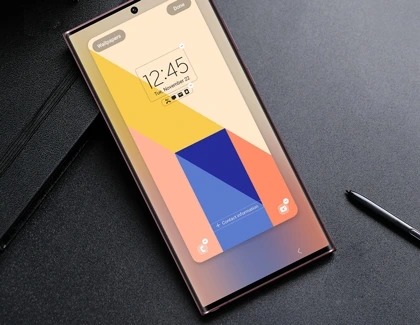
One UI Home is Samsung’s own Home screen app. Samsung says it comes preinstalled on Galaxy phones and tablets and supplies the navigation tools for launching apps and widgets right from the Home screen. So every time you swipe up for the app drawer or drag a widget around, that’s One UI Home doing the work.
It isn’t a separate download you added by mistake. It shows up under that name in your app list and in battery stats.
Can you disable or remove One UI Home?
No. Samsung US states plainly that One UI Home cannot be removed from your Galaxy phone or tablet. It’s the default launcher, and without one the phone would have no Home screen to show. What you can do is clear its cache, or set another launcher as the default so One UI Home stays installed but stops being the screen you land on.
Why does One UI Home show in battery usage?
Samsung’s answer is short: if you noticed One UI Home in your battery usage menu, there’s no need to be alarmed. The launcher runs whenever your Home screen is on display, so it naturally builds up some screen time. Seeing it in the list on its own doesn’t mean anything is broken.
If you want to see what else is running in the background, our guide to checking Samsung background processes and memory walks through the numbers Samsung exposes.
Clear the One UI Home cache
If the Home screen lags, icons look wrong or widgets stop refreshing, clearing the cache is the first thing to try. Samsung India’s cache guide and Samsung US’s app management page give the same path.
- Open Settings.
- Tap Apps.
- Find and tap One UI Home.
- Tap Storage.
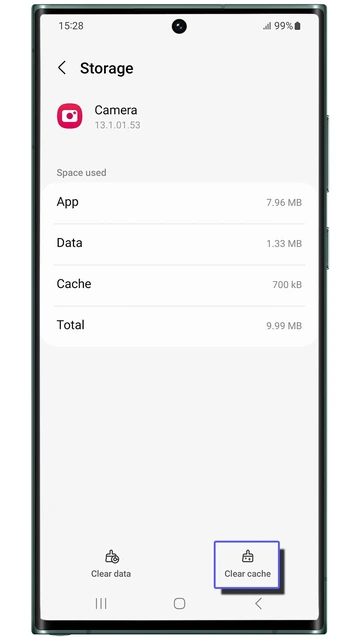
- Tap Clear cache.
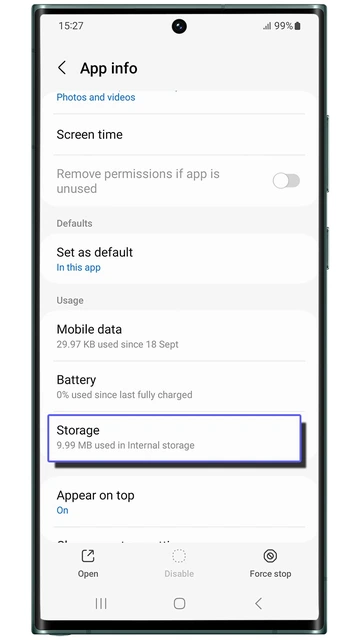
Tap Clear cache, not Clear data. Samsung India says Clear data deletes the app’s files, settings, accounts and databases permanently, and Samsung US says it resets the app to its original settings. For a launcher, that can mean losing the Home screen setup you built.
Use a different launcher instead
You can install another launcher and set it as the default. One UI Home stays on the phone, it just isn’t the Home screen anymore. Samsung Australia’s default apps guide lists the path.
- Open Settings.
- Tap Apps.
- Tap Choose default apps.
- Select the app category you want to change, here the Home screen one.
- Choose your preferred launcher.
Want One UI Home back? Repeat the steps and pick it again. Your Samsung layout should still be there as long as you didn’t clear its data.
What One UI Home controls
Most Home screen options live in the launcher’s own settings, not the main Settings app. Samsung US says to touch and hold an empty spot on the Home screen, then tap Settings.
| Setting | What it does |
|---|---|
| Swipe down for notification panel | Opens notifications when you swipe down anywhere on the Home screen |
| App icon badges | Shows a Number or a Dot on icons with unread notifications |
| Widgets | Adds and arranges widgets on the Home screen |
| Home and Lock screen edits | Changes wallpaper and layout from the edit mode |
Our guide to stopping new apps from filling your Samsung Home screen covers the launcher switch for new icons, and our walkthrough on making app folders on the Samsung Home screen helps tidy what’s already there, including the bigger Enlarge view Samsung added in One UI 7.
FAQ
Is One UI Home a virus?
No. Samsung says it comes preinstalled on Galaxy phones and tablets as the Home screen app.
Will clearing the One UI Home cache delete my layout?
Clearing the cache shouldn’t. Clearing data is the one that resets the app to its original settings, so skip that button.
Can I hide the notification dots on my icons?
Yes. Touch and hold the Home screen, tap Settings, then App icon badges, and turn the switch off or change it between Number and Dot.
Still seeing a problem with your Home screen?
Tell us your Galaxy model, One UI version and what the Home screen is doing. Leave out your IMEI and account details.
Was this guide helpful?
Your answer helps us keep it accurate.
Comments (0)
Comments are moderated, and published only if they are relevant to the topic and add value in a constructive way. If you disagree with something, please be polite and respectful.